
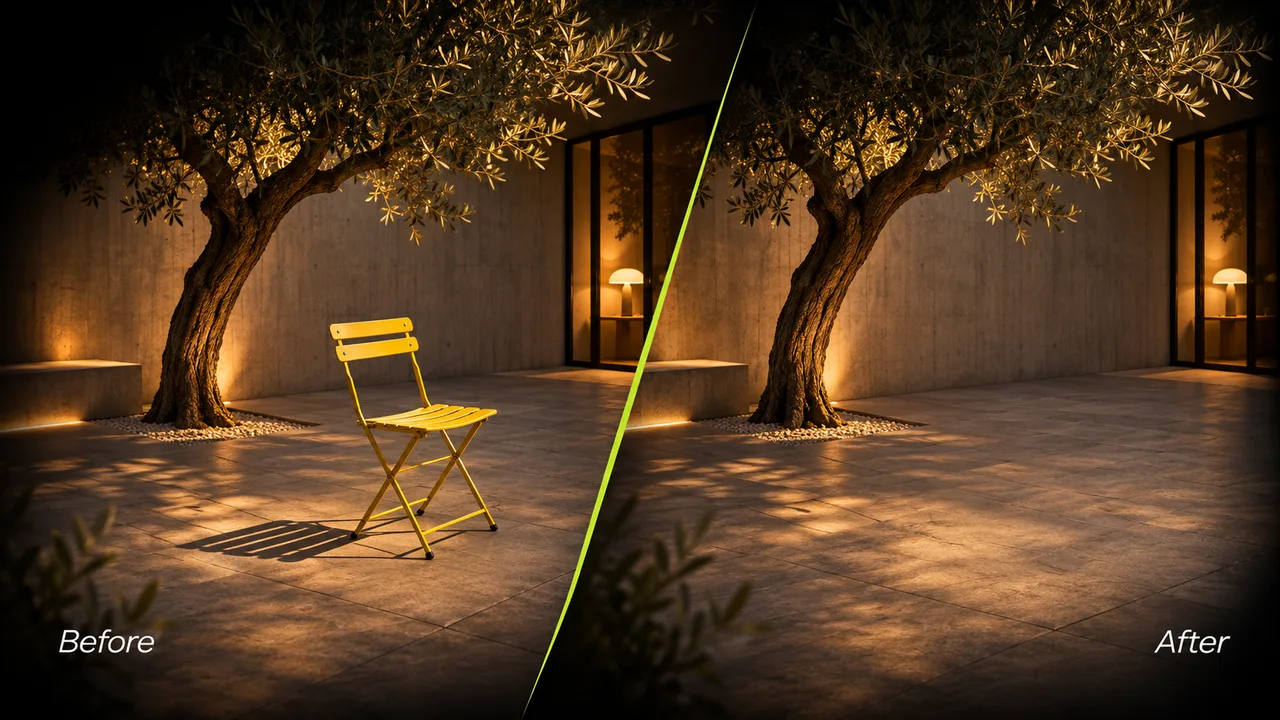
AI Object Eraser
AI Object Eraser
Brush over the person or object you want to remove. Zoom in on the repaired area and check patterns and straight lines.
- Clear the street scene
- Keep the product in focus
- Tidy up a storefront photo

See what changes
Drag the divider in each example to compare the original and the result.


What you can do
Illustrative comparisons
Clear the street scene
Remove the cyclist and bicycle so the cobblestones and shopfronts draw the eye. Use it to clean up a travel photo.
Remove objects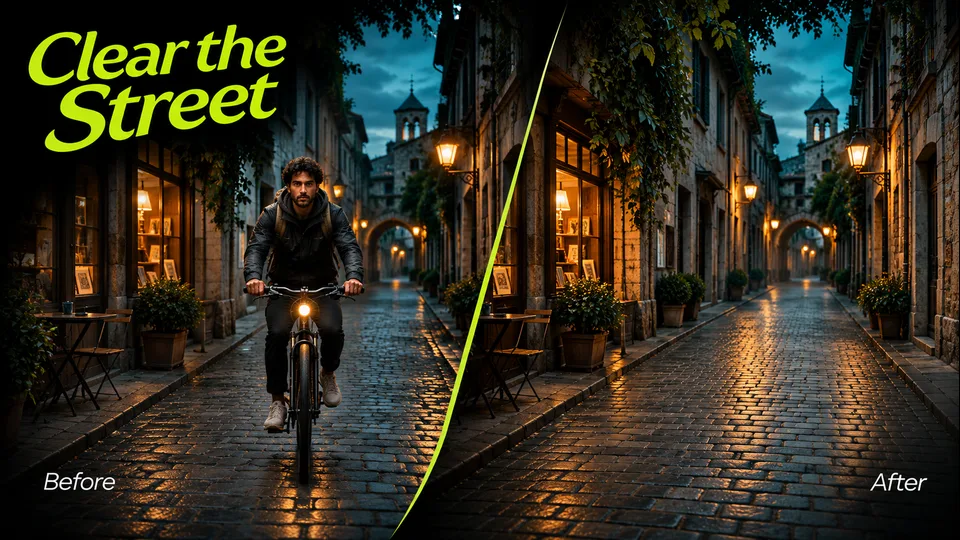
Keep the product in focus
Erase the takeaway cup beside the perfume bottle to simplify the product shot. Try it when preparing a catalog image.
Remove objects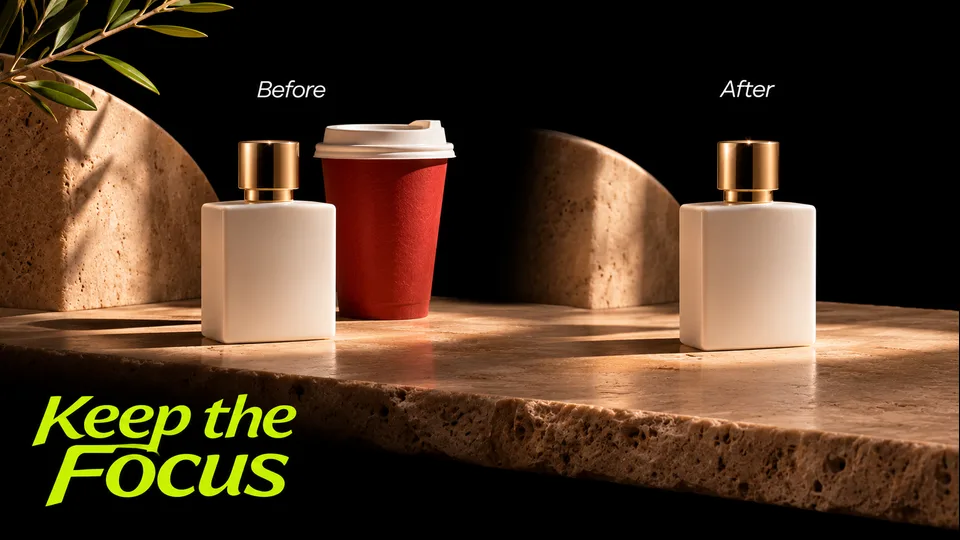
Tidy up a storefront photo
Remove the orange cone and leave a clear view of the pavement in front of the blue bookshop. Use the cleaner shot in a storefront promotion.
Remove objects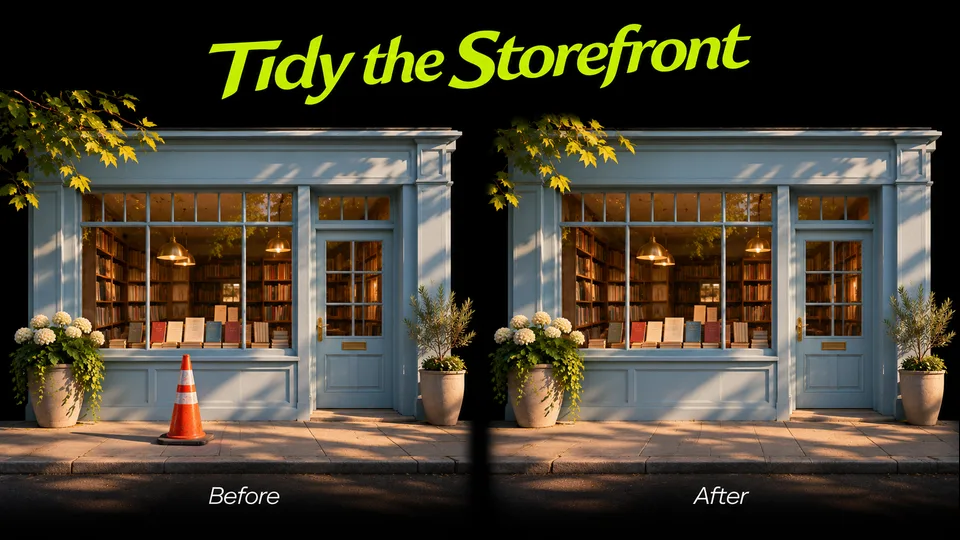
Keep the family in focus
Remove the blue cooler from the beach snapshot so the family and shoreline remain the focus.
Remove objects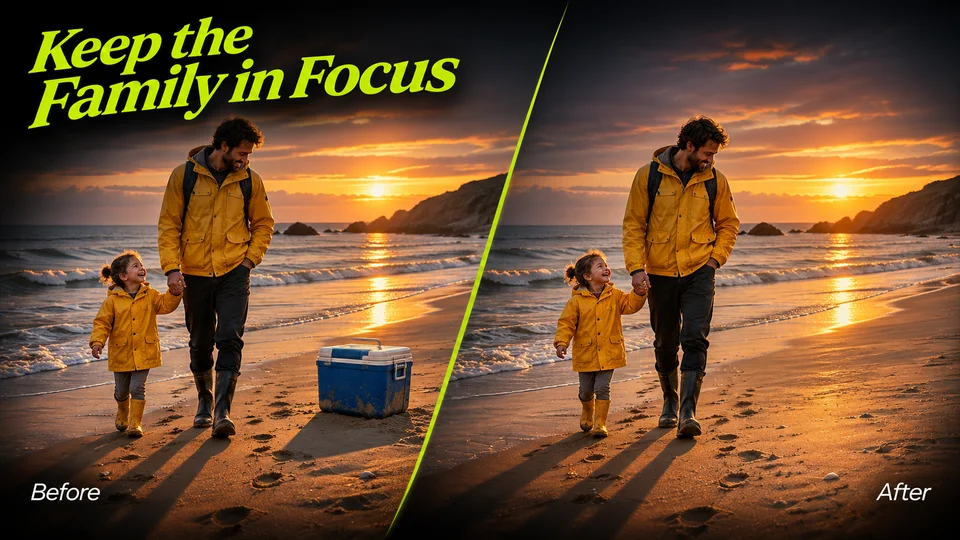
How to use this tool
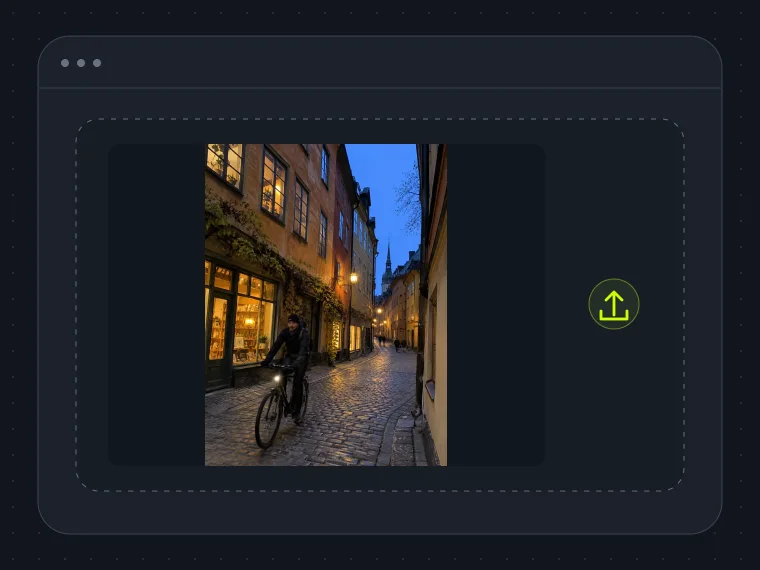
Start with an image
Choose a clear source image. Use a sample in the editor if one is available.
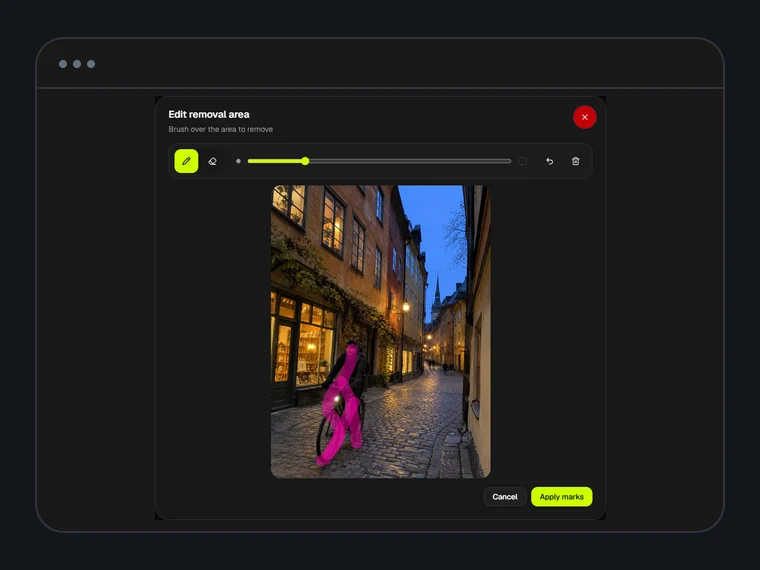
Review the settings
Brush over the object you want to remove, then apply the mask.
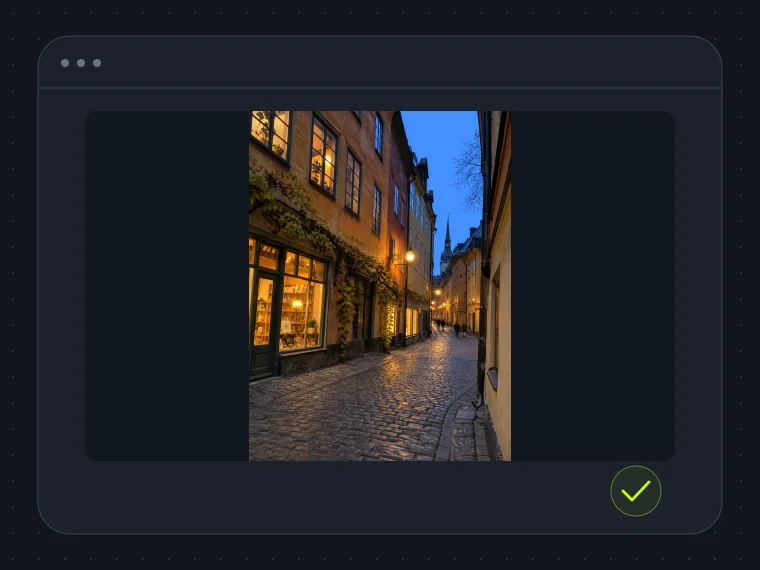
Generate and inspect
Review the result, refine your input if needed, then download your image.
Manual retouching vs. HHGen
Manual retouching
- Select the object
- Clone or patch the background
- Refine edges and shadows by hand
- Keep the selection on a separate layer
 HHGen Object Eraser
- Brush over the person or object to remove
- Let the model fill from the surrounding scene
- Zoom in to inspect seams and textures
- Refine the marked area and try again
Privacy for uploads and generated images
See whether your images appear publicly and how to manage or delete them.
No automatic gallery listing
Uploads and generated images don’t automatically appear in the public gallery. Keep image URLs and share links private, as someone with a working link may be able to view the image.
Delete your uploads at any time
Uploads are stored in your assets. Sign in and open Assets → My uploads to delete them at any time.
Manage your generated images
Sign in to delete results from your assets. You can restore them from Recently Deleted while the files remain available.
FAQ
FAQ
Related AI tools
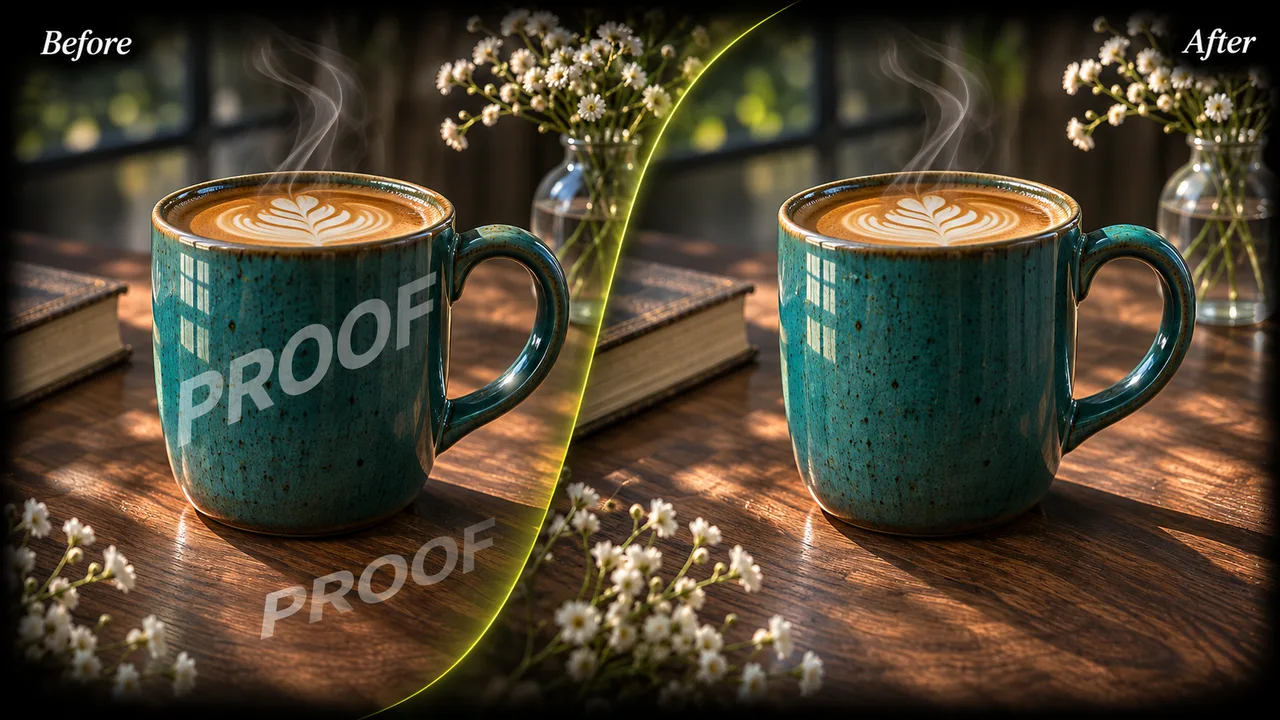
Watermark Remover
Use AI to remove watermarks, logos or other unwanted elements from an image. Only edit images you have permission to modify.
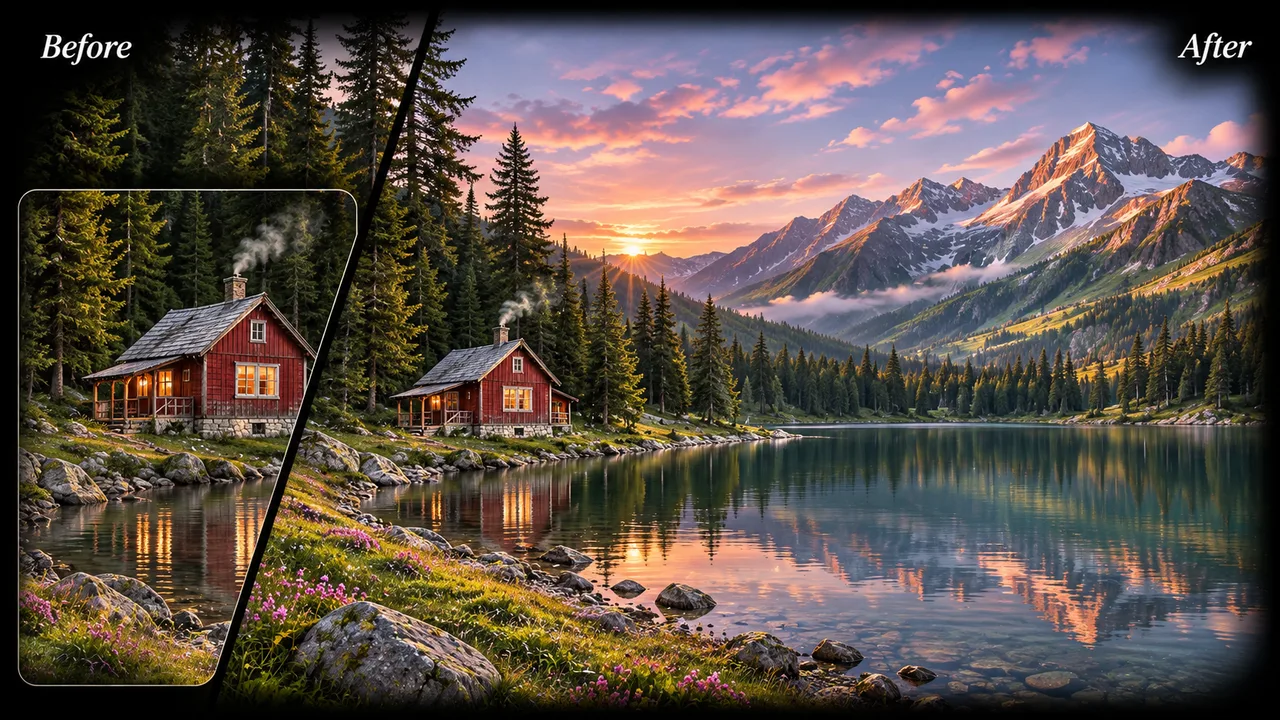
AI Outpainting
Extend the edges of an image with AI-generated content designed to blend with the original.
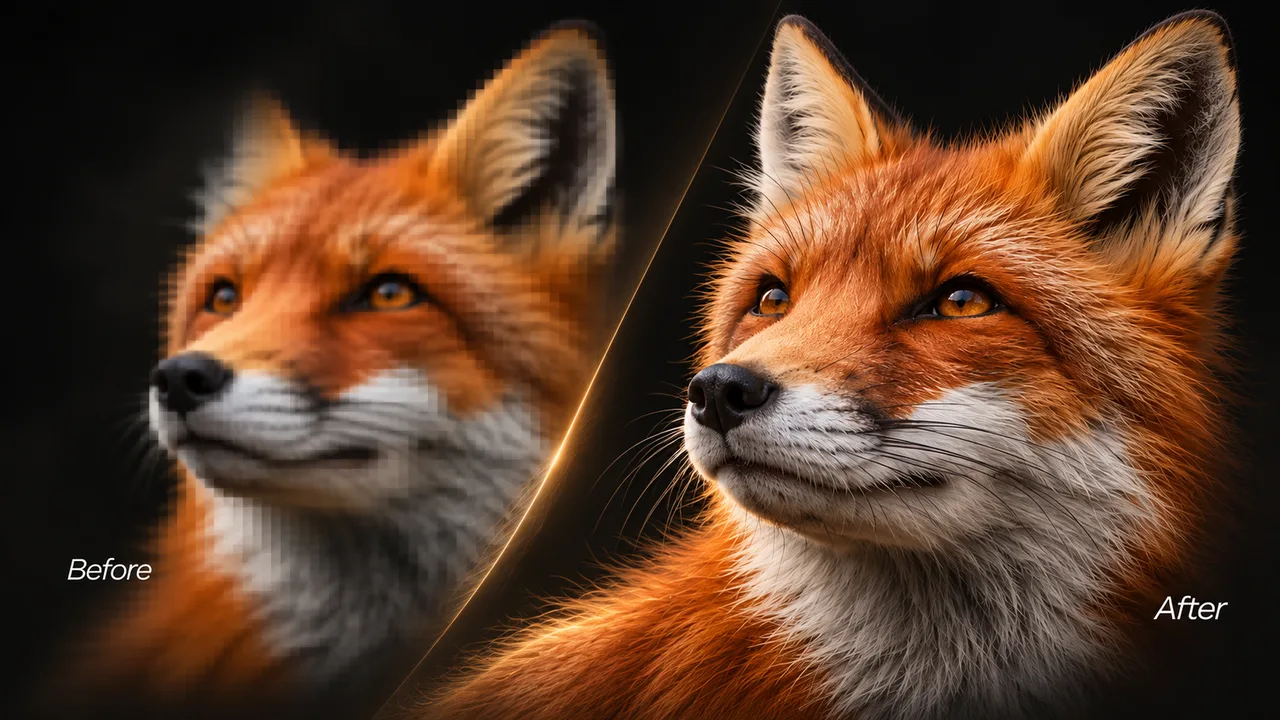
AI Image Upscaler
Use a supported model and its available output resolution to create a clearer-looking version of your image. Results depend on the model and selected options.
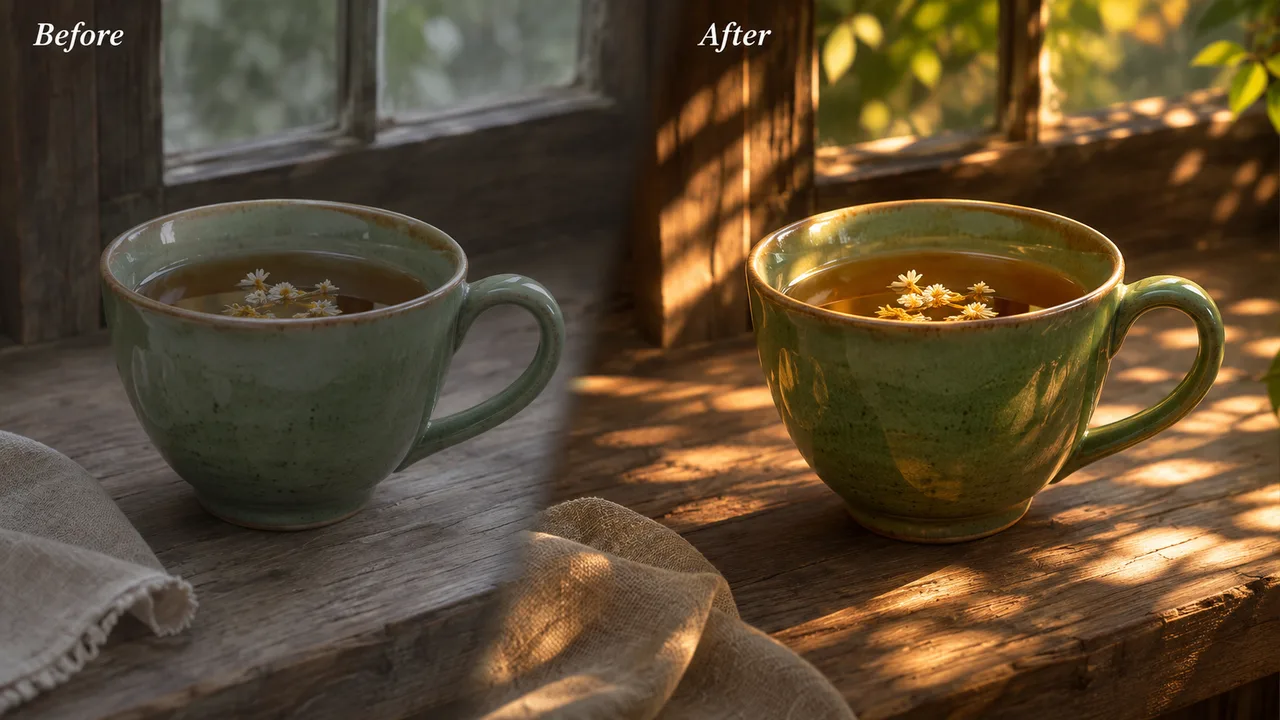
AI Photo Editor
Upload a photo and describe what to edit and what to keep. Download the result at its generated resolution.
AI Object Eraser
Brush over the person or object you want to remove. Zoom in on the repaired area and check patterns and straight lines.