
Multimodal creation
Combine as many as 20 reference assets, including information parsed from documents and webpages.
Start creatingAutomatic aspect ratio
The model or reference image determines the frame.
Your video will appear here
480pCreate with Wan 3.0 Video Prime on HHGen for motion drafts, camera comparisons and storyboard tests. Describe the shot and add references in a mode that supports them.
Combine as many as 20 reference assets, including information parsed from documents and webpages.
Start creatingGive a scene more time to develop and tell a fuller story.
Start creatingKeep subjects and visual details coherent throughout a shot for production workflows.
Start creatingExplore realistic textures, scene atmosphere and accompanying sound.
Start creatingUse instructions to guide changes to a reference video with greater control.
Start creatingPrime is positioned as the faster-generation version for testing ideas and storyboards. Start new scenes with text, or use an image to explore motion in an existing composition. Describe the subject action, stable landmarks and one camera direction. Review continuity in water, smoke, people and backgrounds; actual waiting time also depends on the queue.


Current site configuration is shown here. Check the generator for input combinations and the final credit quote.
Illustrated workflow
Prime is positioned as the faster-generation version for testing ideas and storyboards. Start new scenes with text, or use an image to explore motion in an existing composition. Describe the subject action, stable landmarks and one camera direction. Review continuity in water, smoke, people and backgrounds; actual waiting time also depends on the queue.
Try this model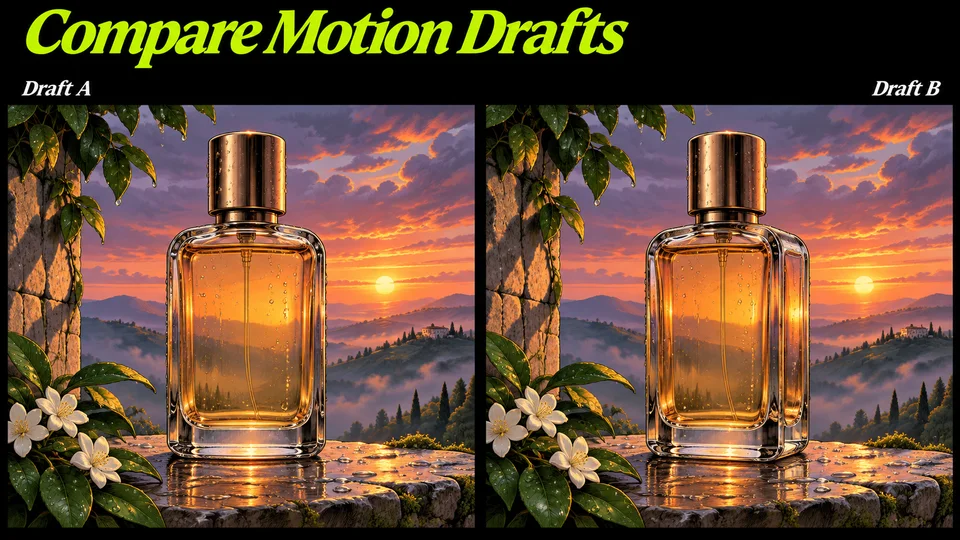
| Model | Typical task | Input modes | Resolution | Duration |
|---|---|---|---|---|
Current modelWan 3.0 Video Prime | Compare motion drafts | Text-to-Video / Image-to-Video / Reference-to-Video / Video-to-Video | 480p / 720p / 1080p | 2 sec / 3 sec / 4 sec / 5 sec / 6 sec / 7 sec / 8 sec / 9 sec / 10 sec / 11 sec / 12 sec / 13 sec / 14 sec / 15 sec / 16 sec / 17 sec / 18 sec / 19 sec / 20 sec / 21 sec / 22 sec / 23 sec / 24 sec / 25 sec / 26 sec / 27 sec / 28 sec / 29 sec / 30 sec / -1 sec |
| Show the flow of water | Text-to-Video / Image-to-Video / Reference-to-Video / Video-to-Video | 480p / 720p / 1080p | 2 sec / 3 sec / 4 sec / 5 sec / 6 sec / 7 sec / 8 sec / 9 sec / 10 sec / 11 sec / 12 sec / 13 sec / 14 sec / 15 sec / 16 sec / 17 sec / 18 sec / 19 sec / 20 sec / 21 sec / 22 sec / 23 sec / 24 sec / 25 sec / 26 sec / 27 sec / 28 sec / 29 sec / 30 sec / -1 sec |
Open this page’s generator and check that Wan 3.0 Video Prime is selected.
Choose a supported input mode. If it uses a reference, add a clear source and decide what to keep.
Write the result you want, review the settings and credit estimate, then generate.
Wan 3.0 Video Prime Online Video Generator FAQ


