Build a short story beat
Bring your brief and references into one workspace. Check the quote before generating, review the result, and decide which shot to develop next.
Try this model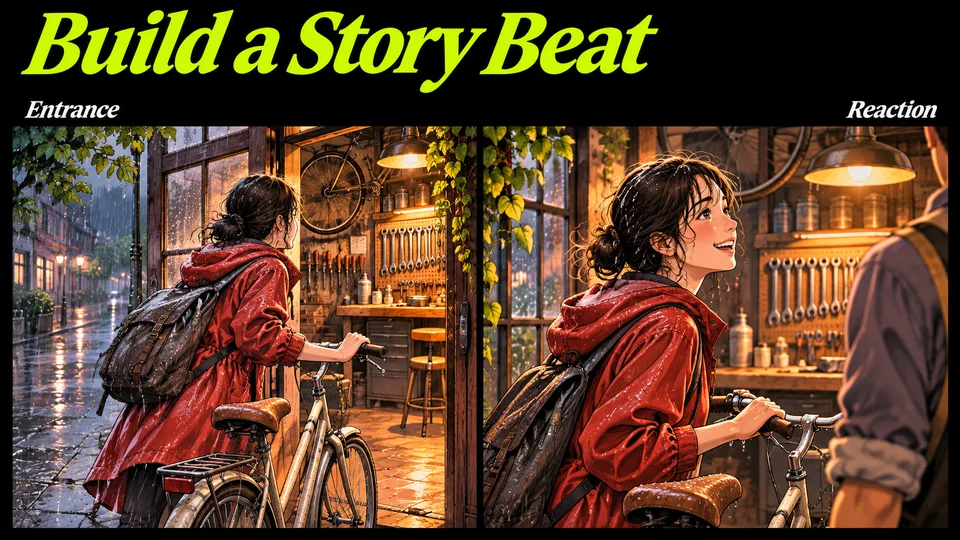
Automatic aspect ratio
The model or reference image determines the frame.
Your video will appear here
480pCreate with Seedance 2.5 on HHGen for storyboards, character action and branded clips. Describe the shot and add references in a mode that supports them.
Illustrated workflow
Bring your brief and references into one workspace. Check the quote before generating, review the result, and decide which shot to develop next.
Try this model| Model | Typical task | Input modes | Resolution | Duration |
|---|---|---|---|---|
 Current modelSeedance 2.5 | Build a short story beat | Text-to-Video / Image-to-Video / Reference-to-Video / Video-to-Video | 480p / 720p / 1080p | 4 sec / 5 sec / 6 sec / 8 sec / 10 sec / 12 sec / 15 sec / 20 sec / 25 sec / 30 sec |
| Plan action and sound together | Text-to-Video / Image-to-Video / Video-to-Video | 480p / 720p | 4–15 sec | |
| Explore shot framing | Text-to-Video / Image-to-Video / Video-to-Video | 480p / 720p | 4–15 sec |
Open this page’s generator and check that Seedance 2.5 is selected.
Choose a supported input mode. If it uses a reference, add a clear source and decide what to keep.
Write the result you want, review the settings and credit estimate, then generate.
Seedance 2.5 is ByteDance’s next-generation audio-video model. Plan a longer story beat and use references to describe characters, settings, movement and sound.
Clip length
Seedance 2.0: 15s
Seedance 2.5: 30s
Reference images
Seedance 2.0: 9
Seedance 2.5: 30
Reference videos
Seedance 2.0: 3
Seedance 2.5: 10
Reference audio clips
Seedance 2.0: 3
Seedance 2.5: 10
Seedance 2.0
Seedance 2.5
These are official model limits, not HHGen upload allowances. Available modes, combinations and video/audio counts follow the generator above. Twice the maximum duration does not mean twice the generation speed. A single generation may still need editing.
 HHGen
Explore Seedance 2.5 through longer storytelling, multimodal references, targeted editing and joint audio-video generation.
Give an entrance, an action and a closing beat space within a clip of up to 30 seconds. Describe a continuous tracking shot when it serves the story, then review character, lighting and motion continuity throughout the result.
Create a scene ↗A single generation can use up to 30 images, 10 video clips and 10 audio clips. Keep character appearance, settings or music consistent throughout the video—this example used 17 reference inputs to create one continuous shot.
Create a scene ↗The official model supports directing changes to picture or sound around a specified time range, such as clothing, setting or performance details. HHGen currently has no dedicated timestamp-editing panel; this example does not turn a fresh generation into a local edit.
Plan dialogue, footsteps, ambience or music with the scene, using the audio settings available in the generator. Identify speakers and sound timing, then listen through the clip for lip sync, levels and action timing before downloading.
Create a scene ↗Seedance 2.5 Online Video Generator FAQ


