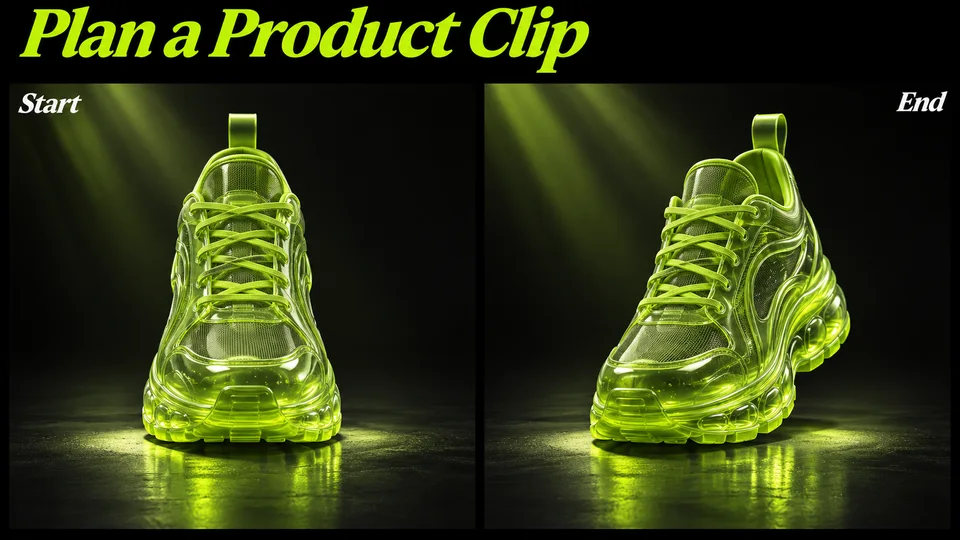
Plan a short product clip
Use Kling 4.0 Flash for short product shots, subject movement and camera tests. Choose a 3–20 second clip at 720p.
Try this model
16:9
Your video will appear here
720pCreate with Kling 4.0 Flash on HHGen for product clips, action drafts and camera tests. Describe the shot and add references in a mode that supports them.
Use Kling 4.0 Flash for short product shots, subject movement and camera tests. Choose a 3–20 second clip at 720p.

Illustrated workflow
Use Kling 4.0 Flash for short product shots, subject movement and camera tests. Choose a 3–20 second clip at 720p.
Try this model
| Model | Typical task | Input modes | Resolution | Duration |
|---|---|---|---|---|
Current modelKling 4.0 Flash | Plan a short product clip | Text-to-Video / Image-to-Video / Reference-to-Video / Video-to-Video | 720p | 3–20 sec |
| Stage continuous action | Text-to-Video / Image-to-Video / Reference-to-Video | 720p / 1080p | 3–30 sec |
Open this page’s generator and check that Kling 4.0 Flash is selected.
Text-to-Video / Image-to-Video / Reference-to-Video / Video-to-VideoChoose a supported input mode. If it uses a reference, add a clear source and decide what to keep.
Plan a short product clip
Write the result you want, review the settings and credit estimate, then generate.
Kling 4.0 Flash Online Video Generator FAQ
Use an opening frame when the first composition is already approved. Choose references when you want the model to use the product or character as a guide while composing a different shot.
When video editing is available, describe the new detail and explicitly keep the action, timing and camera. Watch the whole result to catch changes that only appear near the end.
Trim to the passage you want to change before uploading. This keeps unrelated shots out of the generation. Review the edited passage next to the untouched parts when you assemble them.
When your mode accepts video, choose a clip with one clear action. Explain that it guides timing and movement, and describe the subject and setting you want in the result separately.
Match the angle, lighting and scale closely enough for the change to make sense. Describe the single action or camera move connecting them. A large jump is often easier to handle as two shots.
Start with a clear frame and keep the lettering roughly front-facing. Use a restrained camera move and check the middle of the shot too. For exact branding, add the lettering in post.
Start from a clear product image. Ask for a locked camera and a single highlight moving across a specific surface. Check the label and silhouette throughout the shot.
A brief with several actions or camera directions can pull the shot apart. Give it one action with a clear endpoint. Generate separate shots when you need a cut to another viewpoint.
Choose the vertical framing in the generator if it is available in your mode. Keep the subject’s important movement near the center and leave a margin for captions or interface overlays.
For a continuous scene with a clear ending, try Kling 4.0. For testing a camera move or first-frame treatment, try Flash with the same opening image. Compare the modes and the credit estimate in HHGen for your actual shot.
Keep one prompt and the same opening material for your first pass. Choose a duration and framing offered by the generator. Before making each new version, check the credit estimate beside Generate.