
AI Image Upscaler
AI Image Upscaler
Choose detail preservation, noise reduction or face clarity, then select an available output resolution.
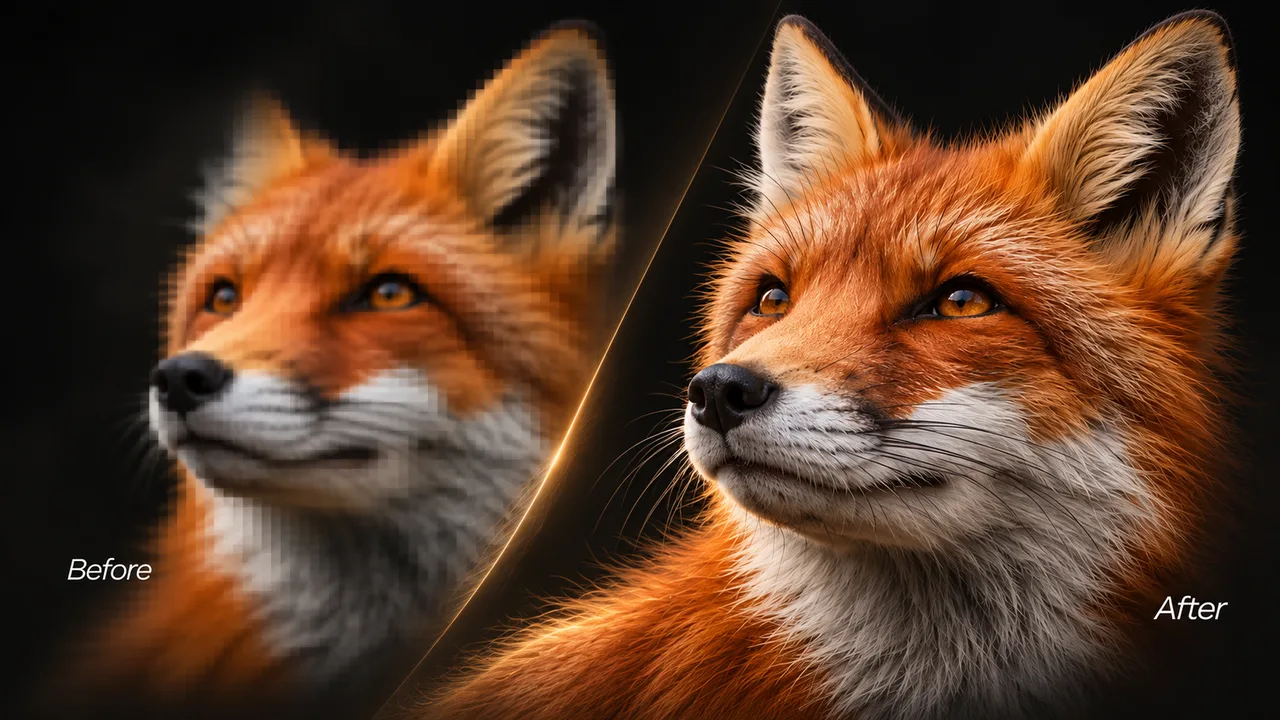
- Bring out fine fur detail
- Make carved details easier to read
- Show the texture of a textile

Compare fine detail before and after enhancement
Drag the sliders to inspect the fox’s fur, the carved stone and the embroidered stitches.


What you can do
Illustrative comparisons
Bring out fine fur detail
Upscale the pixelated fox portrait to make the fur around its eyes and muzzle easier to see. Use it when preparing a wildlife close-up for a layout.
Generate image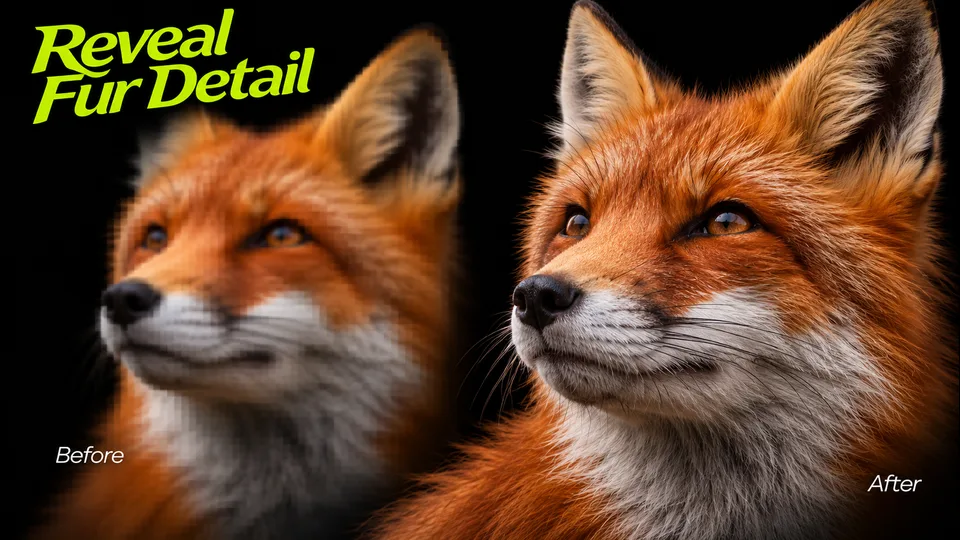
Make carved details easier to read
Enhance the low-resolution stonework photo to bring out the column’s grooves and floral carving. Use the clearer photo as an architectural reference.
Generate image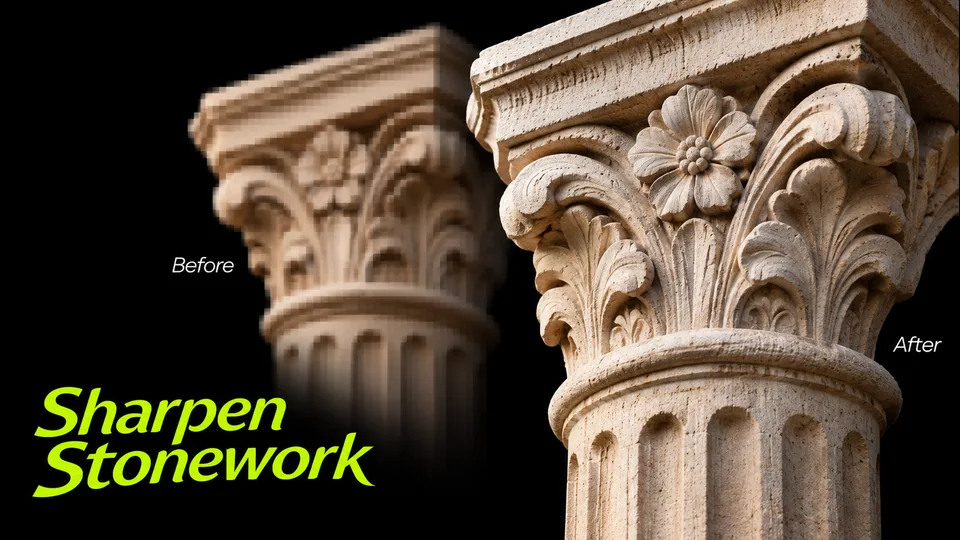
Show the texture of a textile
Upscale the embroidery close-up to make the individual stitches and woven backing clearer. Try it when preparing a detail photo for a textile listing.
Generate image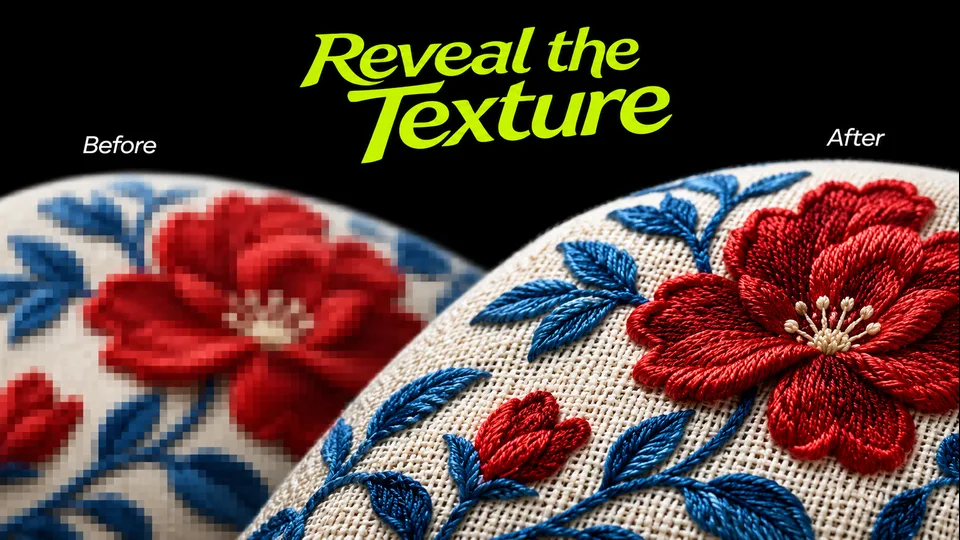
Sharpen the lines of an illustration
Upscale a pixelated citrus illustration so the leaf veins and lines between the orange segments are easier to see.
Generate image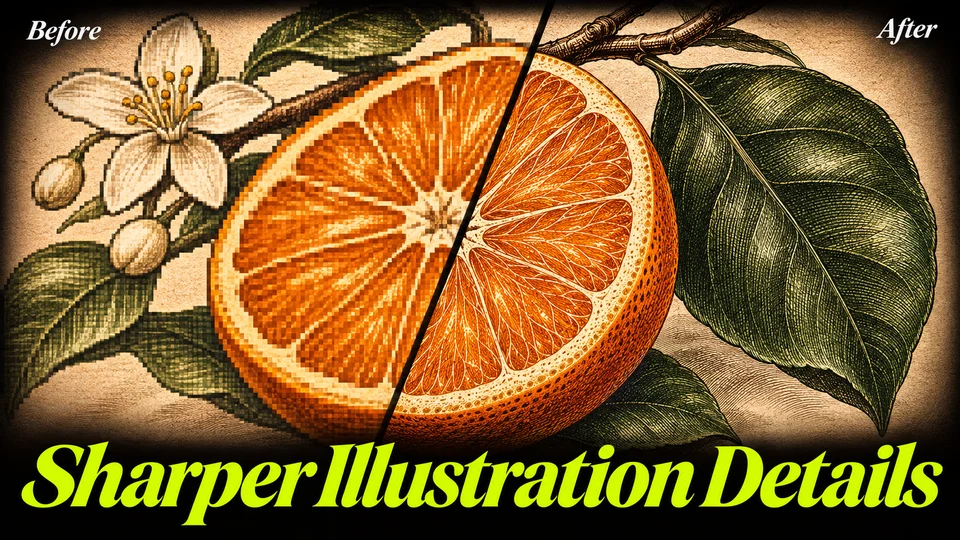
Enhance image details in three steps
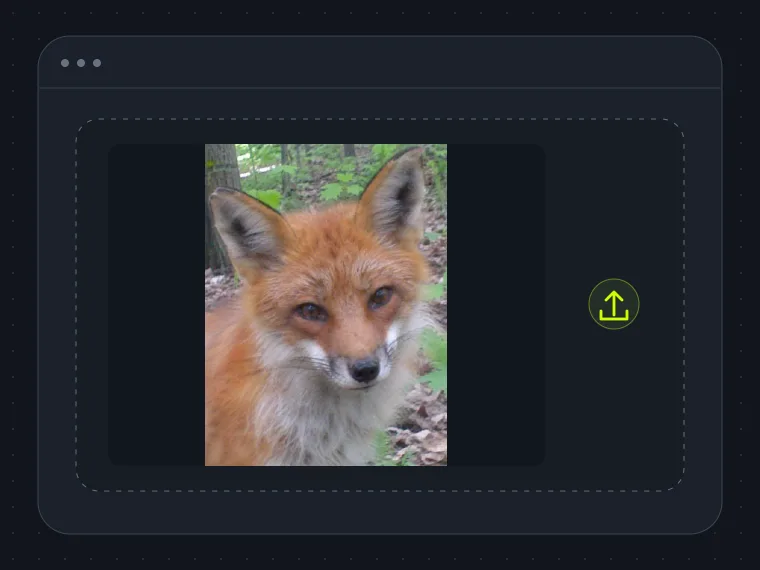
Upload the image to improve
Start with the original you want to make clearer.
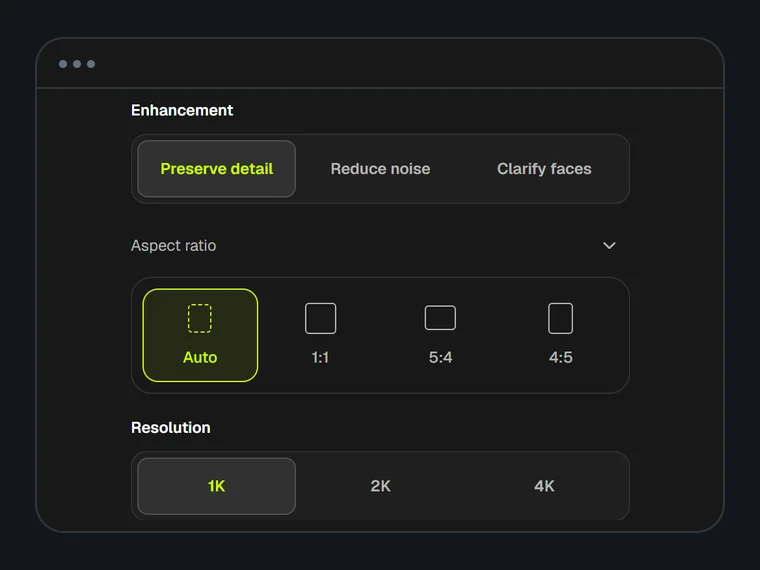
Review the settings
Choose an enhancement mode and an output resolution of 1K, 2K, or 4K.
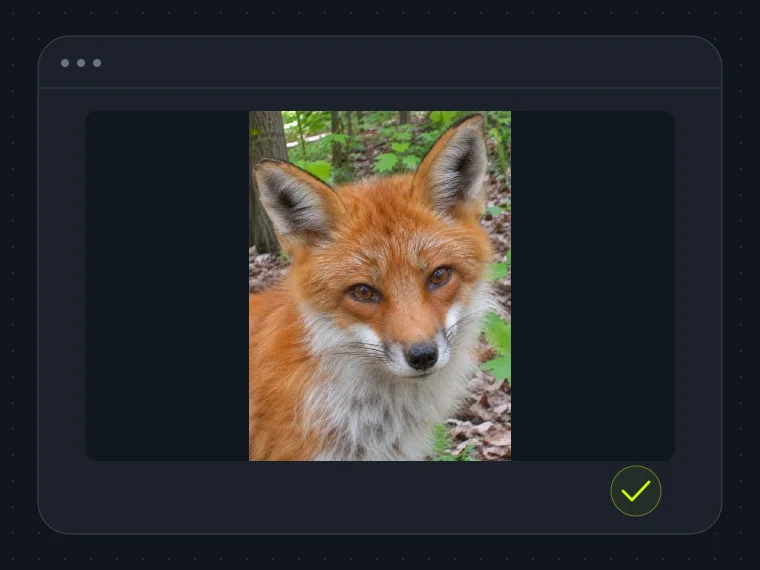
Inspect the result at full size
Compare faces, small lettering and edges with the original before downloading.
Standard interpolation vs. HHGen
Standard interpolation
- Resample pixels to the target size
- Work with the edges and blur already present
- Use it when the main requirement is a different pixel size
- Repeat the resize with a chosen interpolation algorithm
 HHGen Image Upscaler
- Choose an available output resolution
- Let the model try to enhance edges and details
- Compare faces, lettering and textures with the original
- Test one enlarged image for your print or display use
Privacy for uploads and generated images
See whether your images appear publicly and how to manage or delete them.
No automatic gallery listing
Uploads and generated images don’t automatically appear in the public gallery. Keep image URLs and share links private, as someone with a working link may be able to view the image.
Delete your uploads at any time
Uploads are stored in your assets. Sign in and open Assets → My uploads to delete them at any time.
Manage your generated images
Sign in to delete results from your assets. You can restore them from Recently Deleted while the files remain available.
FAQ
Frequently asked questions
Related AI tools
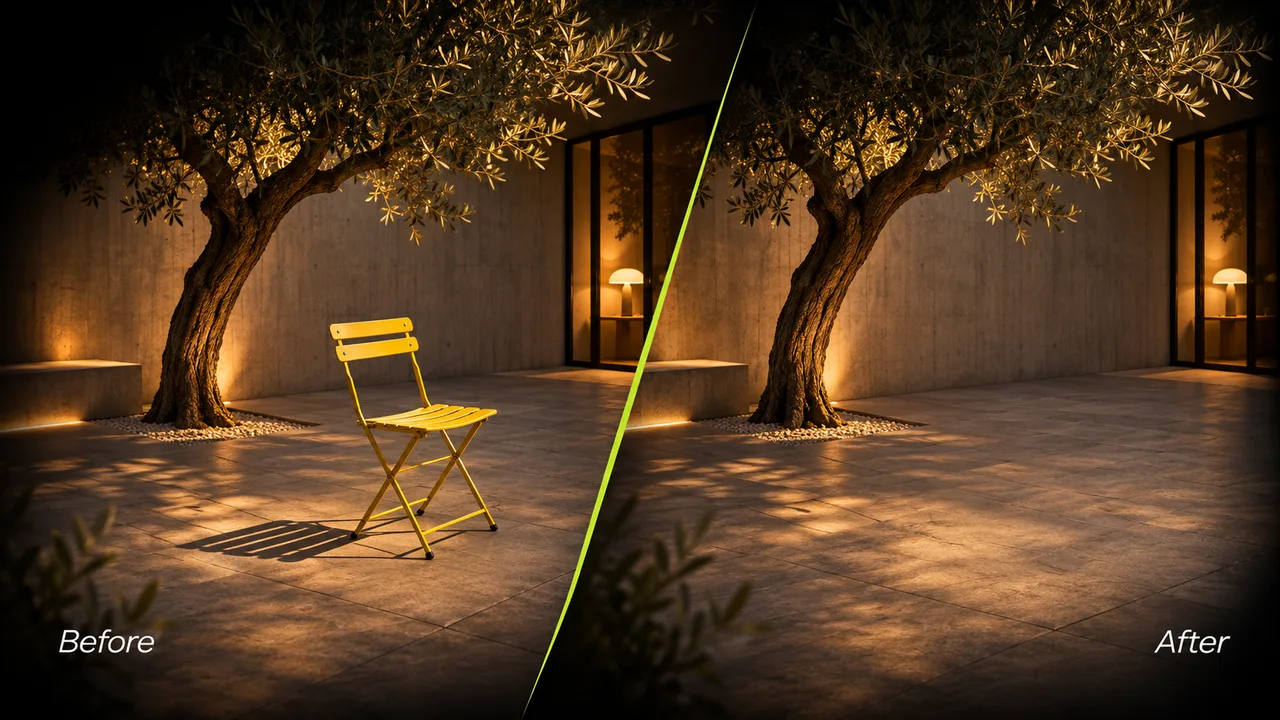
Object Eraser
Remove unwanted objects, people, text or imperfections from a photo. The model fills the selected area based on its surroundings, so results can vary.
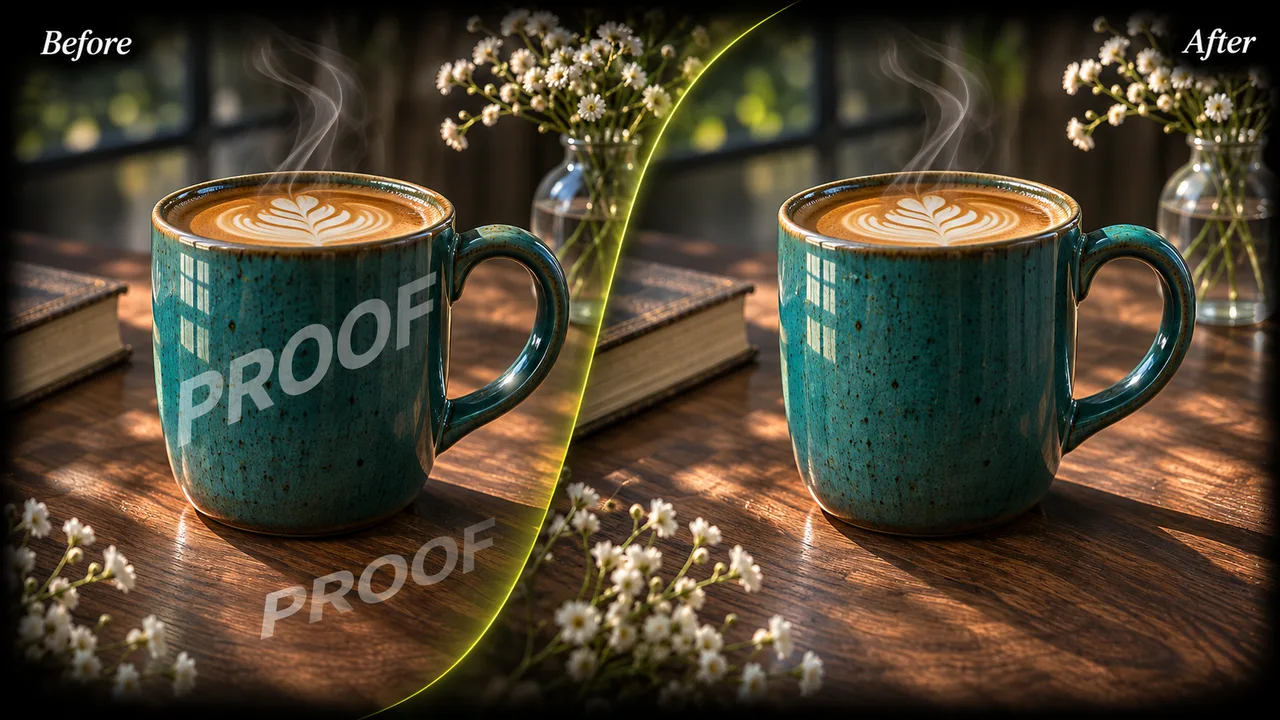
Watermark Remover
Use AI to remove watermarks, logos or other unwanted elements from an image. Only edit images you have permission to modify.
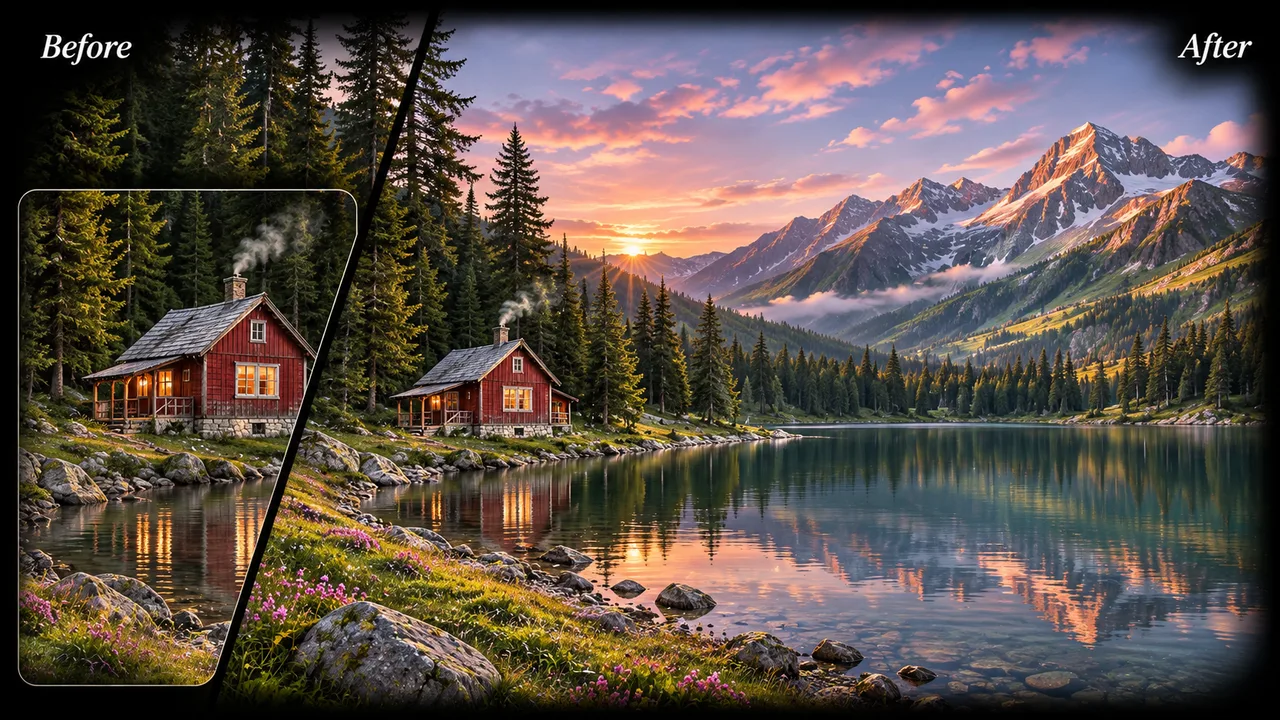
AI Outpainting
Extend the edges of an image with AI-generated content designed to blend with the original.
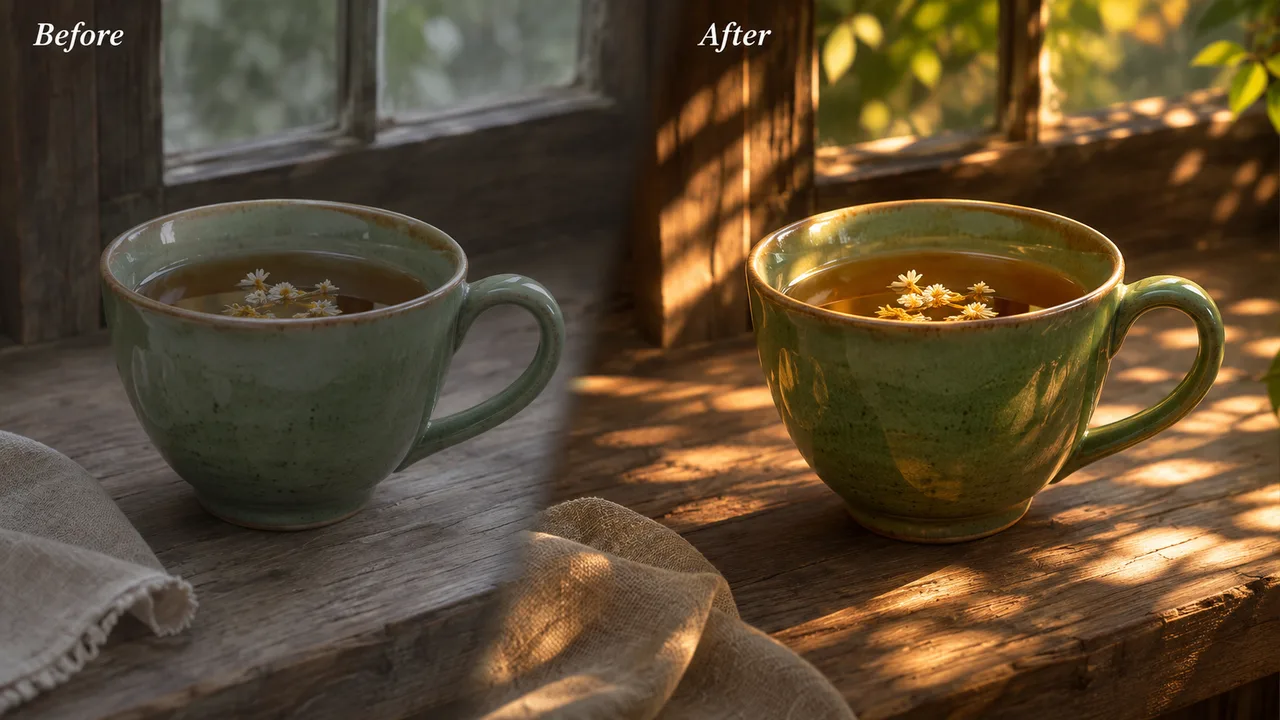
AI Photo Editor
Upload a photo and describe what to edit and what to keep. Download the result at its generated resolution.
AI Image Upscaler
Choose detail preservation, noise reduction or face clarity, then select an available output resolution.