
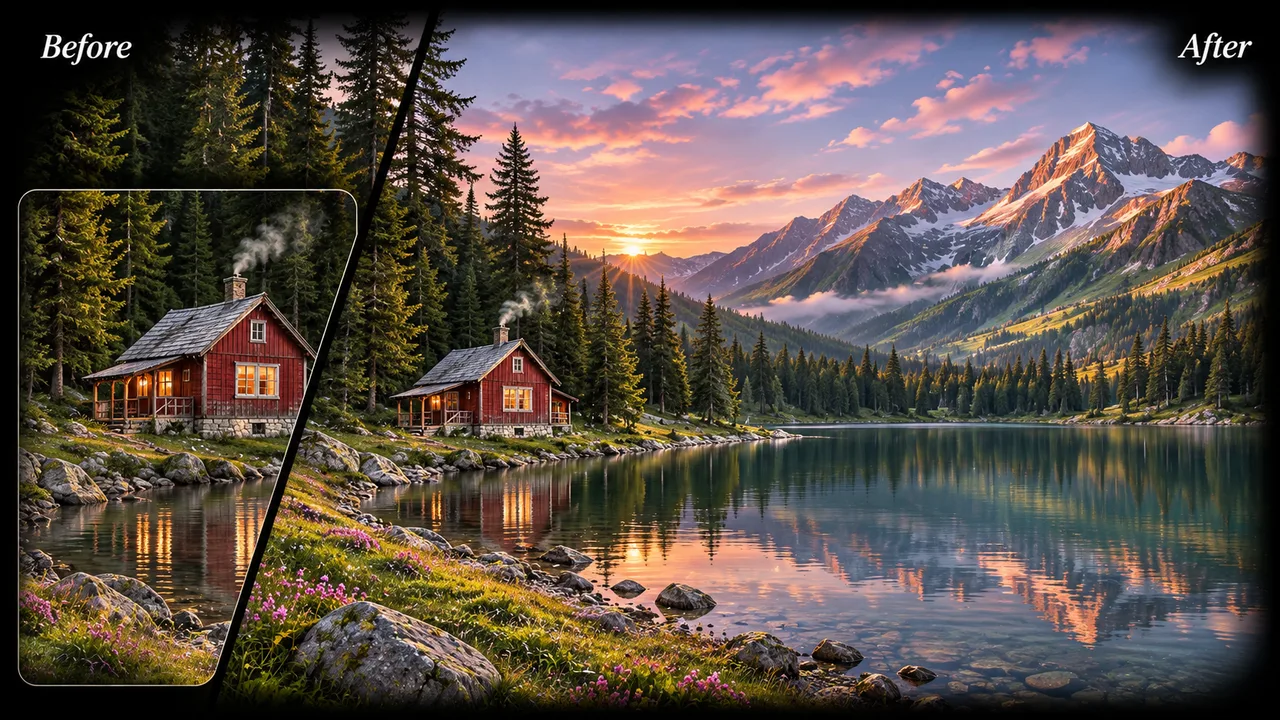
AI Outpainting
AI Outpainting
Upload an image, then drag the canvas edges to expand it and move the photo to position the extra space.
- Give a tight crop more breathing room
- Show the room around the subject
- Turn a small crop into a wide view

See what changes
Drag the divider in each example to compare the original and the result.


What you can do
Illustrative comparisons
Give a tight crop more breathing room
Extend the lighthouse photo to bring the surrounding cliffs, surf and sunset sky into the frame. The wider composition can work as a cover image.
Extend Image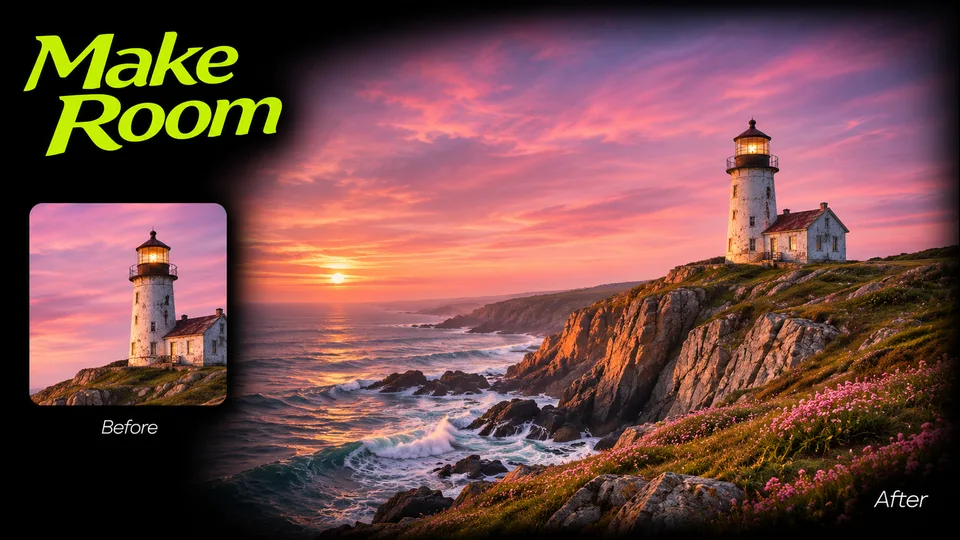
Show the room around the subject
Expand the armchair crop into a living room scene with a side table, plants and window light. Use the expanded view to present furniture in context.
Extend Image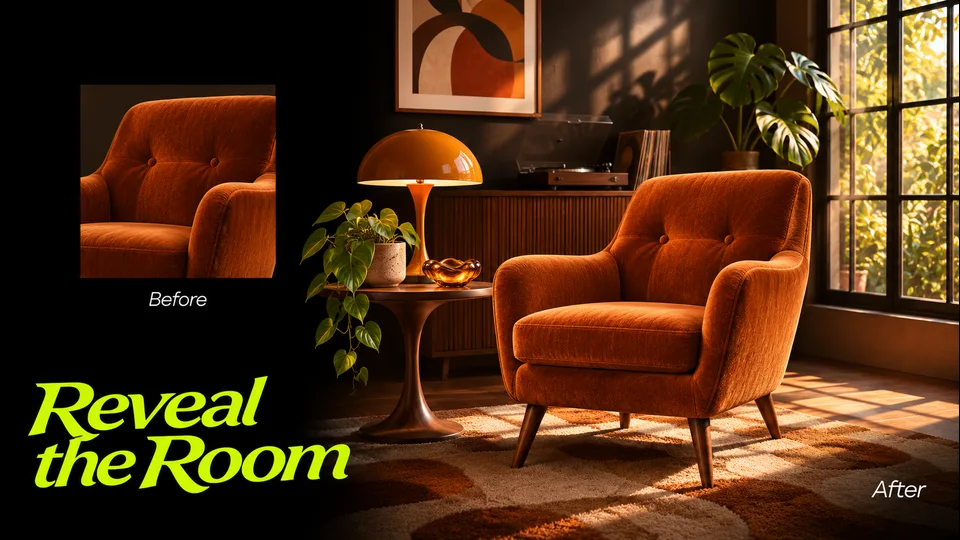
Turn a small crop into a wide view
Extend the boathouse scene to reveal more of the alpine lake, forest and mountains. Give a travel layout more room around the subject.
Extend Image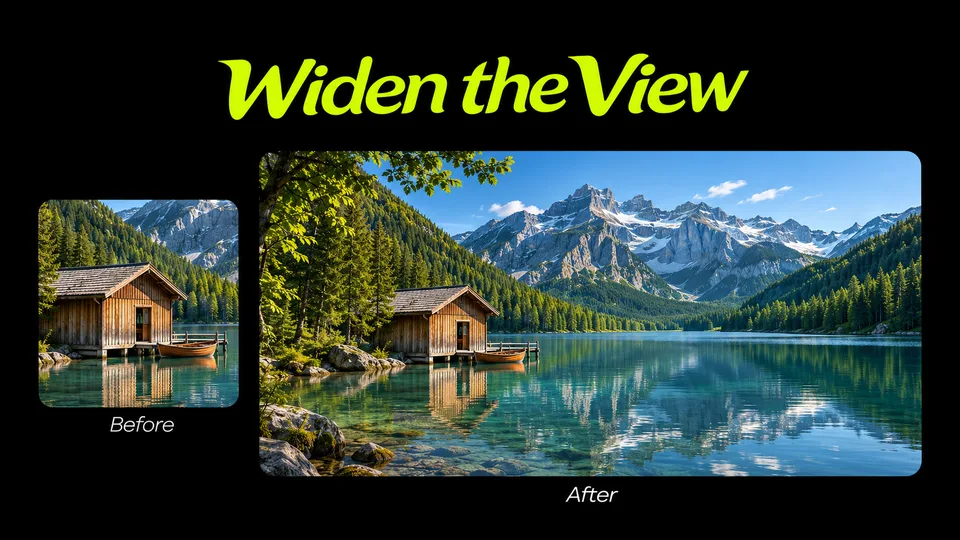
Create space for a cover headline
Extend a portrait crop of a perfume bottle into a landscape with open space beside the product for cover text.
Extend Image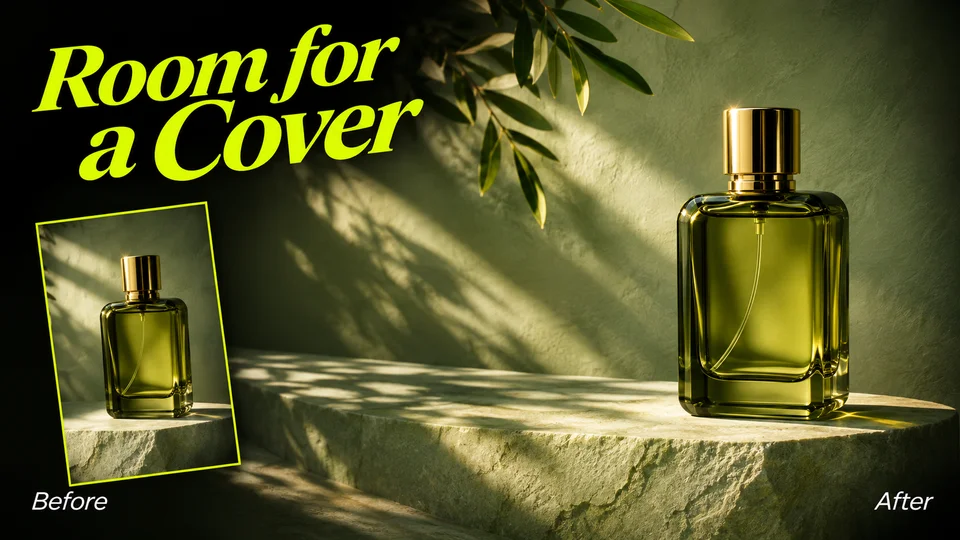
How to use this tool
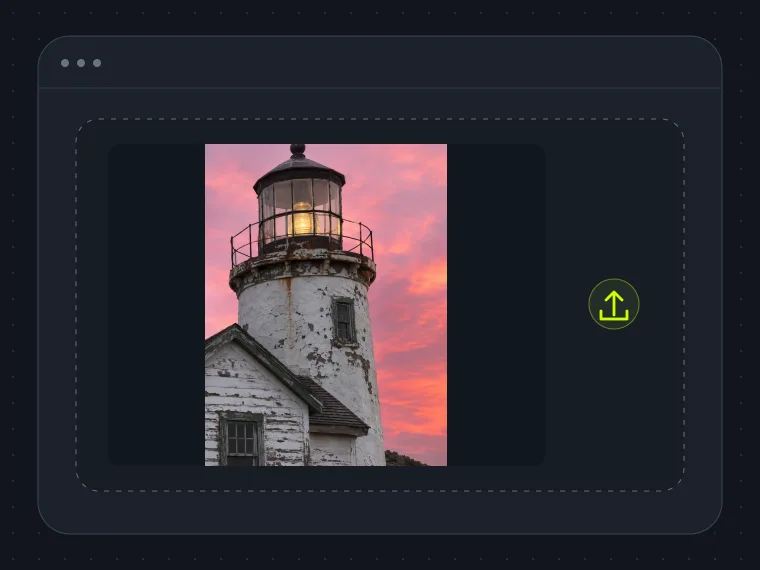
Start with an image
Choose a clear source image. Use a sample in the editor if one is available.
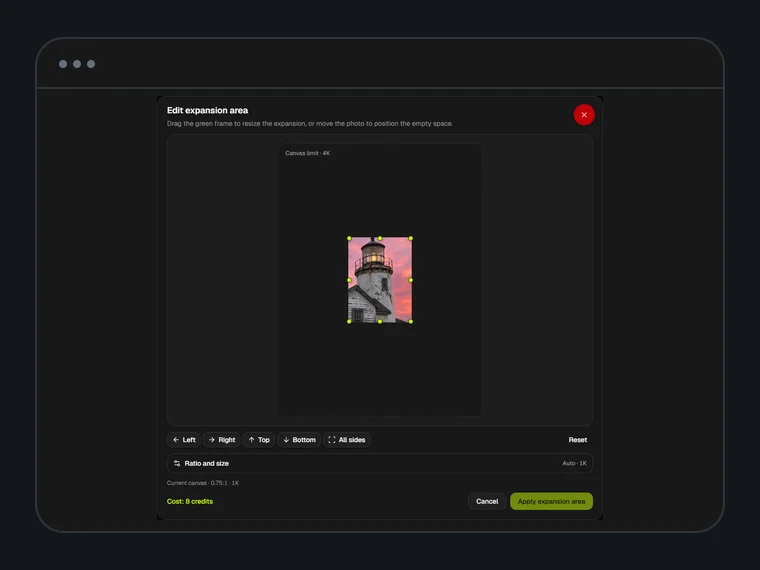
Review the settings
Set the expansion area and output size in the editor.
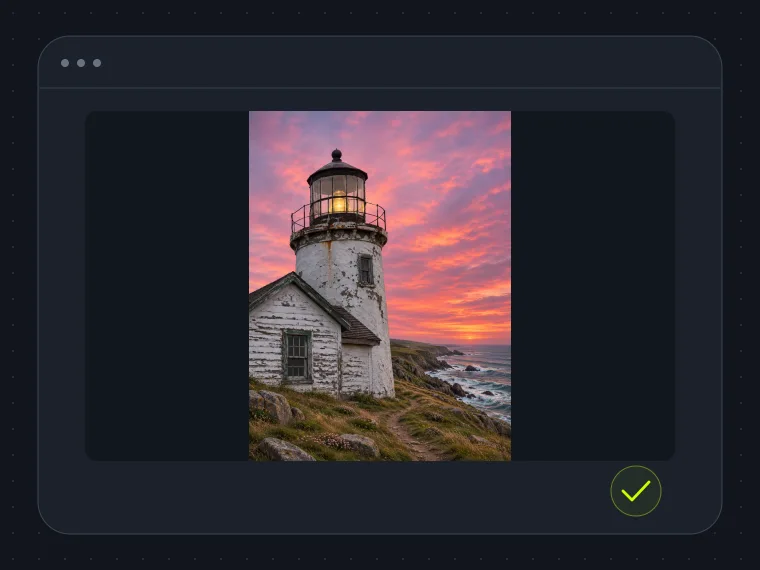
Generate and inspect
Review the result, refine your input if needed, then download your image.
Cropping or manual extension vs. HHGen
Cropping or manual extension
- Crop away edges to fit a new ratio
- Expand the canvas and fill it by hand to retain the composition
- Retouch the joins where new content meets the original
- Control each added area directly
 HHGen Image Extender
- Extend an existing image to the ratio you need
- Generate content beyond the edges using the original as context
- Check perspective, light and texture in the new area
- Check the extended edges for duplicated objects
Privacy for uploads and generated images
See whether your images appear publicly and how to manage or delete them.
No automatic gallery listing
Uploads and generated images don’t automatically appear in the public gallery. Keep image URLs and share links private, as someone with a working link may be able to view the image.
Delete your uploads at any time
Uploads are stored in your assets. Sign in and open Assets → My uploads to delete them at any time.
Manage your generated images
Sign in to delete results from your assets. You can restore them from Recently Deleted while the files remain available.
FAQ
FAQ
Related AI tools
Object Eraser
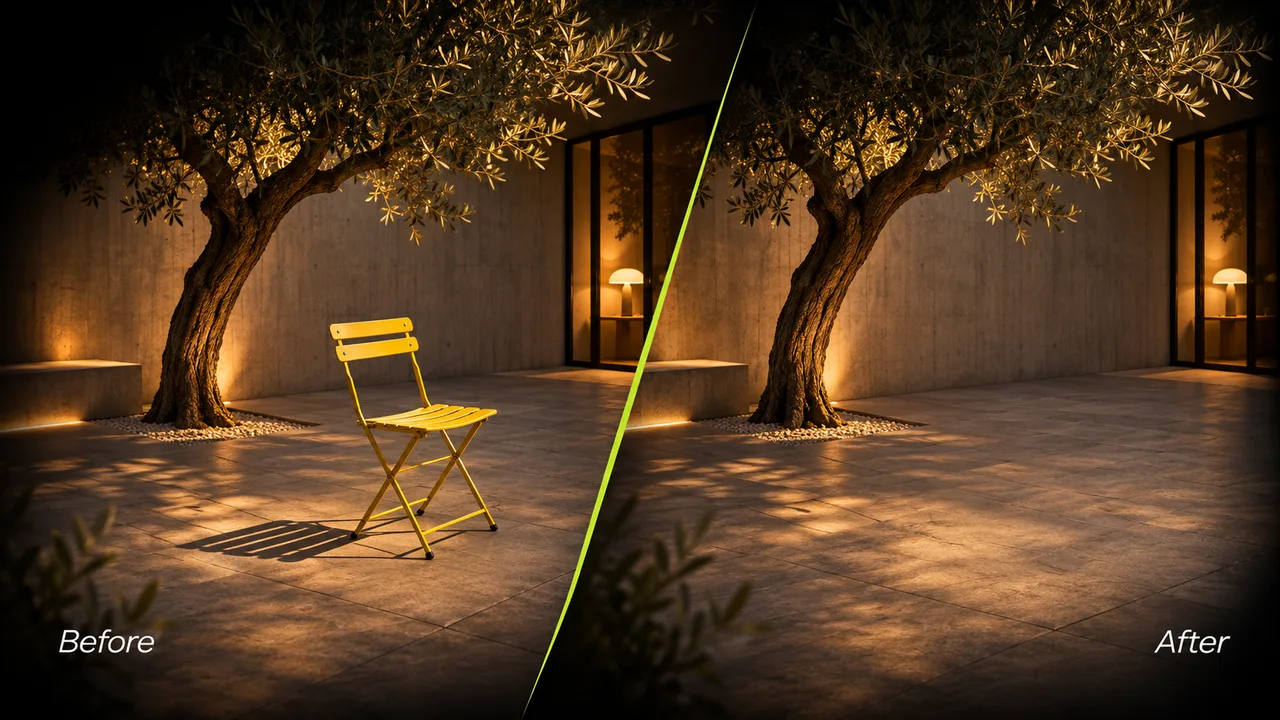
Remove unwanted objects, people, text or imperfections from a photo. The model fills the selected area based on its surroundings, so results can vary.
Watermark Remover
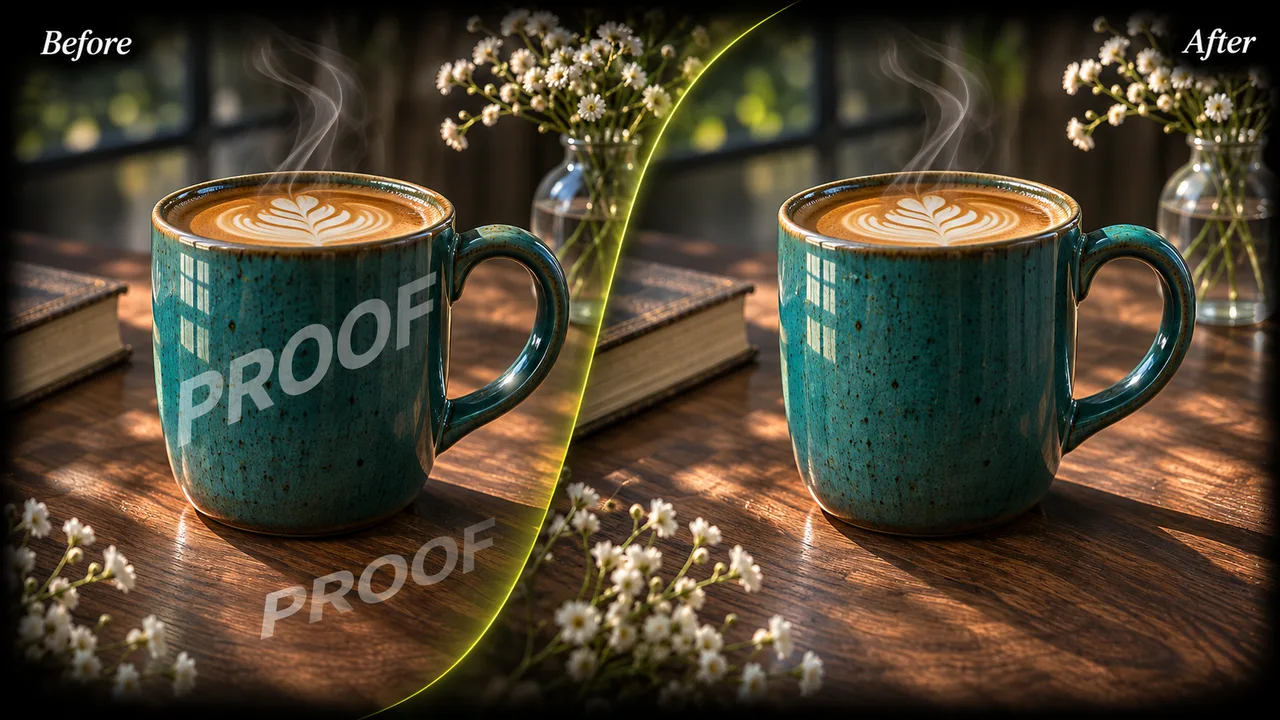
Use AI to remove watermarks, logos or other unwanted elements from an image. Only edit images you have permission to modify.
AI Image Upscaler
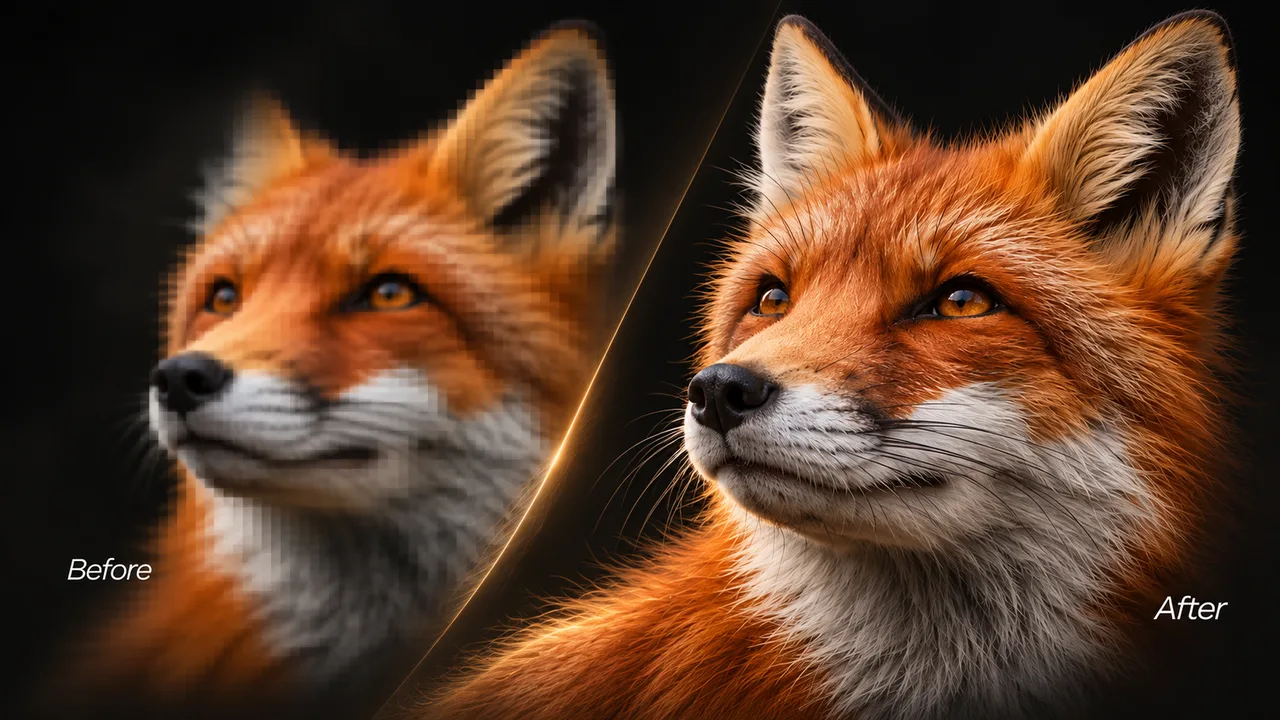
Use a supported model and its available output resolution to create a clearer-looking version of your image. Results depend on the model and selected options.
AI Photo Editor
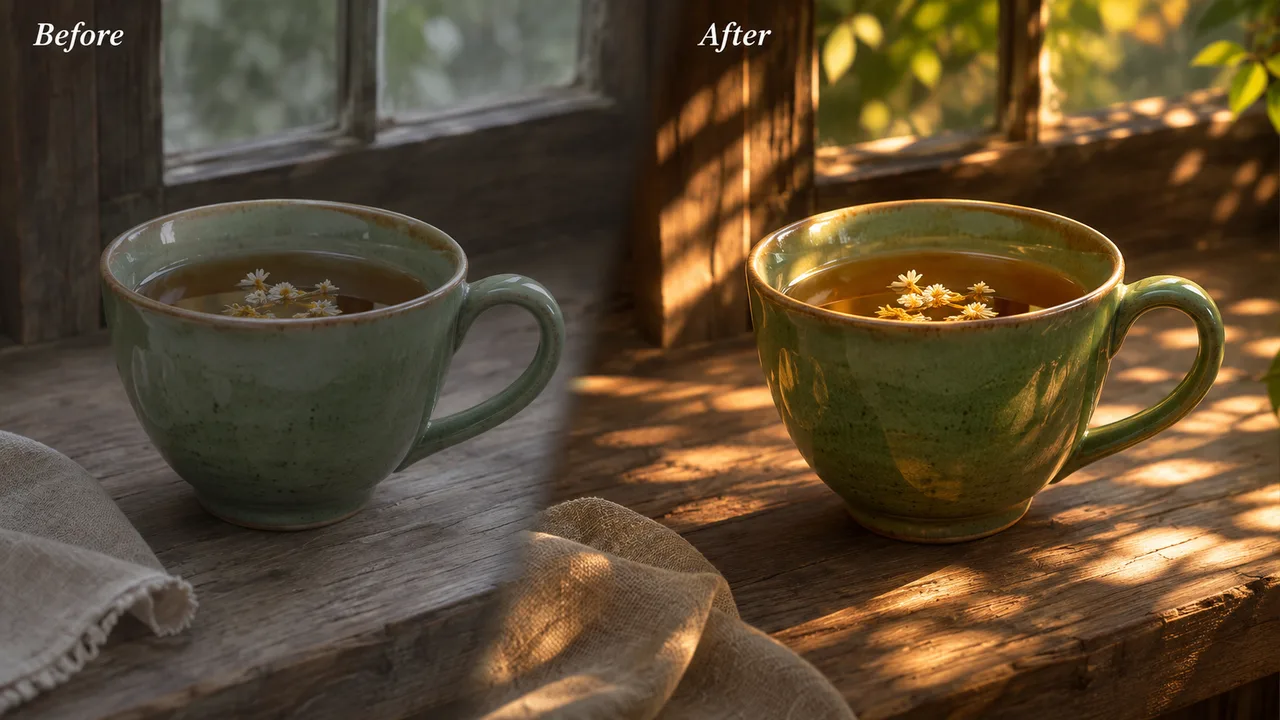
Upload a photo and describe what to edit and what to keep. Download the result at its generated resolution.
AI Outpainting
Upload an image, then drag the canvas edges to expand it and move the photo to position the extra space.