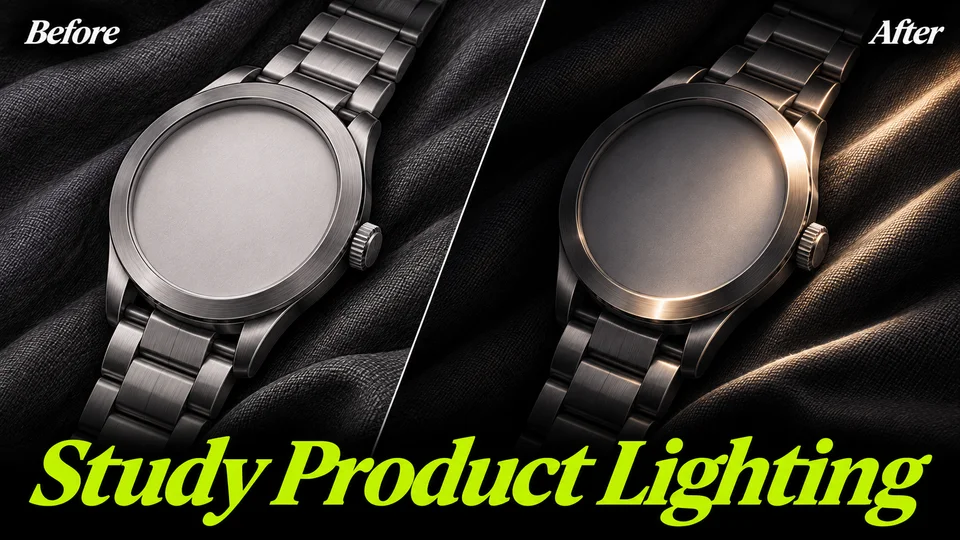
Study product lighting
A watch on folded cloth or a bottle catching the light can become the starting point for your next product image. With Nano Banana Pro, spell out the materials, placement and light you want to explore.
Try this model
Automatic aspect ratio
The model or reference image determines the frame.
Your image will appear here
1K · Ready to generateCreate with Nano Banana Pro on HHGen for product visuals, material studies and image edits. Start from a prompt or use a reference in an available mode.
A watch on folded cloth or a bottle catching the light can become the starting point for your next product image. With Nano Banana Pro, spell out the materials, placement and light you want to explore.

Illustrated workflow
A watch on folded cloth or a bottle catching the light can become the starting point for your next product image. With Nano Banana Pro, spell out the materials, placement and light you want to explore.
Try this model
Illustrated workflows


| Model | Typical task | Input modes | Resolution |
|---|---|---|---|
Current modelNano Banana Pro | Study product lighting | Text to Image / Image to Image | 1K / 2K / 4K |
| Change a product setting | Text to Image / Image to Image | 1K / 2K / 4K | |
| Build a character series | Text to Image / Image to Image | 1K / 2K / 4K |
Open this page’s generator and check that Nano Banana Pro is selected.
Text to Image / Image to ImageChoose a supported input mode. If it uses a reference, add a clear source and decide what to keep.
A studio still life of a brushed steel wristwatch on folded ivory cloth, face turned toward camera, one soft side light, restrained reflections, no invented lettering.
Write the result you want, review the settings and credit estimate, then generate.
Nano Banana Pro Online Image Generator FAQ
Upload the clearest packshot and use it as the product reference. Specify the original cap, label layout and proportions, then ask for a new background or light. Check them against the source at full size.
Start with a sharp photo of the label and request a change to the scene around it. Compare the lettering with the original, and reuse the original artwork if it must match exactly.
Set one camera angle, background and shadow style. Reuse that brief with each product’s own photo and compare the thumbnails as a set.
Describe the contact shadow and where the light comes from. Match their direction and softness to the original subject, and check the edges at close range.
If the uploader accepts both, identify their roles in the prompt. Name the features to copy from the subject image and describe only the palette, texture or lighting to borrow from the style image.
Describe where the copy will go and ask for an uncluttered area there. Check the image at its final crop before adding text.
Use a photo that shows the object’s outline. Specify the new material and how it catches the light. Keep shape, viewing angle and scale fixed so the finishes can be compared.
Crop if the subject and copy already fit. If a crop cuts the product or loses the text area, start from the approved image and request a portrait composition. Check the ratios offered for that mode.
Use Lite for a simple visual test, then try 2 or 2.1 when you need to carry an approved look into several assets. Test Pro on a brief where packaging or several details must survive the edit. Keep the same source image to compare.
Start with the final placement’s proportions and check the generator for compatible sizes. Keep key details away from the edges. Finish exact pixel dimensions or print bleed in an editor.
Keep the source image and the main brief fixed. In each run, change just one thing, such as the background or color palette. Compare the credit estimate beside Generate before starting each version.