Plan action and sound together
Bring your brief and references into one workspace. Check the quote before generating, review the result, and decide which shot to develop next.
Try this model
16:9
Your video will appear here
480pCreate with Seedance 2.0 on HHGen for sports, lifestyle and brand shots. Describe the shot and add references in a mode that supports them.
Bring your brief and references into one workspace. Check the quote before generating, review the result, and decide which shot to develop next.

Illustrated workflow
Bring your brief and references into one workspace. Check the quote before generating, review the result, and decide which shot to develop next.
Try this model
| Model | Typical task | Input modes | Resolution | Duration |
|---|---|---|---|---|
Current modelSeedance 2 | Plan action and sound together | Text-to-Video / Image-to-Video / Video-to-Video | 480p / 720p | 4–15 sec |
| Build a short story beat | Text-to-Video / Image-to-Video / Reference-to-Video / Video-to-Video | 480p / 720p / 1080p | 4 sec / 5 sec / 6 sec / 8 sec / 10 sec / 12 sec / 15 sec / 20 sec / 25 sec / 30 sec | |
| Explore shot framing | Text-to-Video / Image-to-Video / Video-to-Video | 480p / 720p | 4–15 sec |
Open this page’s generator and check that Seedance 2 is selected.
Text-to-Video / Image-to-Video / Video-to-VideoChoose a supported input mode. If it uses a reference, add a clear source and decide what to keep.
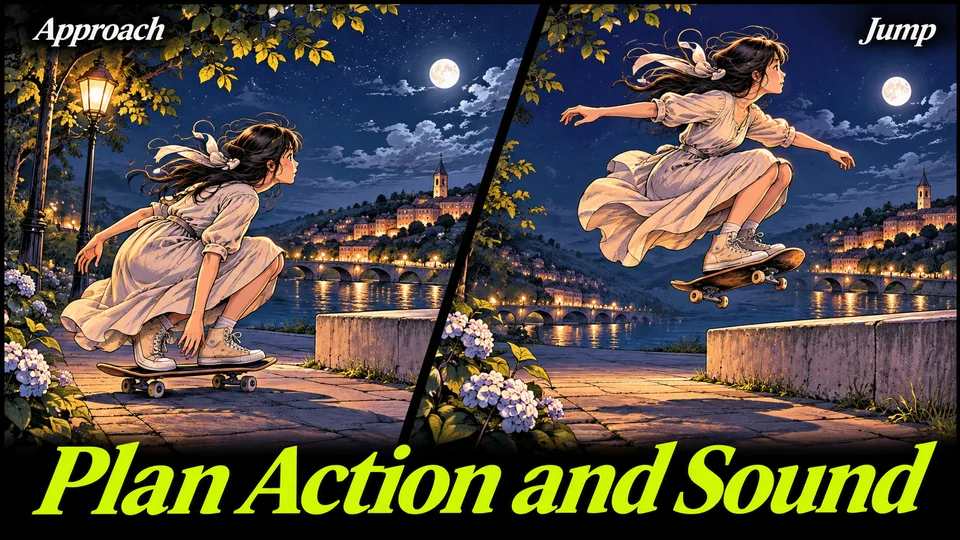
A skateboarder rolls across smooth ground, crouches, jumps and lands. Track from the side with the whole body visible. Include rolling wheels and the landing impact in the sound.
Write the result you want, review the settings and credit estimate, then generate.
Seedance 2.0 Online Video Generator FAQ
Describe the action and where the sound should land in the shot. If the selected mode accepts audio references, add the track and explain whether it should guide the rhythm, dialogue or ambience.
Pick the clearest image for appearance and a short clip with readable motion. If audio matters, say whether it guides rhythm or ambience. Check the uploader in reference mode for the supported media and limits.
Tie it to an action, such as a bell ringing when the door opens. Keep the other sounds simple, then check the cue in playback. Use the editor if it must land on an exact frame.
Choose one beat or rhythm pattern and describe what should happen on it, such as a step or head turn. Add the track only if the mode accepts it. Align exact beats in editing.
Treat the reference as guidance to the generation. Say whether it should influence rhythm, voice or ambience. If the delivered audio must use your exact recording, align the original track in an editor.
Put one short line in quotes, identify the speaker and leave a pause after it. Listen for missing words and check mouth movement at the same time.
A brief with several actions or camera directions can pull the shot apart. Give it one action with a clear endpoint. Generate separate shots when you need a cut to another viewpoint.
Use a still from the first shot as the next opening frame if the mode supports it. Keep the direction of movement and light consistent. Check the cut with both clips playing in sequence.
Choose the vertical framing in the generator if it is available in your mode. Keep the subject’s important movement near the center and leave a margin for captions or interface overlays.
Try Mini for a small movement, Fast for comparing framing, 2.0 for a shot built around motion and sound, and 2.5 for a brief with several reference roles. If a particular input or output matters, check the generator before choosing. After selecting the mode and output settings, check the available options and credit estimate beside Generate.