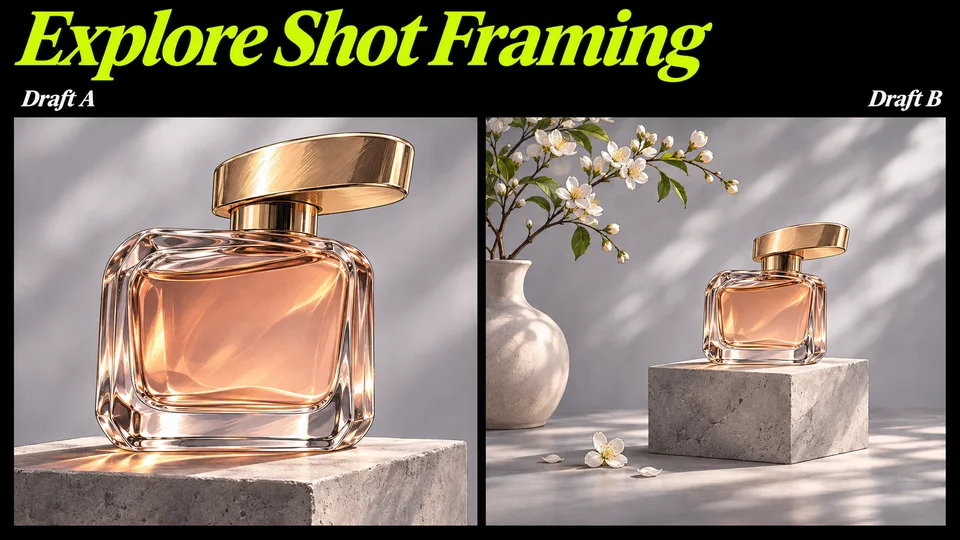
Explore shot framing
Bring your brief and references into one workspace. Check the quote before generating, review the result, and decide which shot to develop next.
Try this model
16:9
Your video will appear here
480pCreate with Seedance 2 Fast on HHGen for action tests, composition comparisons and creative storyboards. Describe the shot and add references in a mode that supports them.
Bring your brief and references into one workspace. Check the quote before generating, review the result, and decide which shot to develop next.

Illustrated workflow
Bring your brief and references into one workspace. Check the quote before generating, review the result, and decide which shot to develop next.
Try this model
| Model | Typical task | Input modes | Resolution | Duration |
|---|---|---|---|---|
Current modelSeedance 2 Fast | Explore shot framing | Text-to-Video / Image-to-Video / Video-to-Video | 480p / 720p | 4–15 sec |
| Plan action and sound together | Text-to-Video / Image-to-Video / Video-to-Video | 480p / 720p | 4–15 sec | |
| Build a short story beat | Text-to-Video / Image-to-Video / Reference-to-Video / Video-to-Video | 480p / 720p / 1080p | 4 sec / 5 sec / 6 sec / 8 sec / 10 sec / 12 sec / 15 sec / 20 sec / 25 sec / 30 sec |
Open this page’s generator and check that Seedance 2 Fast is selected.
Text-to-Video / Image-to-Video / Video-to-VideoChoose a supported input mode. If it uses a reference, add a clear source and decide what to keep.
A ceramic cup stays still on a white table. Slowly push the camera toward it in soft window light. Keep the background simple and introduce no extra objects.
Write the result you want, review the settings and credit estimate, then generate.
Seedance 2 Fast Online Video Generator FAQ
Reuse your prompt and reference assets where the selected mode accepts them. Switching models creates a new clip, so check the framing and motion again. After selecting the mode and output settings, check the available options and credit estimate beside Generate.
Describe the subject’s action and the camera’s action in separate sentences. If the subject stays still, say so explicitly and give the camera one clear direction.
Match the angle, lighting and scale closely enough for the change to make sense. Describe the single action or camera move connecting them. A large jump is often easier to handle as two shots.
Place the product where it can stay visible during a slow push-in or reveal. Describe which feature should come into view and where the shot should settle.
Start with a clear frame and keep the lettering roughly front-facing. Use a restrained camera move and check the middle of the shot too. For exact branding, add the lettering in post.
Use a still from the first shot as the next opening frame if the mode supports it. Keep the direction of movement and light consistent. Check the cut with both clips playing in sequence.
Choose the vertical framing in the generator if it is available in your mode. Keep the subject’s important movement near the center and leave a margin for captions or interface overlays.
Try Mini for a small movement, Fast for comparing framing, 2.0 for a shot built around motion and sound, and 2.5 for a brief with several reference roles. If a particular input or output matters, check the generator before choosing.
Image
JPG, JPEG, PNG, WEBP, GIF, BMP · 30MB