
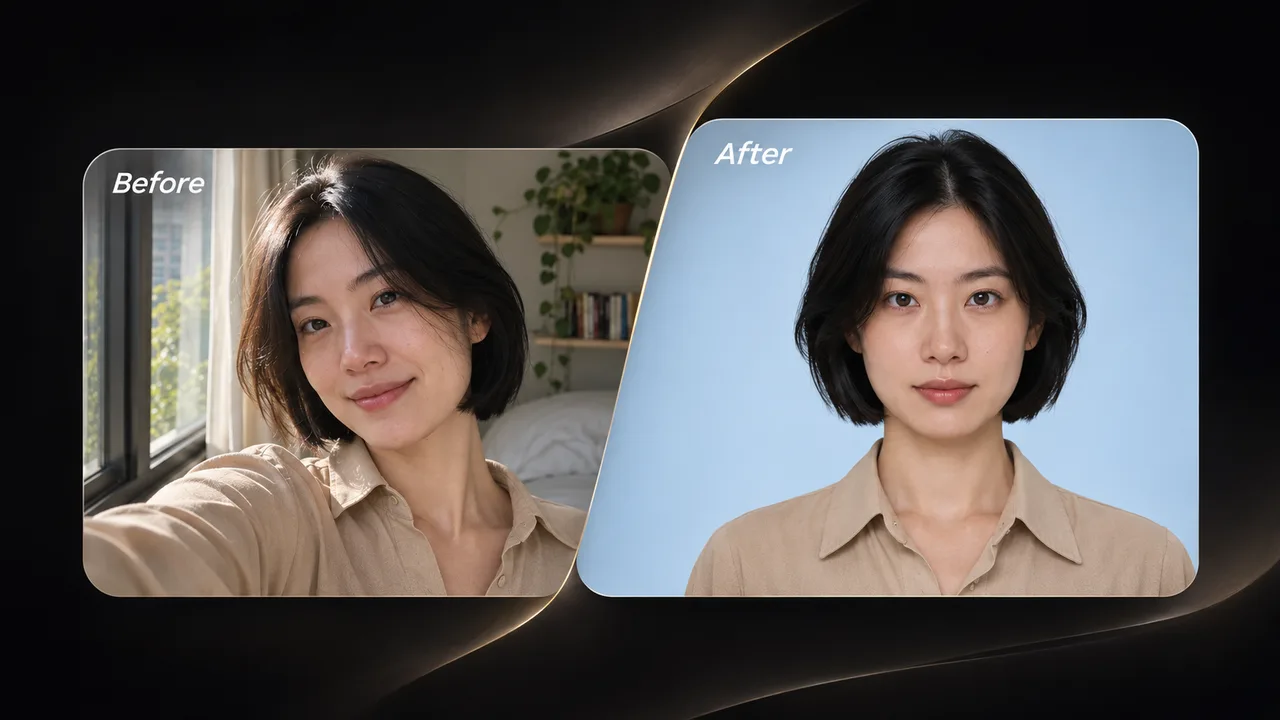
AI ID Photo Maker
AI ID Photo Maker
Use a clear front-facing portrait to prepare an ID-style photo. Describe the background and framing, then check the issuing authority’s rules on size, head position and digital editing before submitting.
- Start with a window selfie
- Simplify a busy outdoor background
- Try a pale blue backdrop

See what changes
Drag the divider in each example to compare the original and the result.


What you can do
Illustrative comparisons
Start with a window selfie
Use a casual indoor photo as the starting point for a centered portrait on light gray.
Generate ID Photo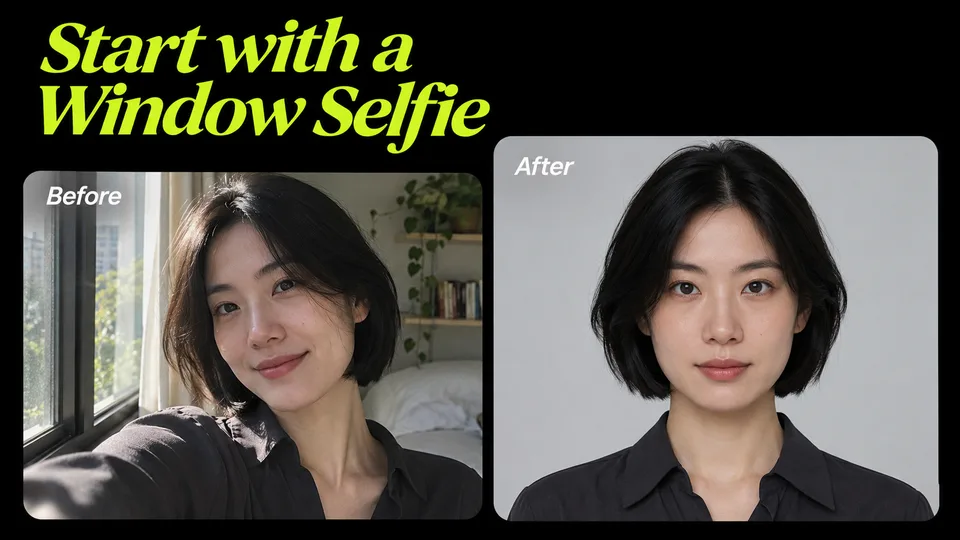
Simplify a busy outdoor background
Turn a garden snapshot into a front-facing headshot against plain white.
Generate ID Photo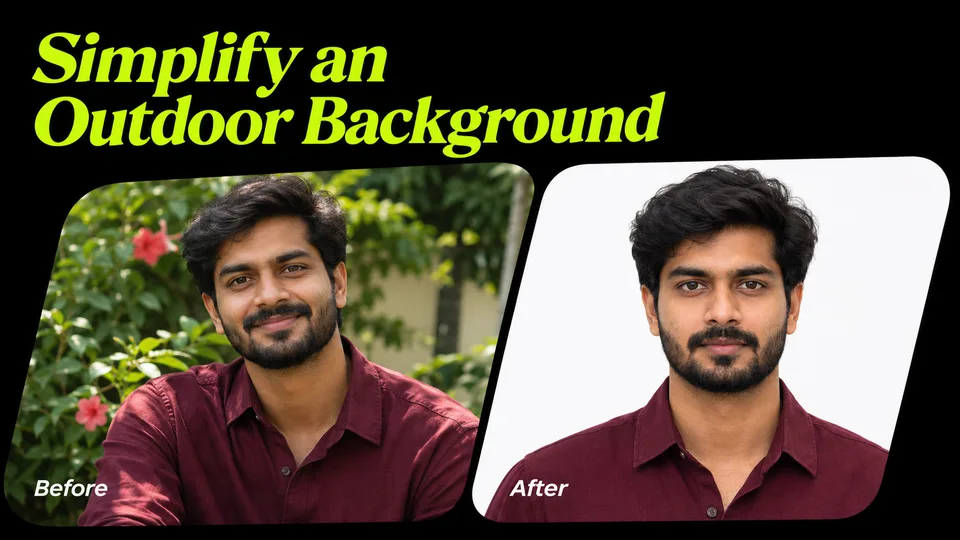
Try a pale blue backdrop
Reframe an office snapshot as a straight-on portrait with an even, pale blue background.
Generate ID Photo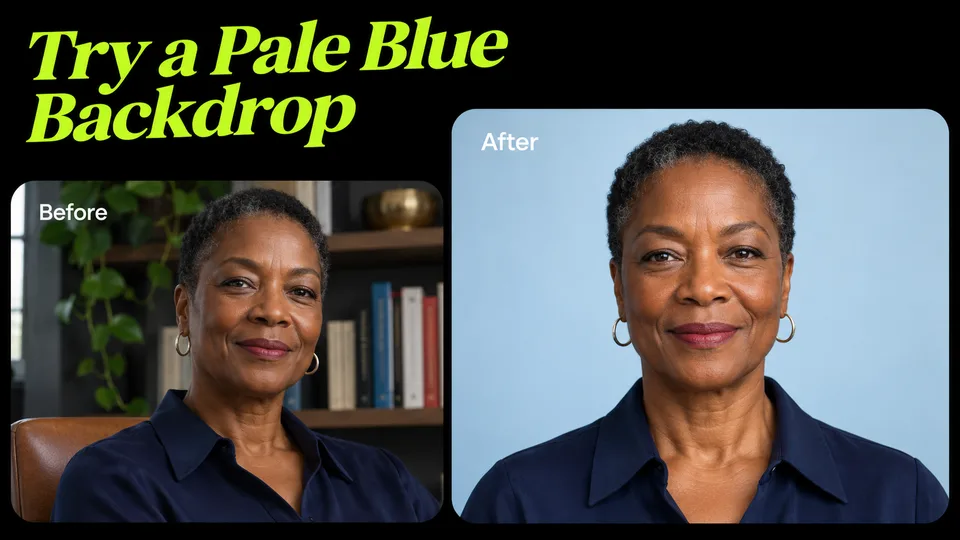
Even out uneven selfie lighting
Use a dim indoor selfie to create a centered portrait with more even light across the face.
Generate ID Photo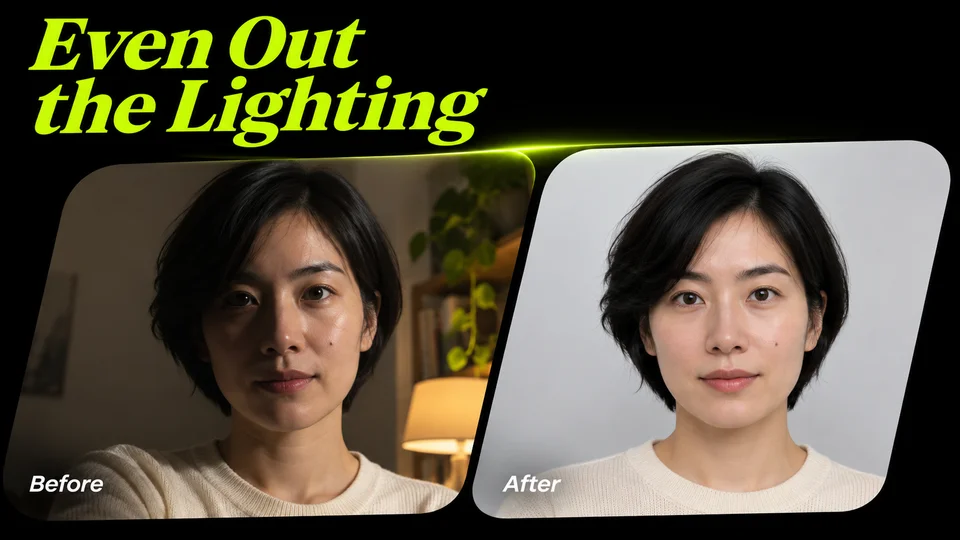
How to use this tool
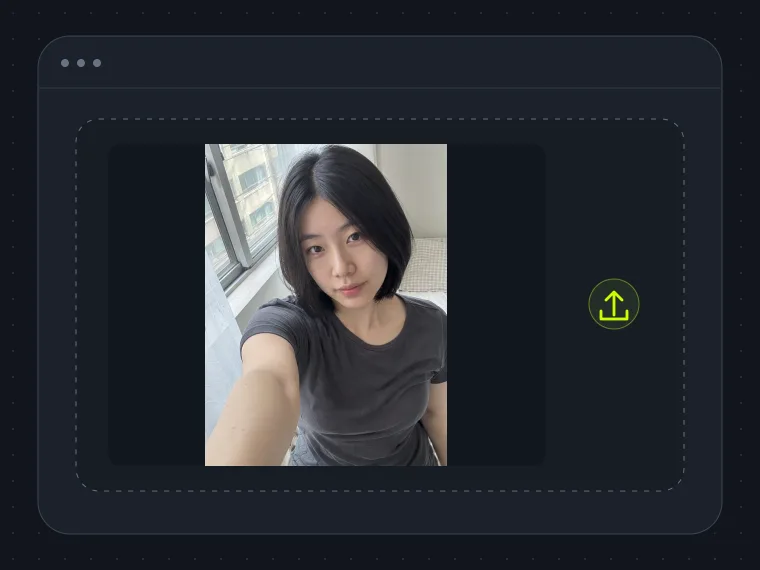
Start with an image
Choose a clear source image. Use a sample in the editor if one is available.
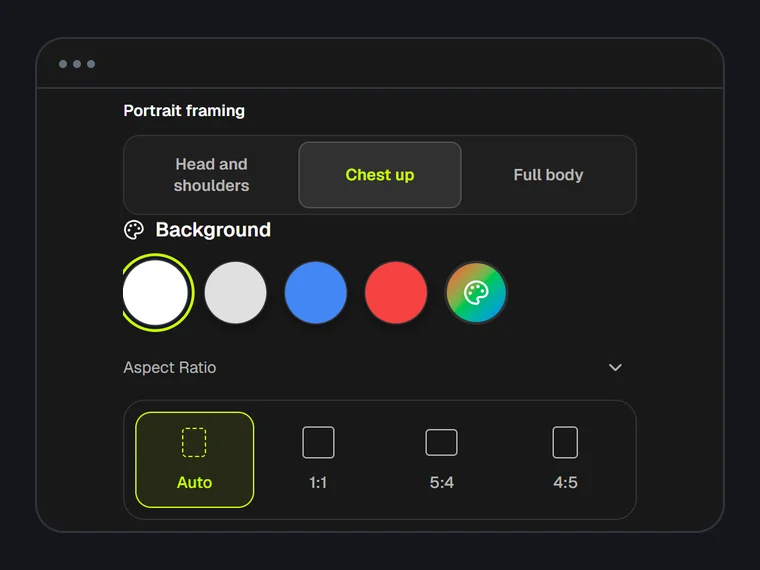
Review the settings
Set the portrait framing, background color, and aspect ratio.
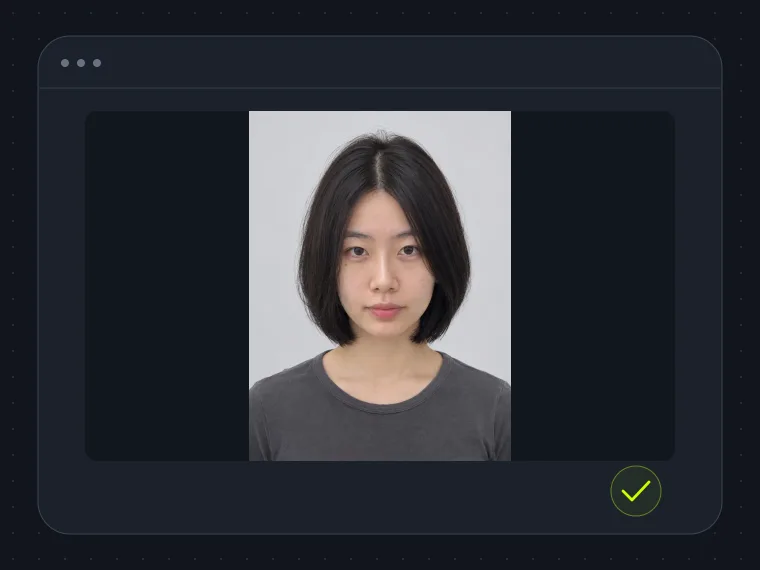
Generate and inspect
Review the result, refine your input if needed, then download your image.
Photo studio vs. HHGen
Photo studio
- Take a new front-facing portrait
- Adjust the background and framing on set
- Ask the photographer to check lighting and pose
- Retake the photo on the spot if you blink or shift
 HHGen ID Photo Generator
- Start with a clear front-facing photo
- Choose a background and size for an ID-style image
- Check the result against the issuing authority’s requirements
- Start with even lighting and a natural expression
Privacy for uploads and generated images
See whether your images appear publicly and how to manage or delete them.
No automatic gallery listing
Uploads and generated images don’t automatically appear in the public gallery. Keep image URLs and share links private, as someone with a working link may be able to view the image.
Delete your uploads at any time
Uploads are stored in your assets. Sign in and open Assets → My uploads to delete them at any time.
Manage your generated images
Sign in to delete results from your assets. You can restore them from Recently Deleted while the files remain available.
FAQ
Frequently asked questions
Related AI tools

Gender Swap
Explore an AI-generated gender presentation for your photo. The result is an artistic transformation, not a statement about anyone's identity.
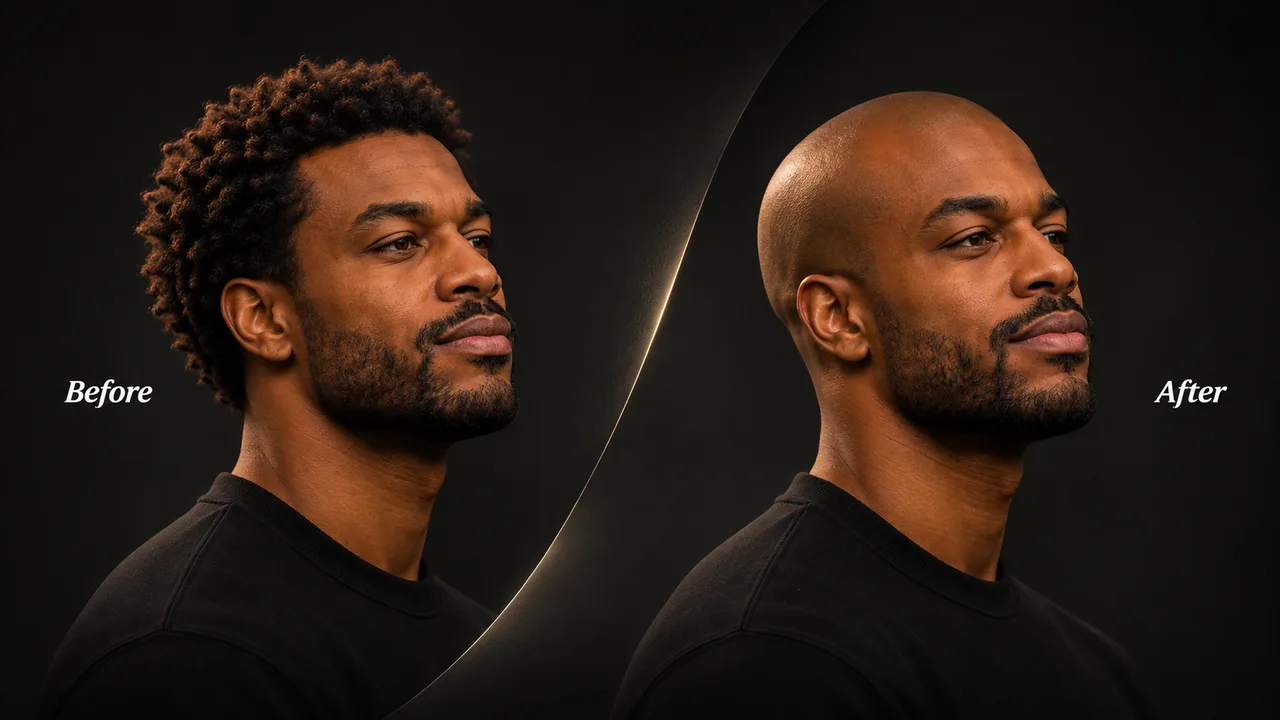
Bald Filter
See what you'd look like bald with AI. Photorealistic hair removal that maps your head shape and skin tone.
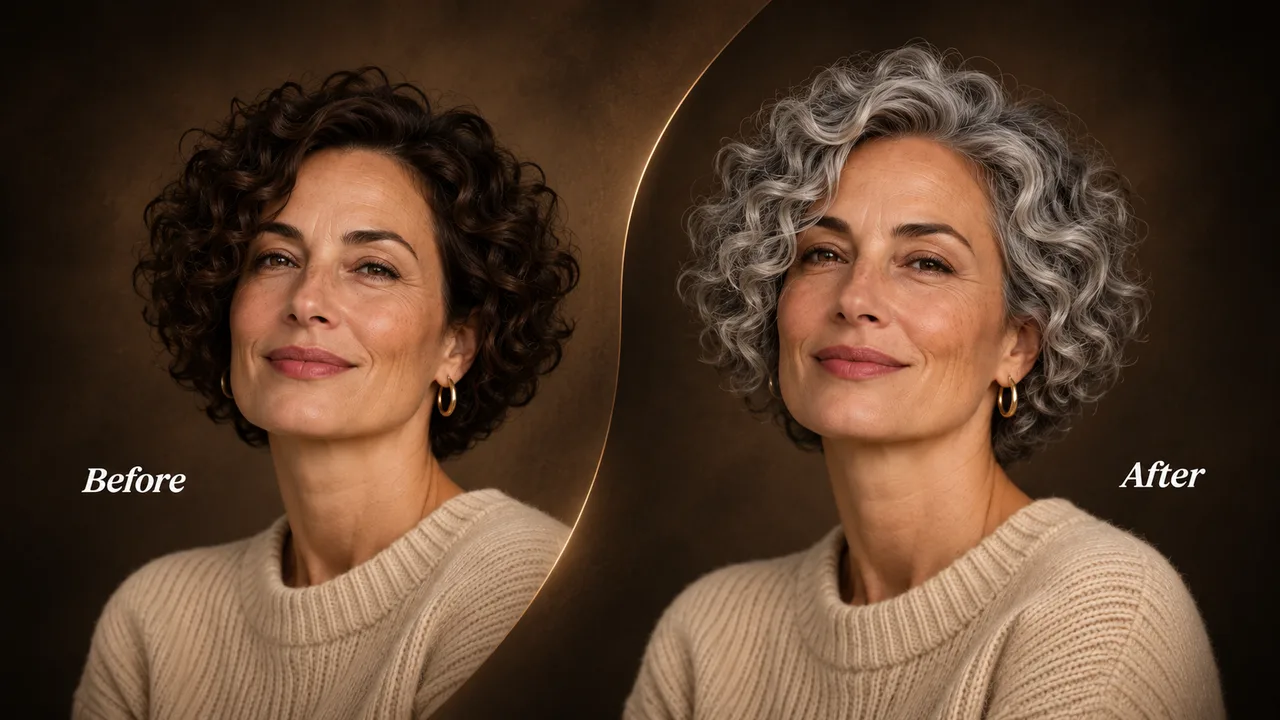
Grey Hair Filter
See yourself with grey, silver, or white hair. Try different shades with photorealistic AI hair color change.
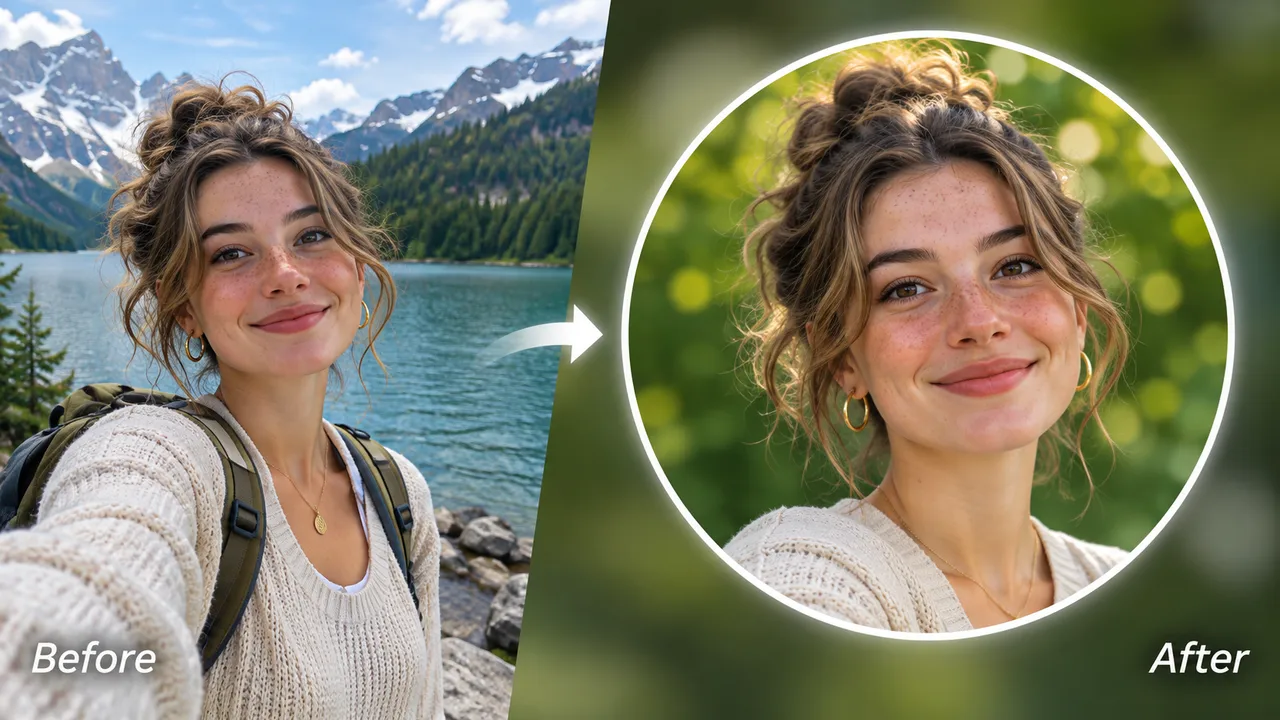
Profile Picture Maker
Upload a portrait, describe the look you want, and choose a square output for a profile picture.
AI ID Photo Maker
Use a clear front-facing portrait to prepare an ID-style photo. Describe the background and framing, then check the issuing authority’s rules on size, head position and digital editing before submitting.