
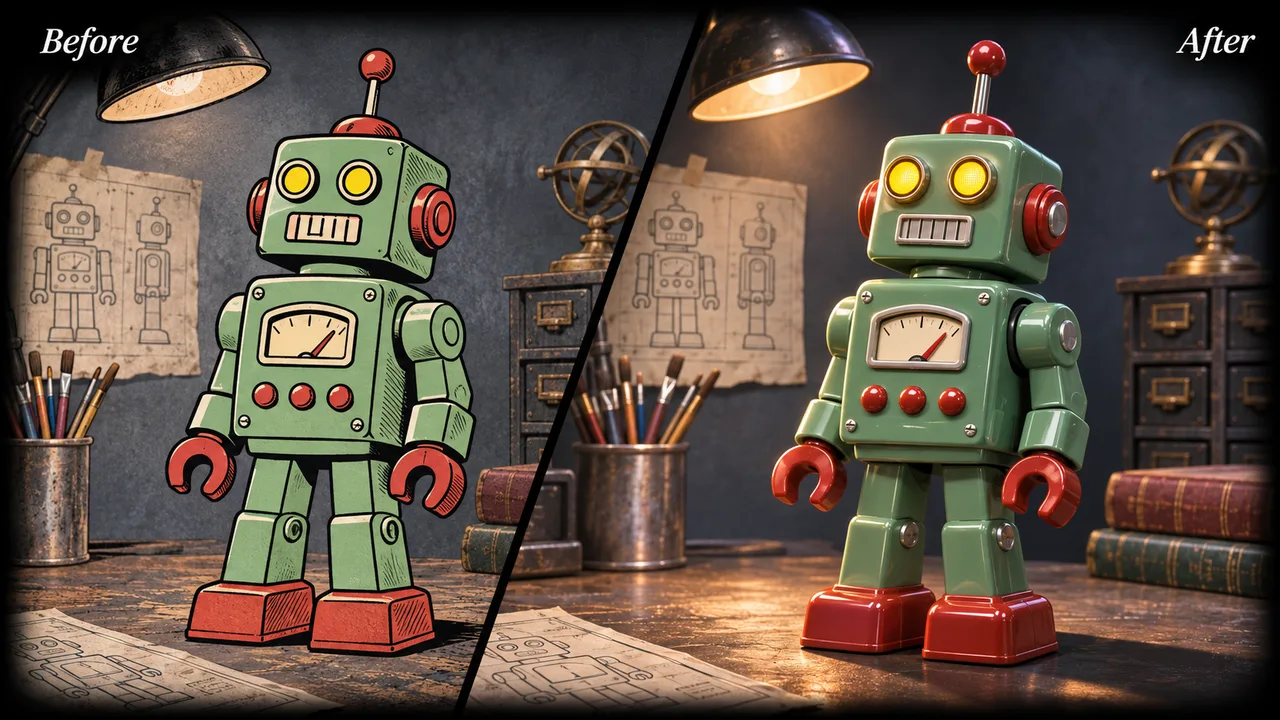
AI 2D to 3D Converter
AI 2D to 3D Converter
Choose a 3D render style for a photo or illustration. The result is a still image.
- Give a flat design depth
- Visualize a toy concept
- Explore realistic materials

See what changes
Drag the divider in each example to compare the original and the result.


What you can do
Illustrative comparisons
Give a flat design depth
Turn the mint scooter illustration into a 3D-style image with curved bodywork, metallic highlights and a soft shadow. Use it to present a vehicle design concept.
Generate 3D effect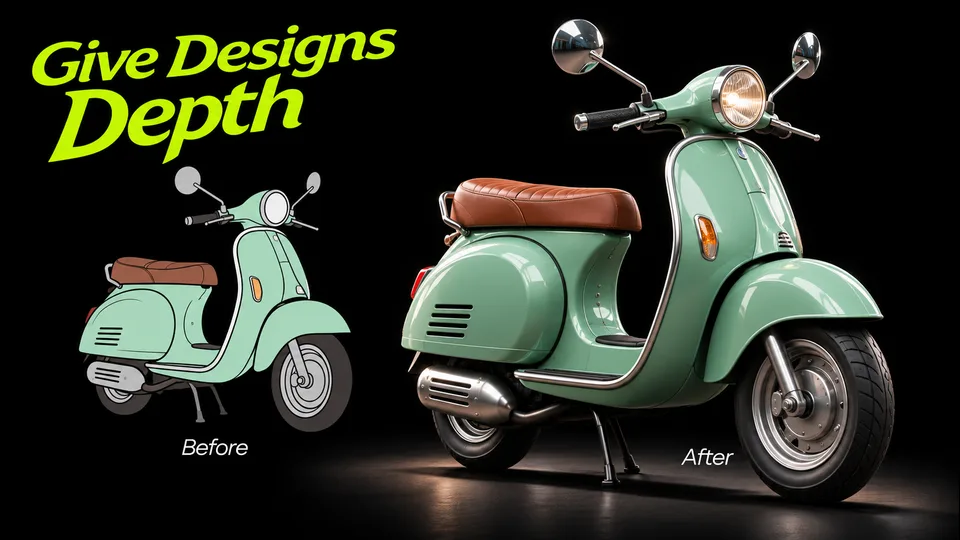
Visualize a toy concept
Give the illustrated robot a rounded, glossy finish to see how it could look as a toy. Try it when pitching an early character design.
Generate 3D effect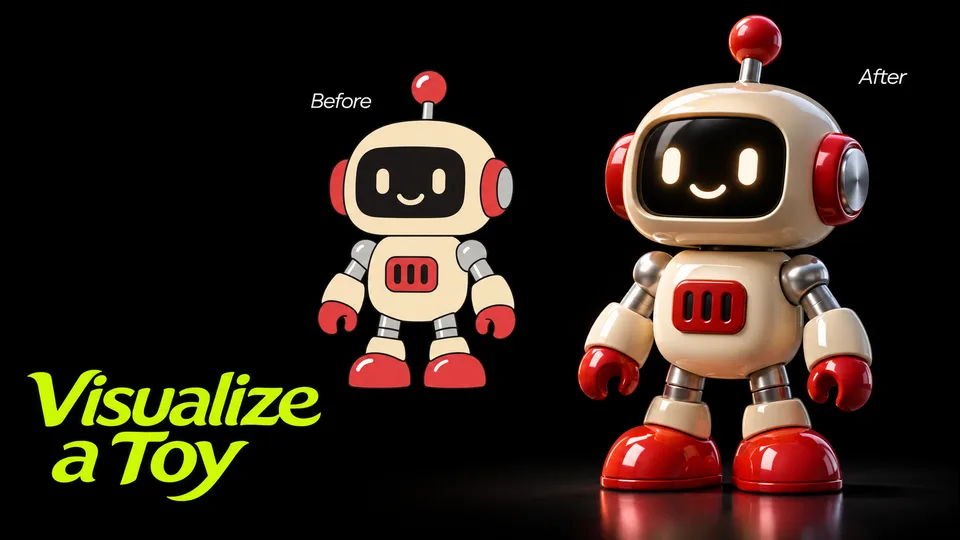
Explore realistic materials
Give the orange backpack illustration fabric texture and depth around its straps, buckles and seams. Use the result to illustrate a product concept.
Generate 3D effect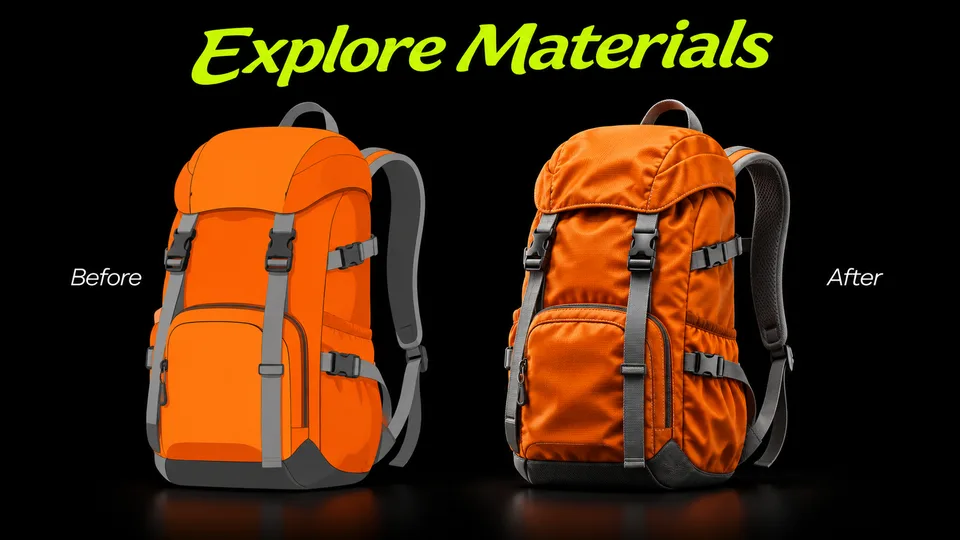
Give a landscape depth
Turn a flat lighthouse illustration into a dimensional scene with textured rocks and separate foreground and background layers.
Generate 3D effect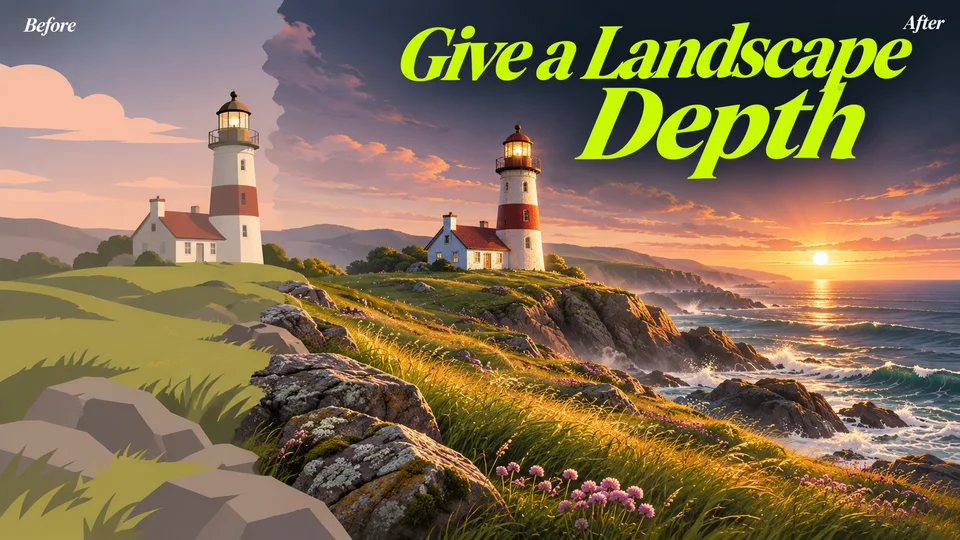
How to use this tool
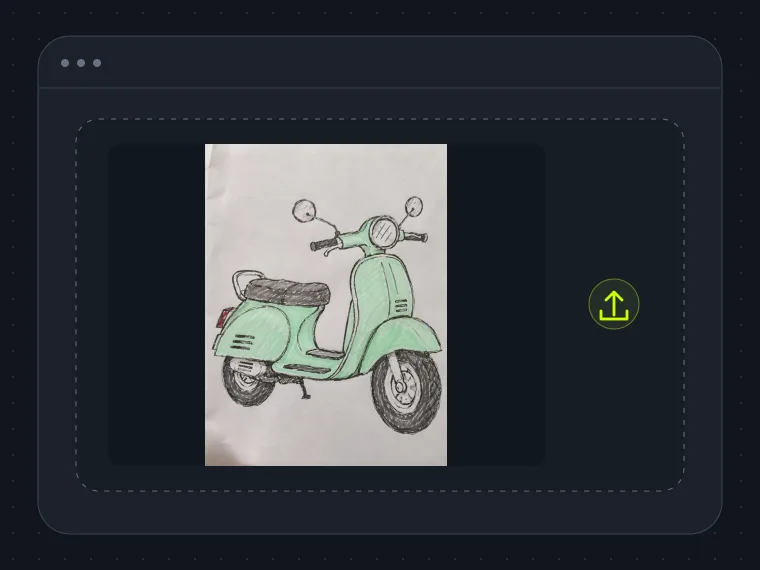
Start with an image
Choose a clear source image. Use a sample in the editor if one is available.
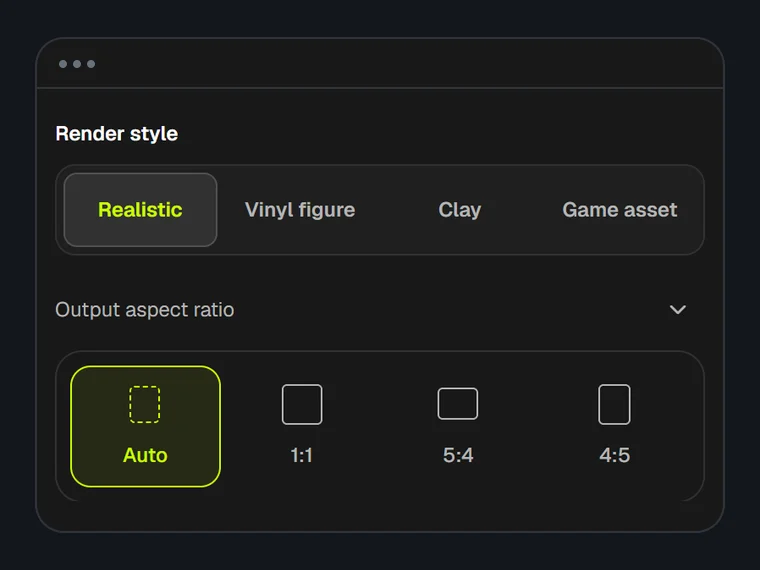
Review the settings
Choose a render style and aspect ratio.
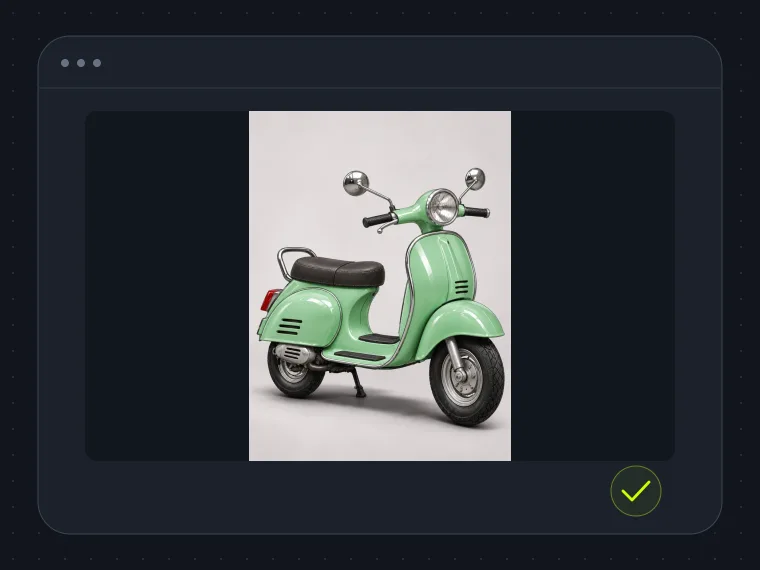
Generate and inspect
Review the result, refine your input if needed, then download your image.
Manual 3D scene creation vs. HHGen
Manual 3D scene creation
- Model the subject and assign materials
- Set up lighting and the camera before rendering
- Keep an editable scene for later changes
- Render the same scene from different camera angles
 HHGen 2D to 3D style
- Use a flat image as a reference
- Generate an image with a sense of depth
- Download the rendered-style image for previews or design reference
- Use the generated still to explore materials and lighting
Privacy for uploads and generated images
See whether your images appear publicly and how to manage or delete them.
No automatic gallery listing
Uploads and generated images don’t automatically appear in the public gallery. Keep image URLs and share links private, as someone with a working link may be able to view the image.
Delete your uploads at any time
Uploads are stored in your assets. Sign in and open Assets → My uploads to delete them at any time.
Manage your generated images
Sign in to delete results from your assets. You can restore them from Recently Deleted while the files remain available.
FAQ
Frequently asked questions
Latest AI tools
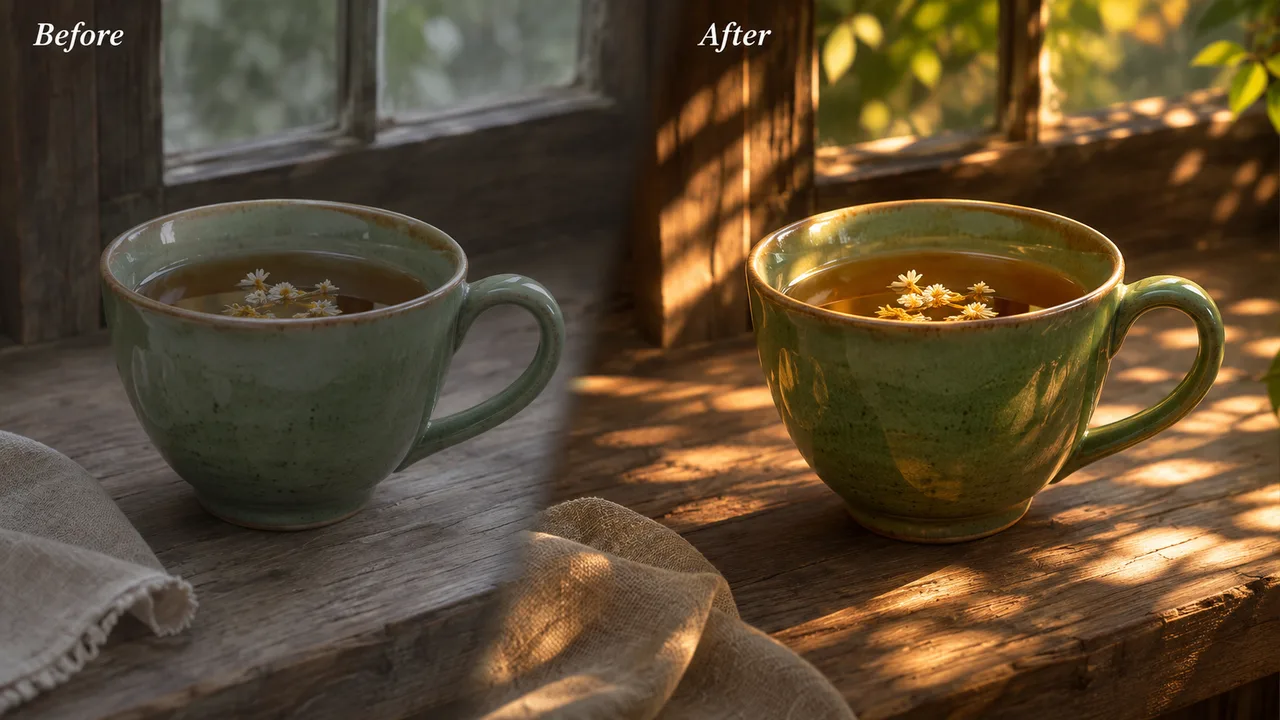
AI Photo Editor
Upload a photo and describe what to edit and what to keep. Download the result at its generated resolution.
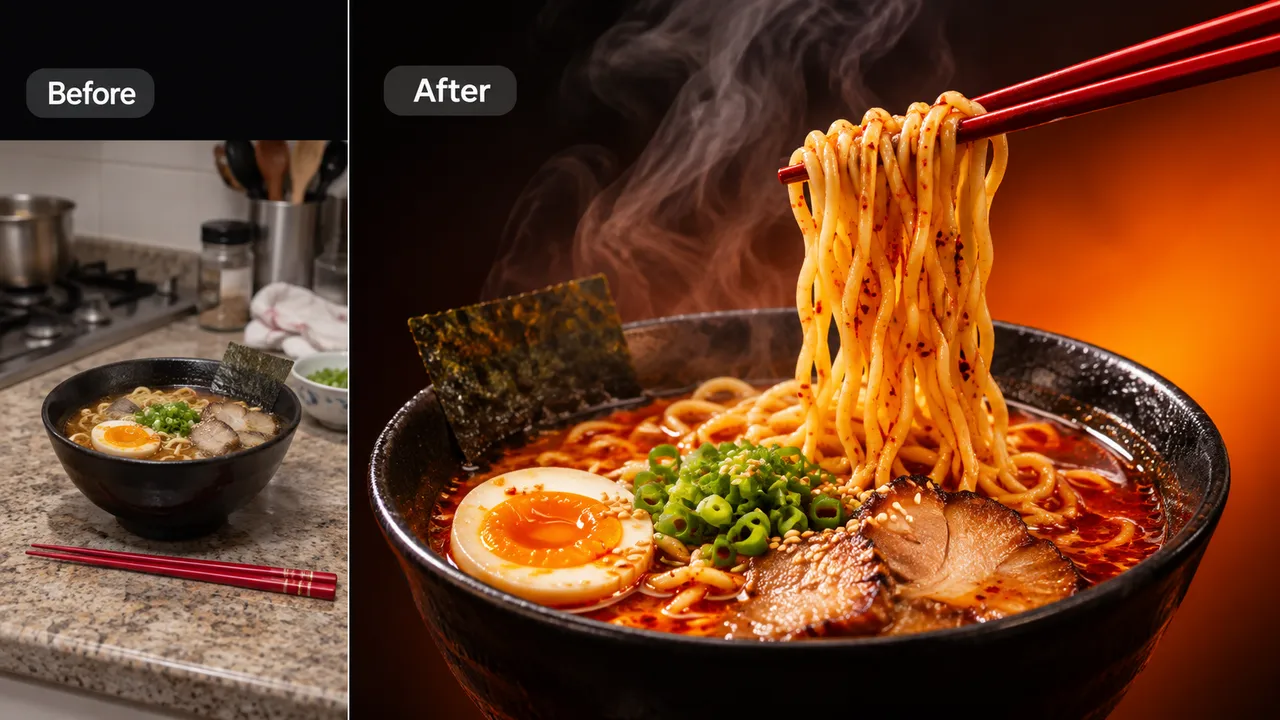
Thumbnail Maker
Upload a reference photo, include your headline in the prompt, and select a 16:9 output when available.
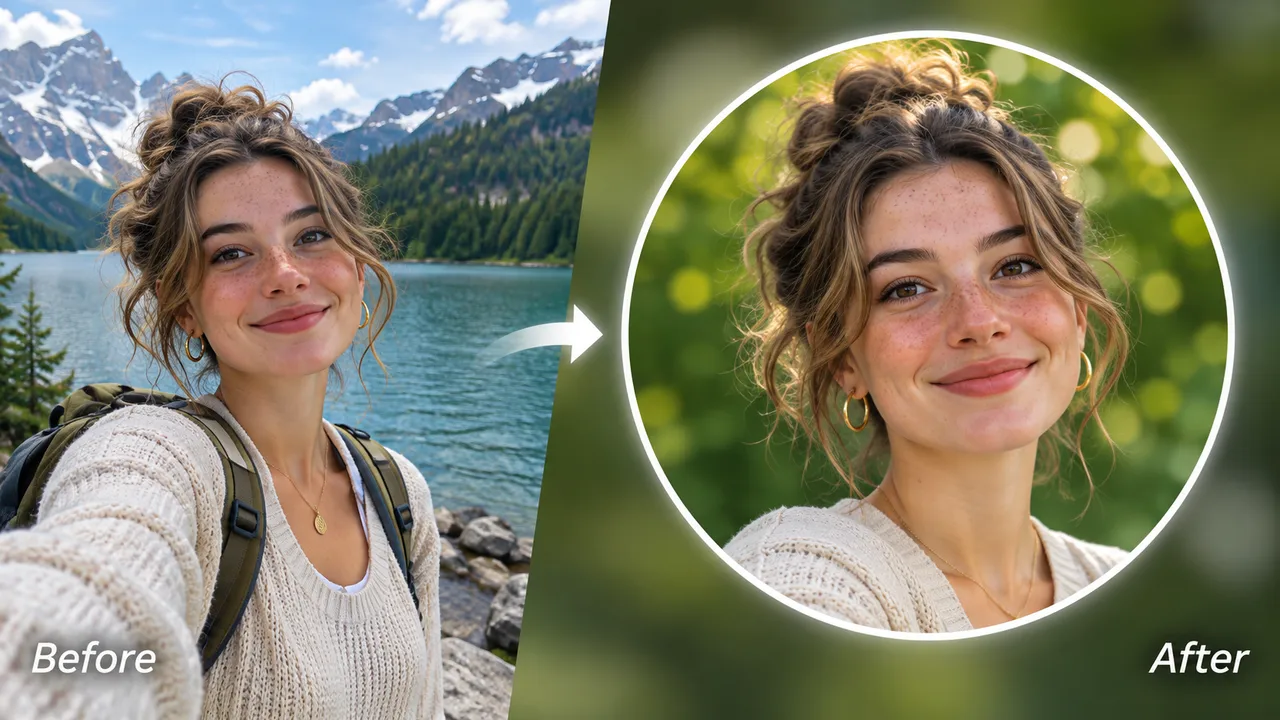
Profile Picture Maker
Upload a portrait, describe the look you want, and choose a square output for a profile picture.
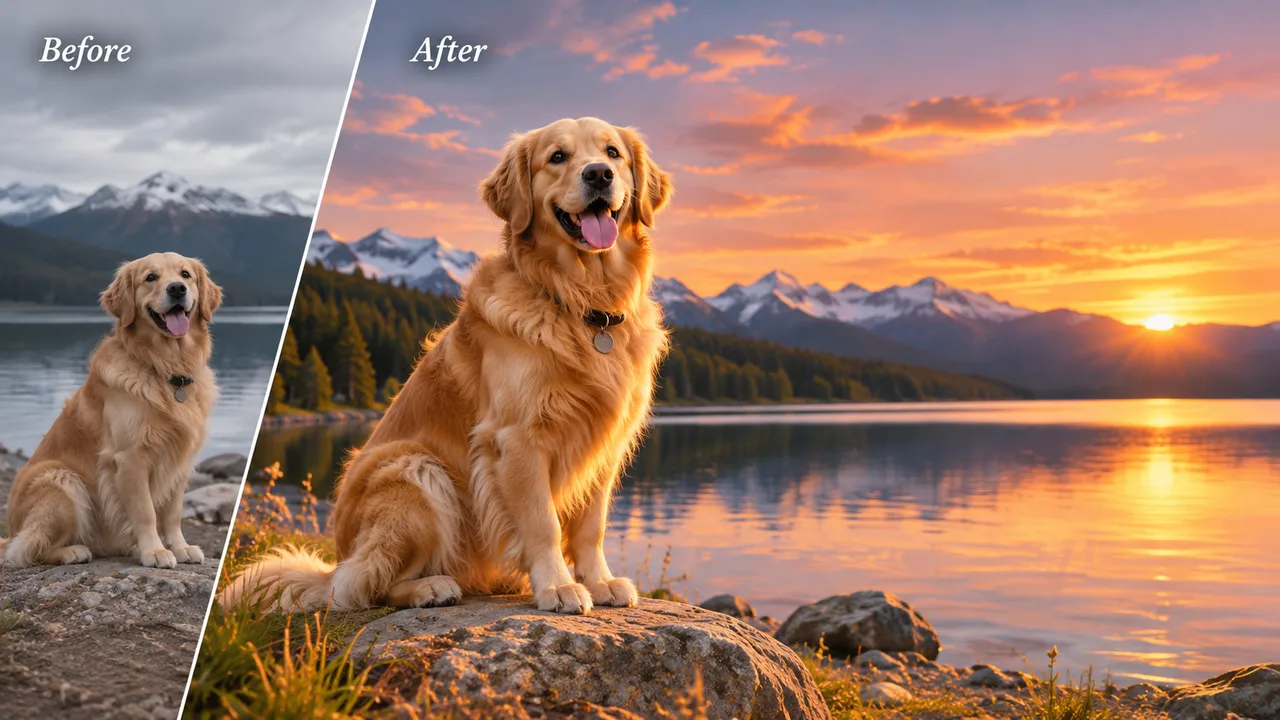
Banner Maker
Upload a reference image, describe the banner and any wording, then choose a wide output ratio.
AI 2D to 3D Converter
Choose a 3D render style for a photo or illustration. The result is a still image.