
Banner Maker
Banner Maker
Turn a reference image into a wide cover for a channel, social profile or campaign. Leave margin around your headline and main subject.
- Build a wide composition
- Keep important details centered
- Leave room for the headline

See what changes
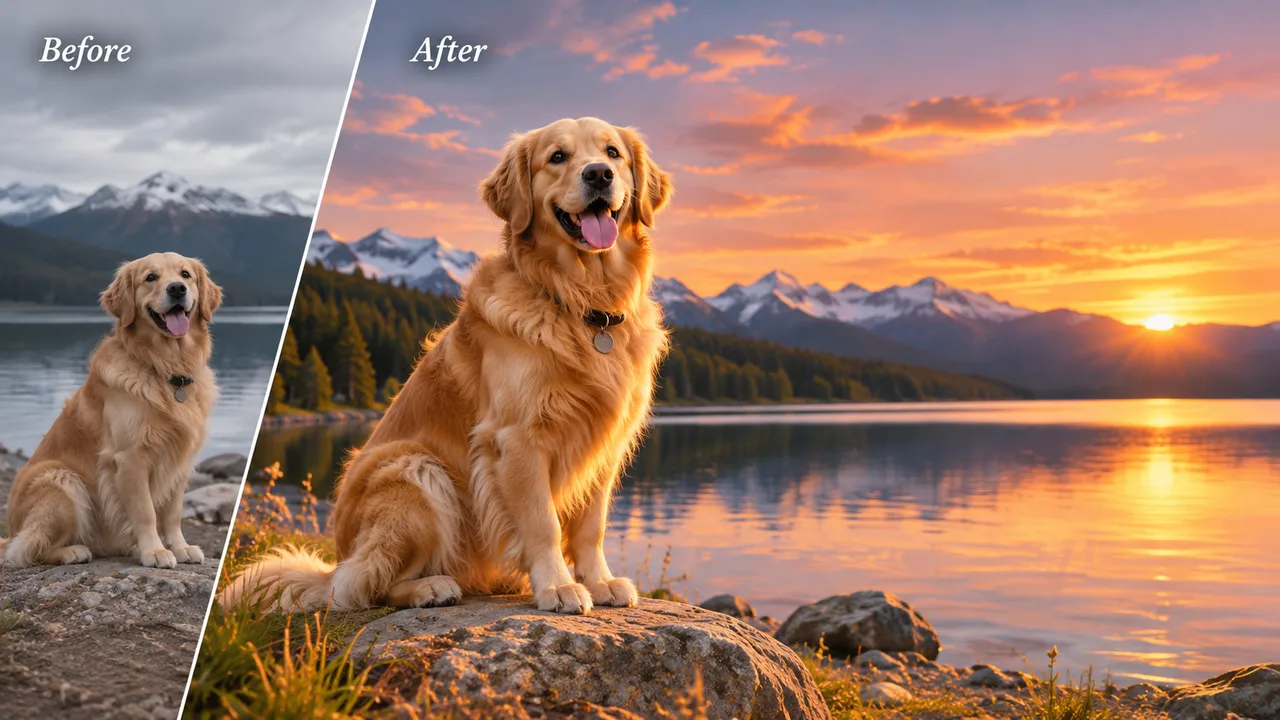
Drag the divider in each example to compare the original and the result.


What you can do
Illustrative comparisons
Build a wide composition
Balance the main subject and background with enough room for the platform crop.
Generate image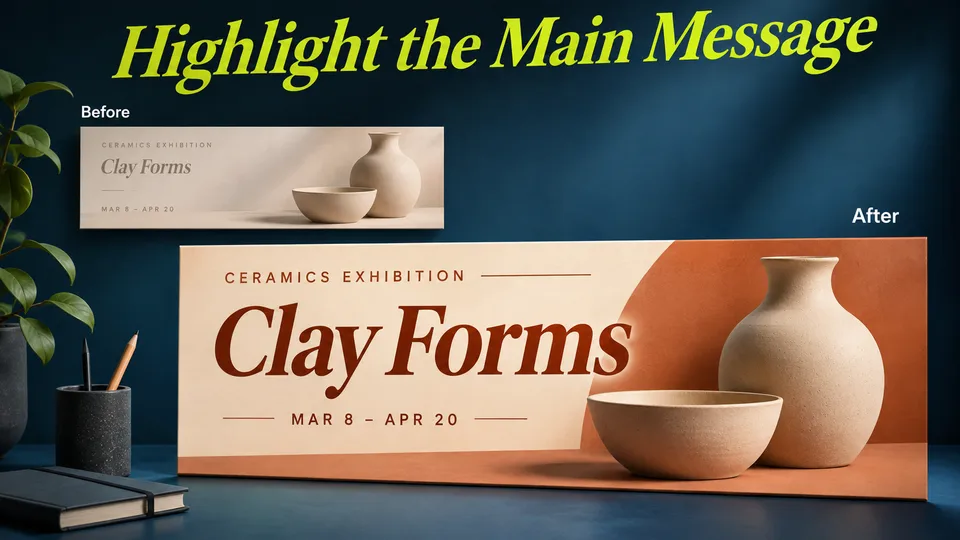
Keep important details centered
Keep the logo, headline and main subject in a central safe area for mobile and desktop.
Generate image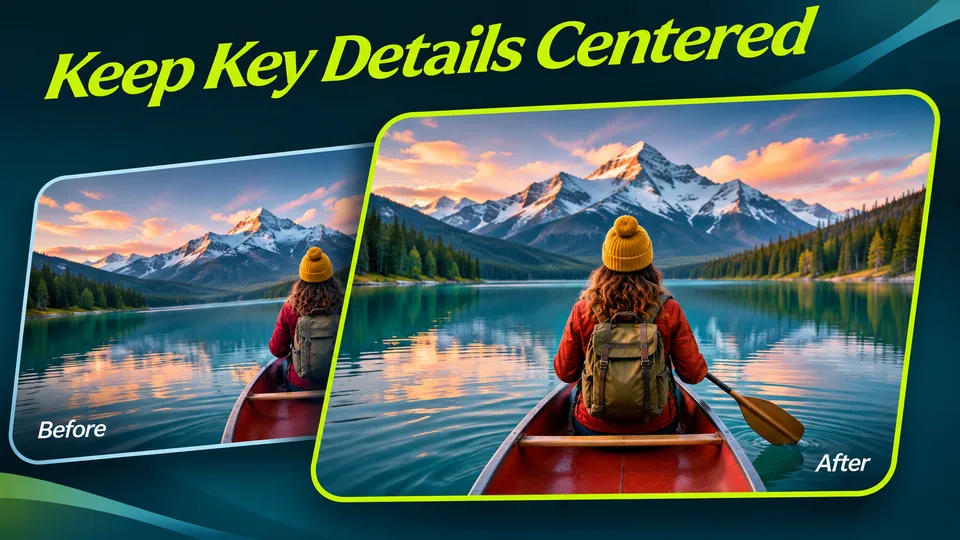
Leave room for the headline
Ask for open space on one side and check that text stays legible over the background.
Generate image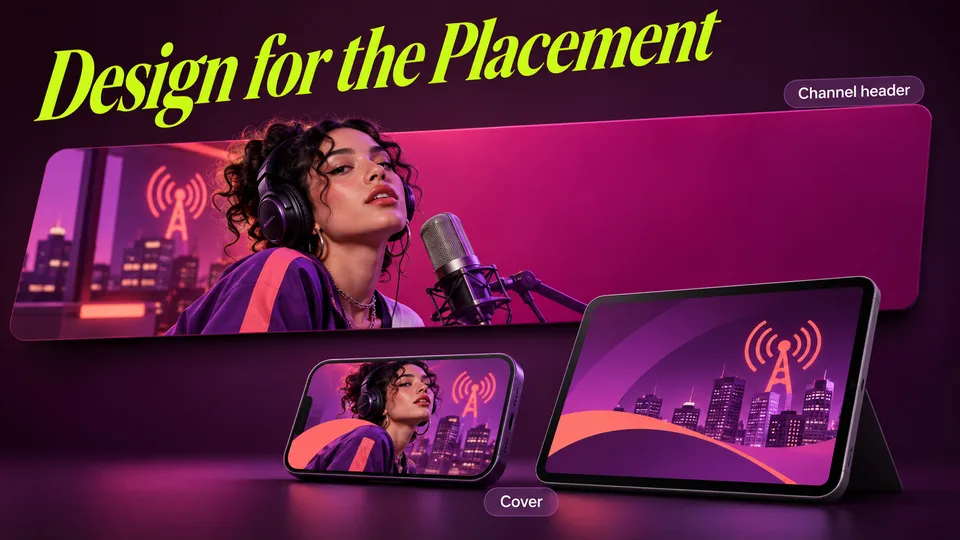
How to use this tool
Add a reference image
Upload a photo, graphic or brand reference. Write the headline exactly as it should appear.
Review the prompt and settings
Choose a wide ratio supported by the model. Keep the headline and logo near the center.
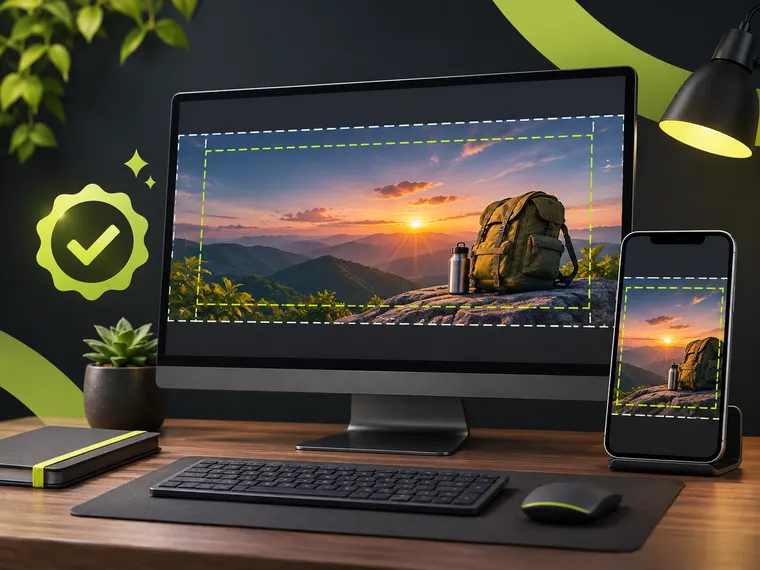
Preview and save
Review the spelling and check the destination’s mobile and desktop previews before publishing.
Manual workflow vs. HHGen
Manual workflow
- Prepare the source material or write a brief
- Build and refine the result in an editor
- Check the final version and export it
 HHGen · Banner Maker
- Add a reference image
- Review the prompt and settings
- Preview and save
Privacy for uploads and generated images
See whether your images appear publicly and how to manage or delete them.
No automatic gallery listing
Uploads and generated images don’t automatically appear in the public gallery. Keep image URLs and share links private, as someone with a working link may be able to view the image.
Delete your uploads at any time
Uploads are stored in your assets. Sign in and open Assets → My uploads to delete them at any time.
Manage your generated images
Sign in to delete results from your assets. You can restore them from Recently Deleted while the files remain available.
FAQ
Frequently asked questions
Related AI tools
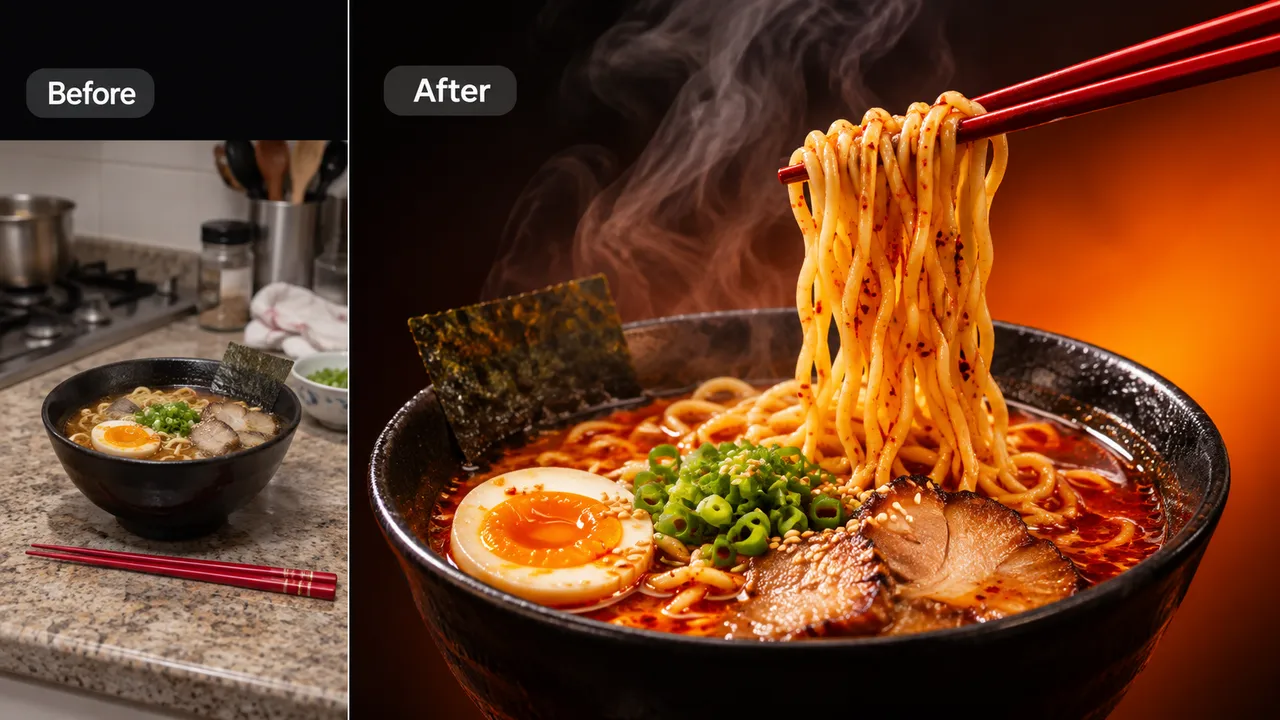
Thumbnail Maker
Upload a reference photo, include your headline in the prompt, and select a 16:9 output when available.
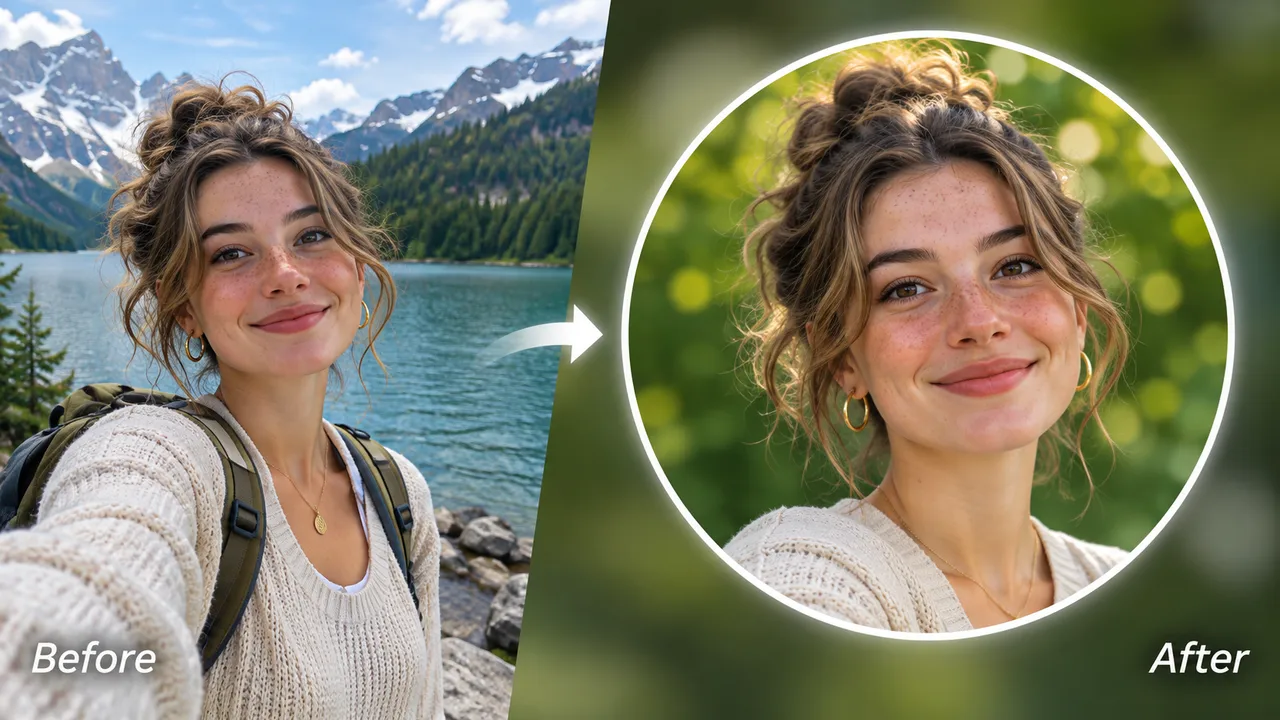
Profile Picture Maker
Upload a portrait, describe the look you want, and choose a square output for a profile picture.
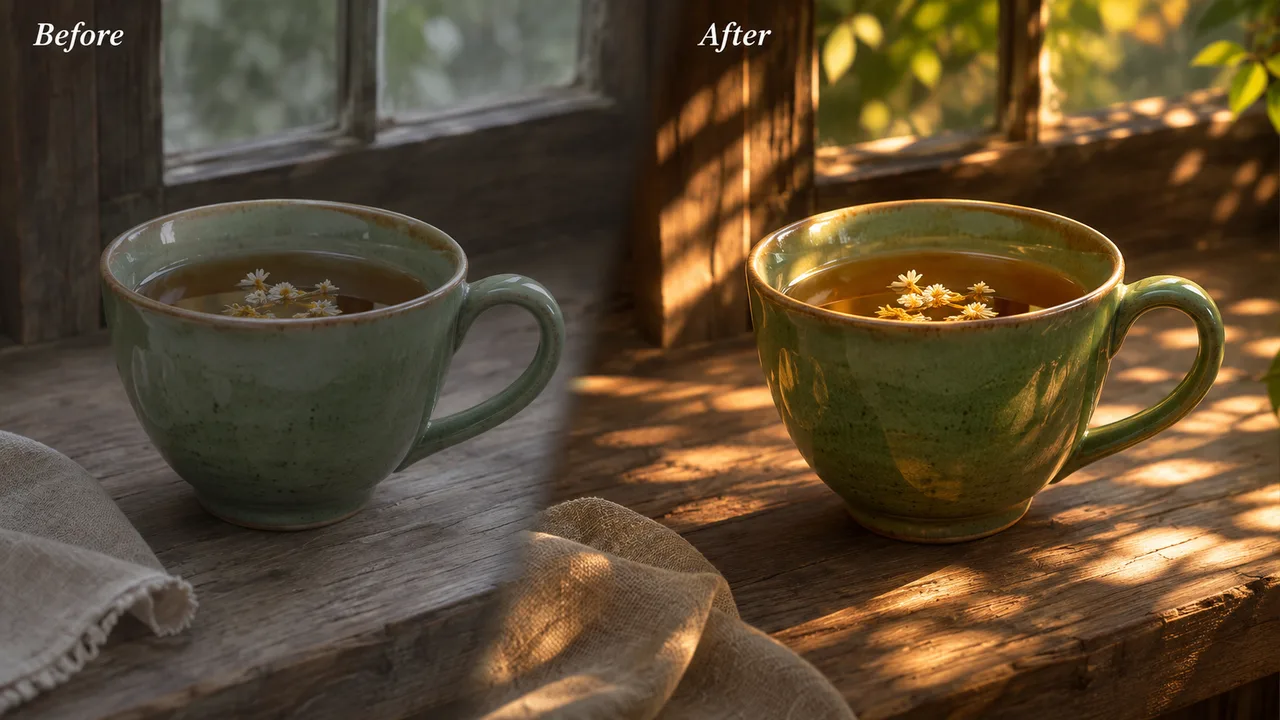
AI Photo Editor
Upload a photo and describe what to edit and what to keep. Download the result at its generated resolution.
Banner Maker
Turn a reference image into a wide cover for a channel, social profile or campaign. Leave margin around your headline and main subject.