
 Image
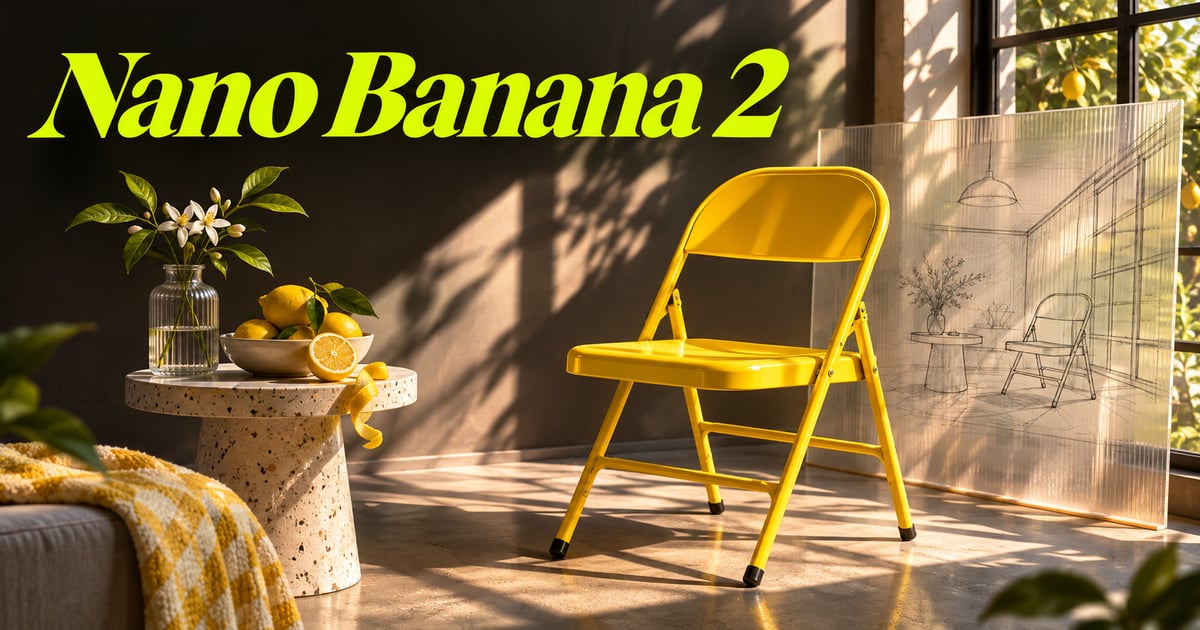
Nano Banana 2
Fast and affordable image generation model powered by Google Gemini Flash Image. Ideal for everyday creative tasks with flexible resolutions from 0.5K to 4K.
- 1K – 4K
- References · 14
Compare the AI image and video models available on HHGen, then choose a model page or generator that suits your project.
Choose an AI image model for creating images from text, editing images, working with reference images, making posters and product visuals, or creating high-resolution artwork.
ImageFast and affordable image generation model powered by Google Gemini Flash Image. Ideal for everyday creative tasks with flexible resolutions from 0.5K to 4K.
 Image
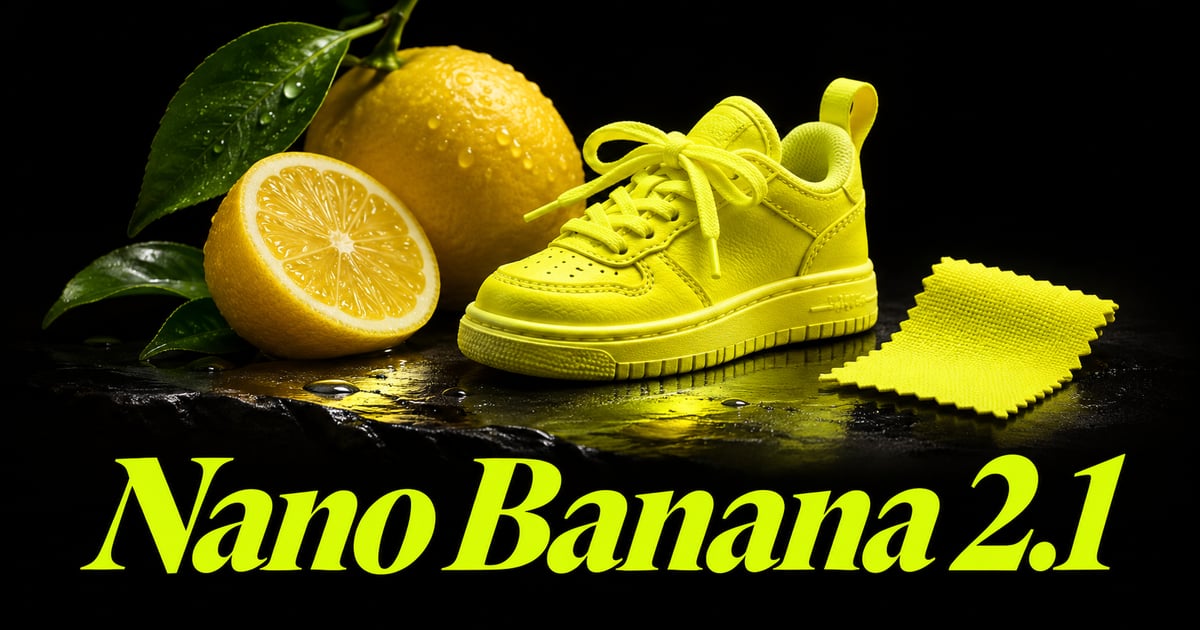
Google's efficient Gemini image model with sharper text rendering and steadier characters and styles across multi-turn edits. Choose 1K, 2K or 4K and use up to 10 reference images.
 Image
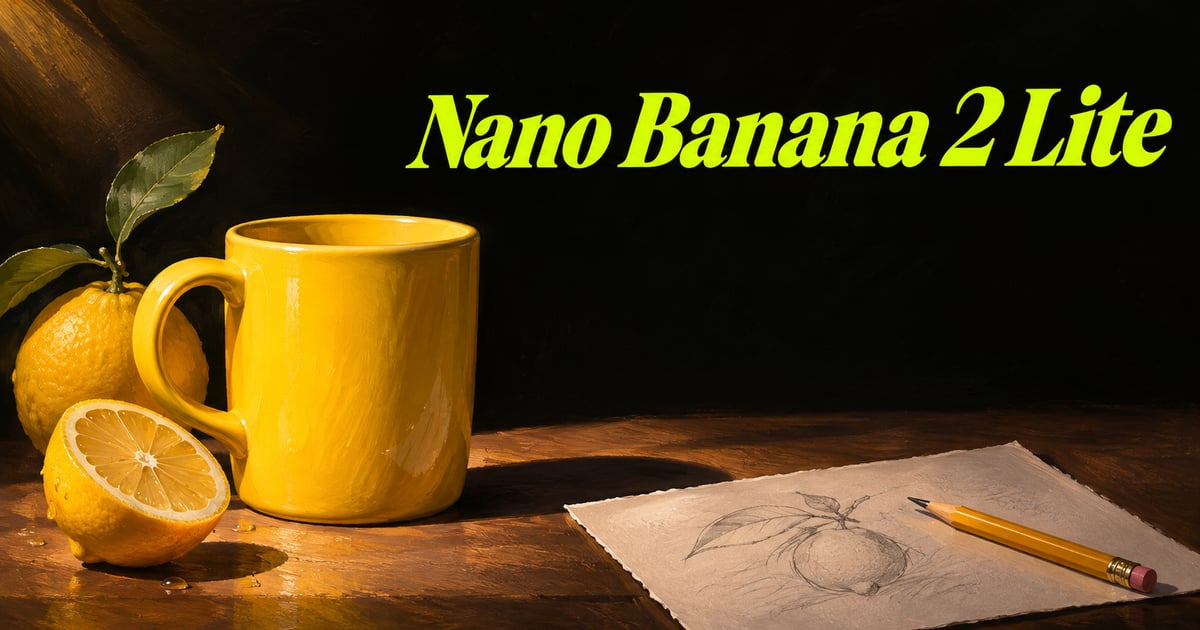
Google DeepMind’s fastest, most efficient Gemini Image model, designed for responsive image generation and editing. Use it for quick drafts, edits guided by reference images, and 1K visual exploration at a lower credit cost.
 Image
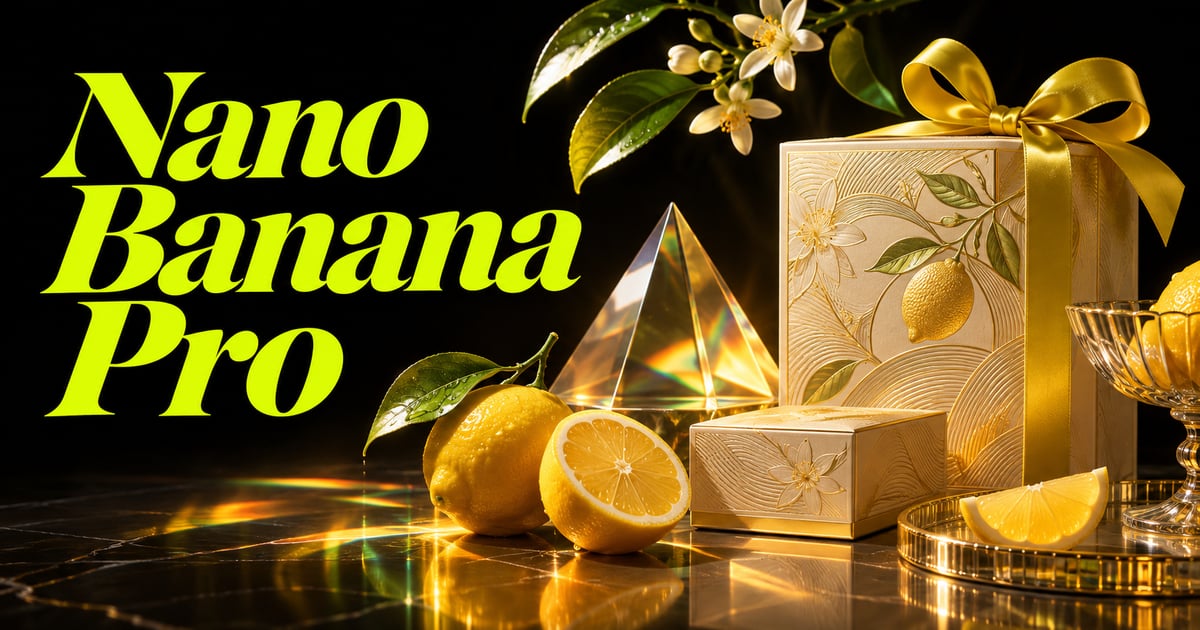
Generate detailed images with consistent results across a series.
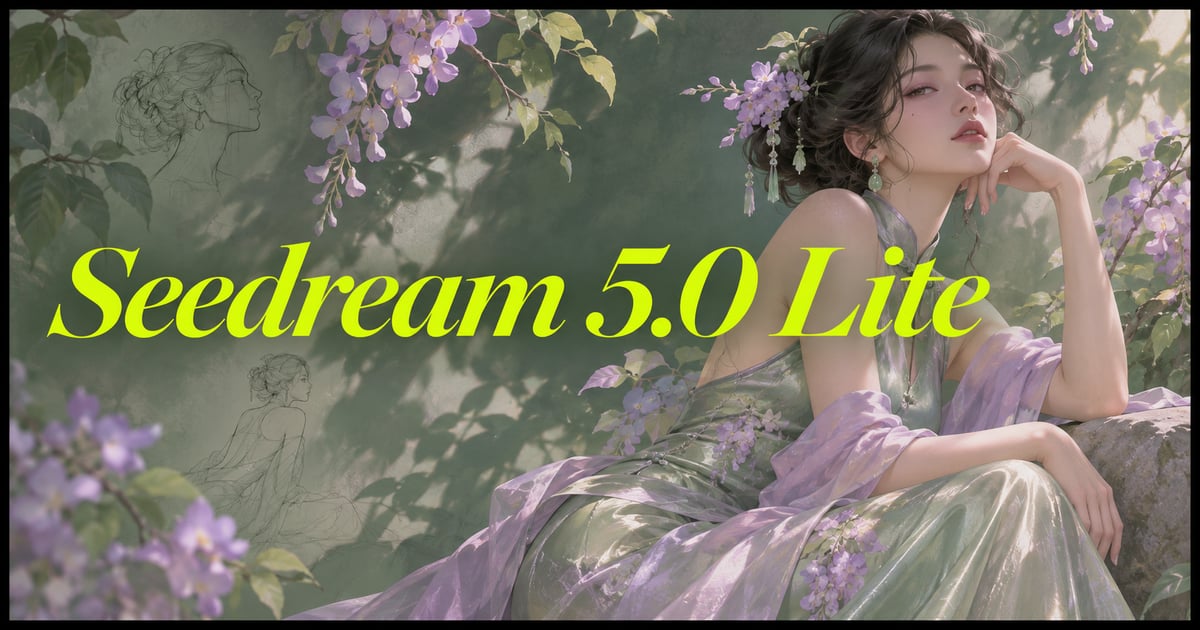
 Image
Seedream 5.0 Lite is a lightweight image generation model from ByteDance. It supports batches of up to 15 images and is suited to frequent creative work. Available speed and image quality depend on your model and settings.
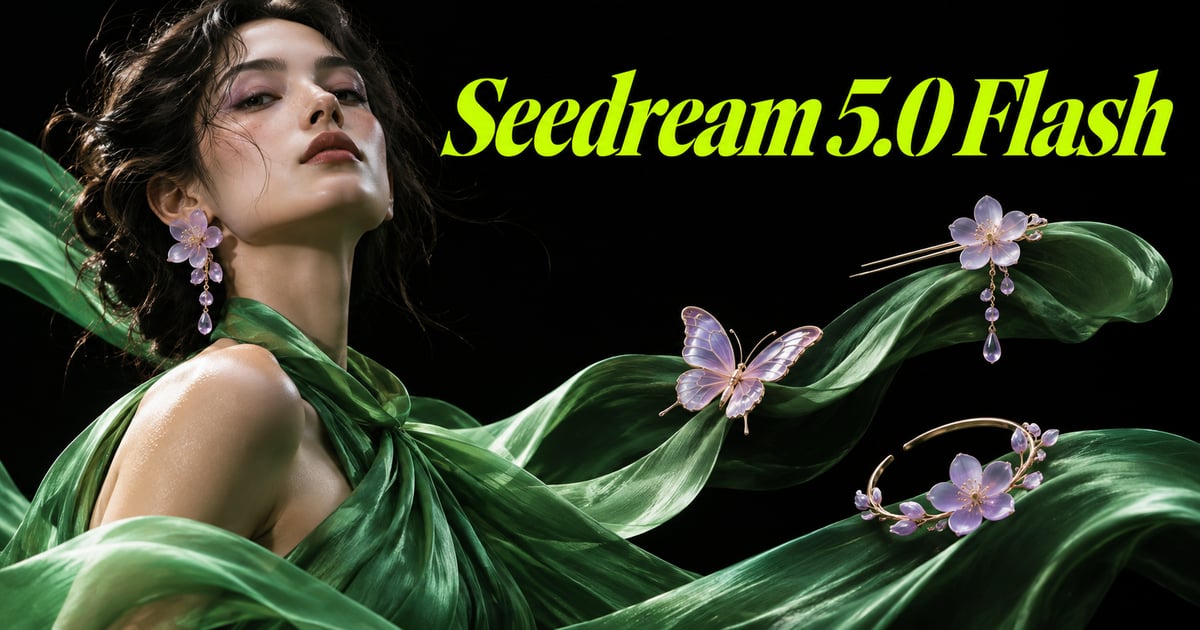 Image
Fast Seedream 5.0 image generation and editing with up to 10 references and 1K, 1.5K, or 2K output.
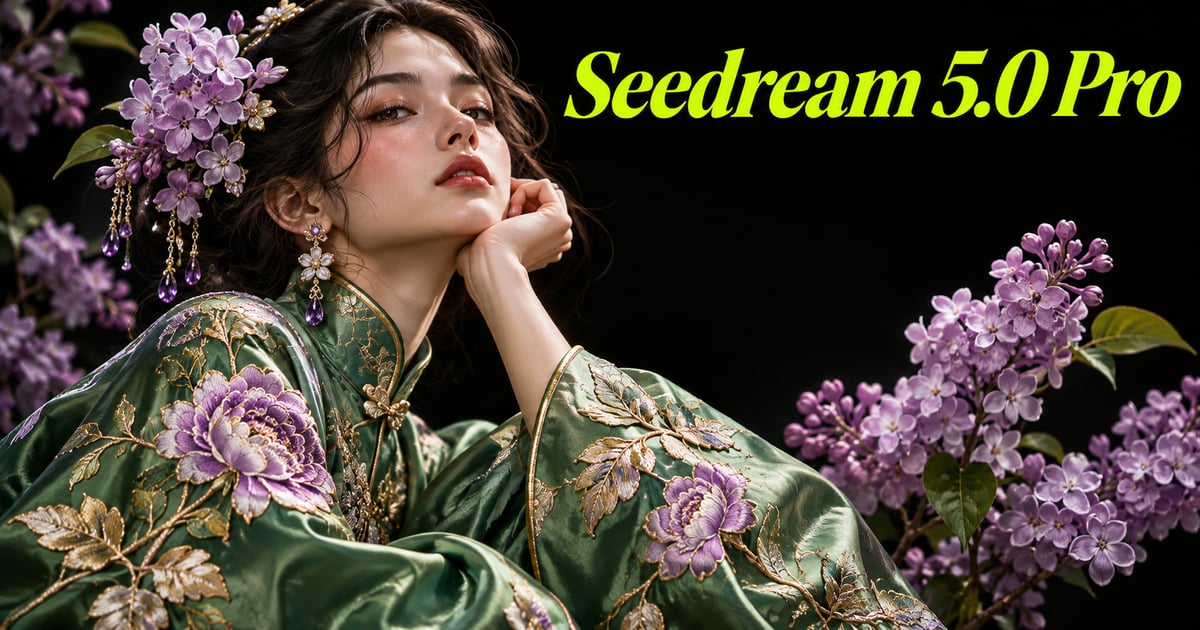 Image
Create images from text or use reference images to refine composition, color and details. Check the generator for available output settings.
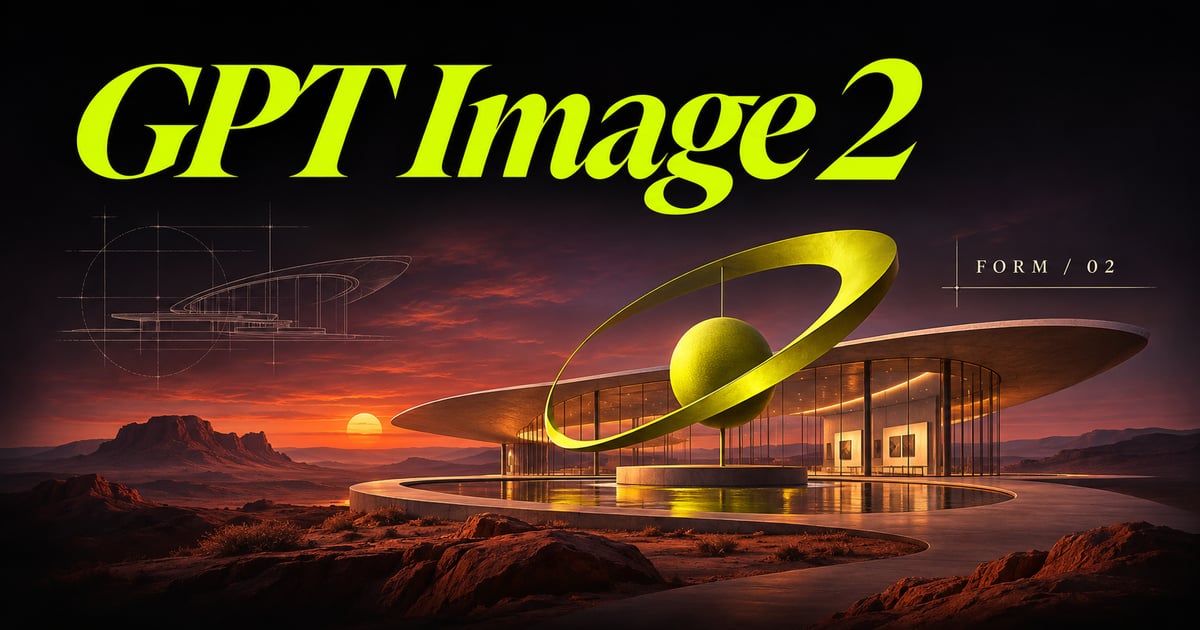
 Image
A multi-reference image generation model that accepts up to 16 reference images for projects requiring consistency, detailed direction and complex commercial workflows. Supports both text-to-image and image-to-image generation.
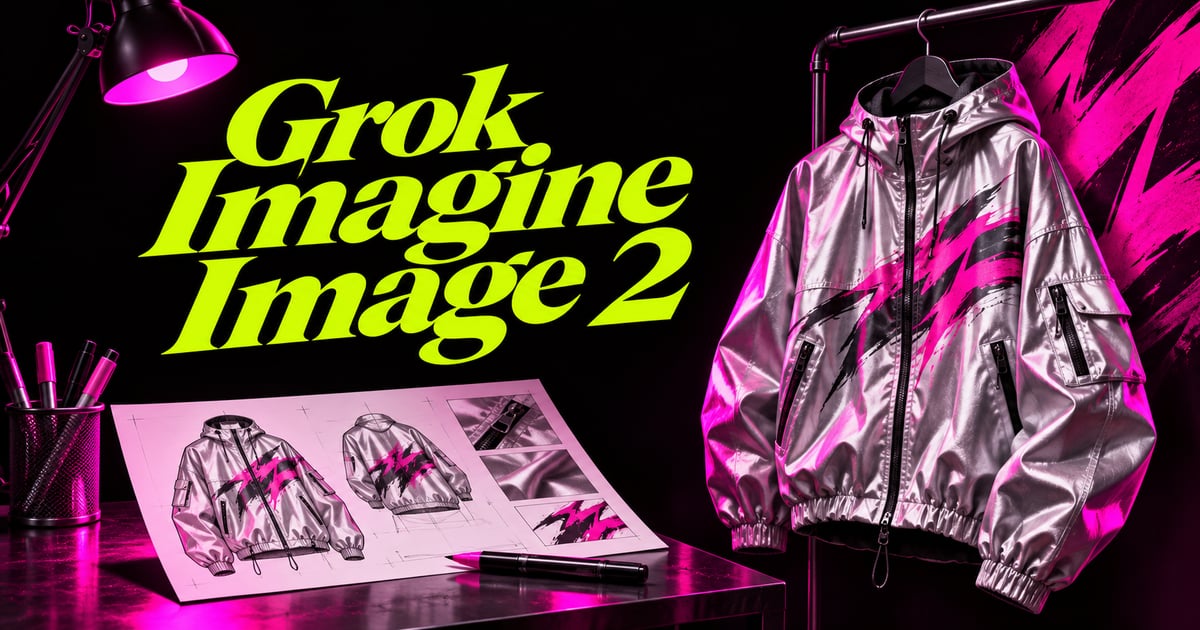
 Image
xAI’s Grok Imagine Image 2.0 model for generating and editing images.
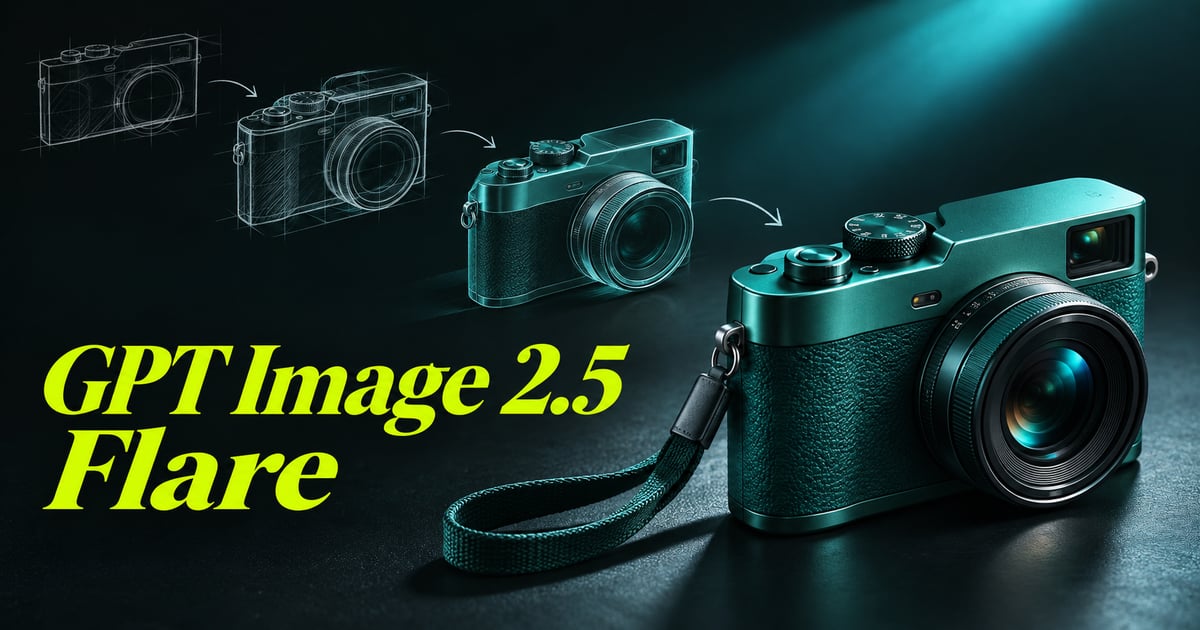 Image
OpenAI’s GPT Image 2.5 Flare supports detailed image generation and editing guided by reference images. It handles text-to-image and image-to-image tasks and accepts up to 16 reference images.
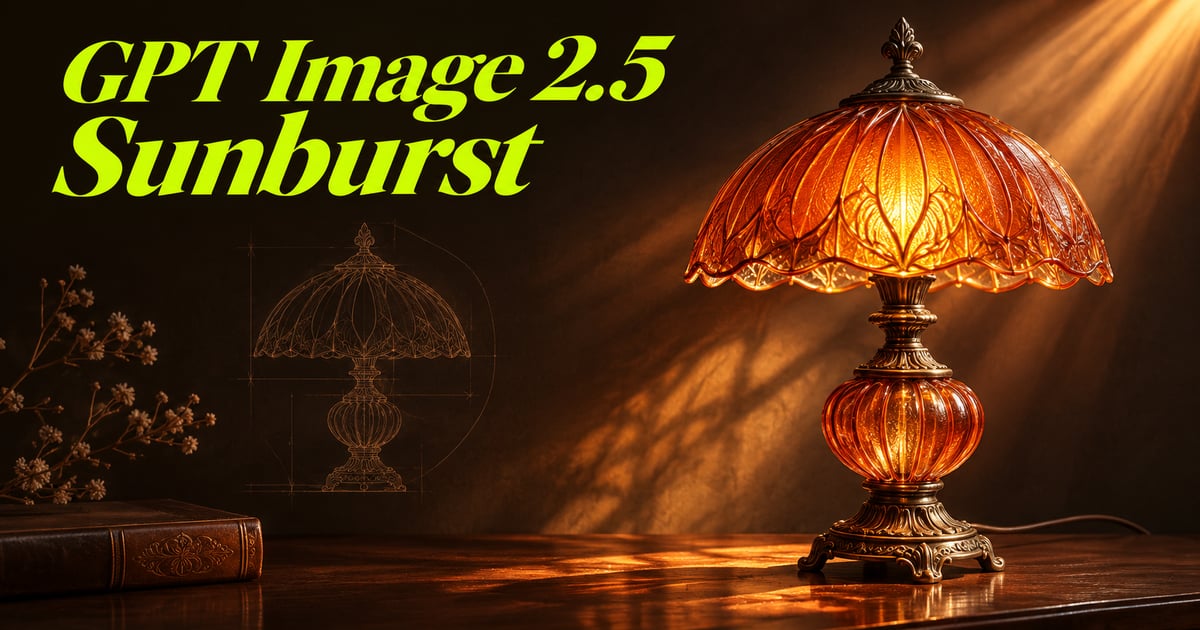 Image
OpenAI’s GPT Image 2.5 Flare supports detailed image generation and editing guided by reference images. It handles text-to-image and image-to-image tasks and accepts up to 16 reference images.
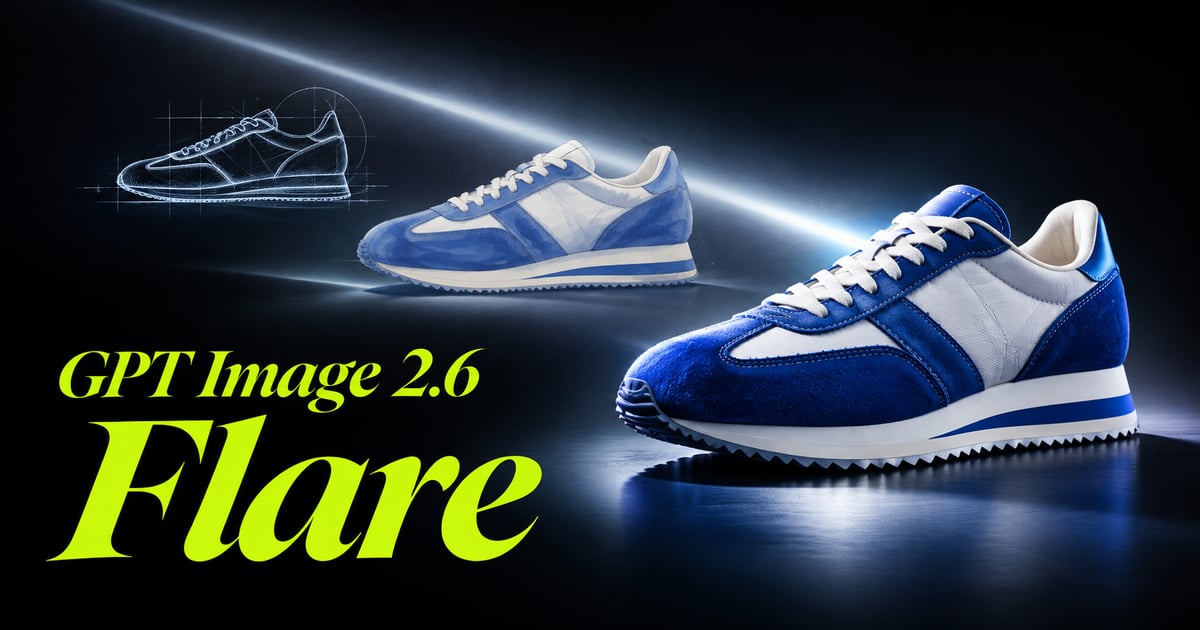 Image
Text to image · Edit an image
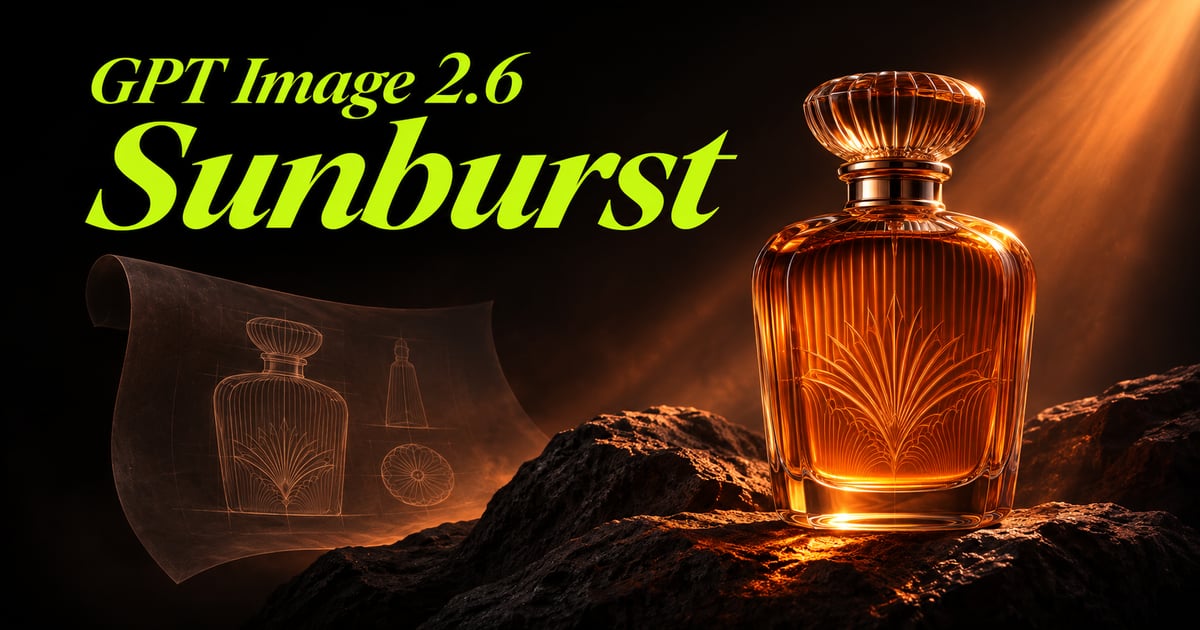 Image
Text to image · Edit an image
Choose an AI video model for creating videos from text or images, controlling motion, making short clips and exploring cinematic styles.
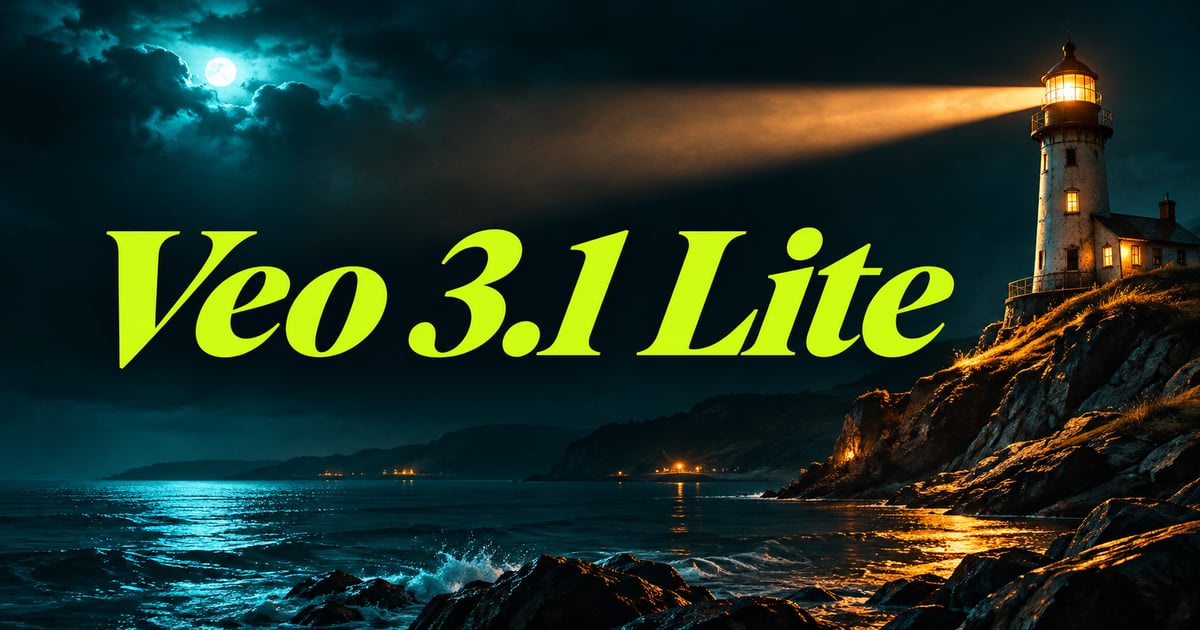
 Video
Text to video · Image to video
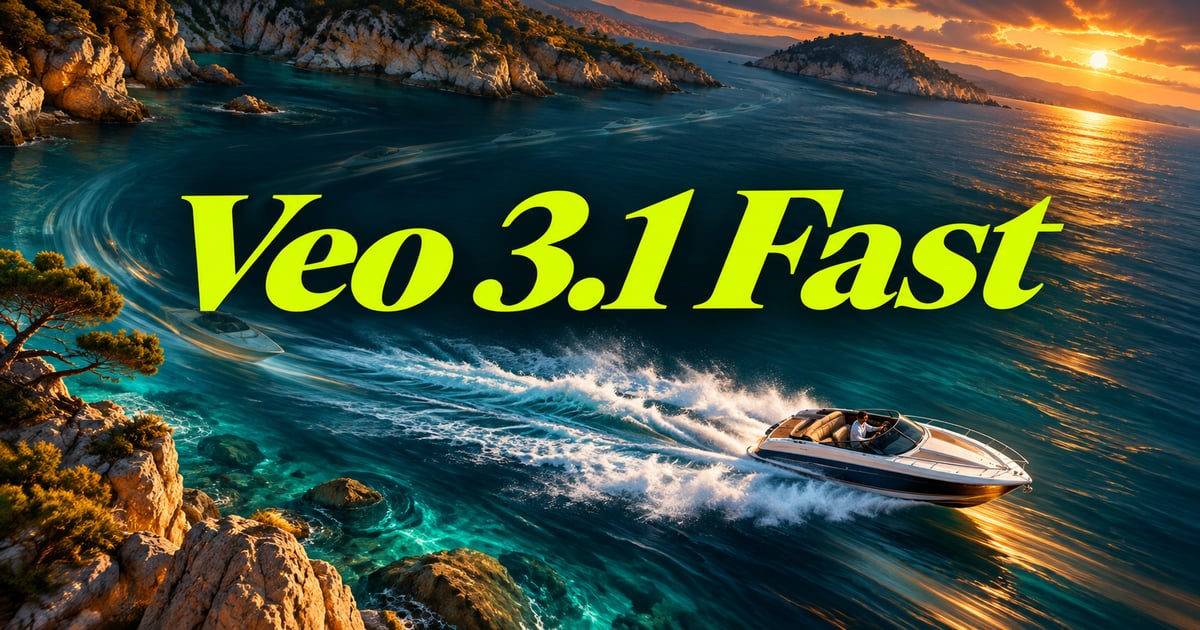 Video
Text to video · Image to video
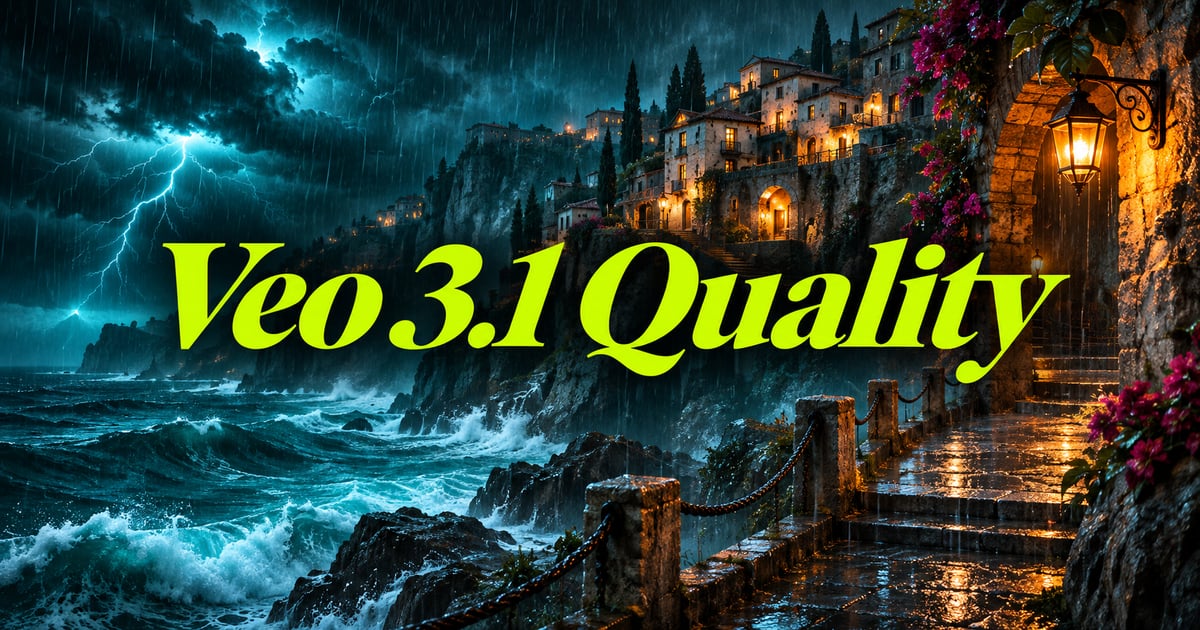 Video
Text to video · Image to video
 Video
Create 3–30-second videos from text, first and last frames, or visual references. Choose 720p or 1080p and review motion, sound and credits before developing your next edit.
 Video
Text to video · Image to video
 Video
Text to video · Image to video
 Video
Image to video · Video to video
 Video
Seedance 2 is ByteDance's video model for visual quality, complex motion and multimodal references. It supports text, image, video and audio inputs for projects that need consistent visuals and considered camera movement.
 Video
Wan 3.0 Video is Alibaba's multimodal video model for text-to-video, image-to-video, reference-to-video and video editing with image, video and audio references.
 Video
Wan 3.0 Video Prime is a higher-fidelity Wan variant for text-to-video, image-to-video and reference-to-video projects that need more controlled movement and composition.
 Video
ByteDance's latest video model supports text-to-video, first/last-frame image-to-video and multimodal reference-to-video. It supports image, video and audio references, 480p or 720p output, durations of 4–30 seconds and optional audio generation.
 Video
Seedance 2 Fast is a faster, lower-cost version of Seedance 2 for prompt testing and quick iterations. It also supports image, video and audio references.
 Video
Seedance 2 Mini is the lightest Seedance 2 variant, with a lower per-second cost. It supports first and last frames and multimodal references, making it suitable for drafts, social clips and testing.
 Video
Grok Imagine Video 1.5 Preview is an image-to-video model that requires one reference image. It outputs video at a fixed 720p resolution and supports durations of 5 to 15 seconds and aspect ratios of 16:9, 9:16, 3:2, 2:3, 1:1, 3:4 and 4:3.
 Video
Generate 4–15 second videos from text or one starting image, with native audio. Choose 480p, 720p or 1080p; 1080p is upscaled from 720p. For image-to-video, the source image determines framing. Multiple reference images, end frames and video inputs are not supported.
 Video
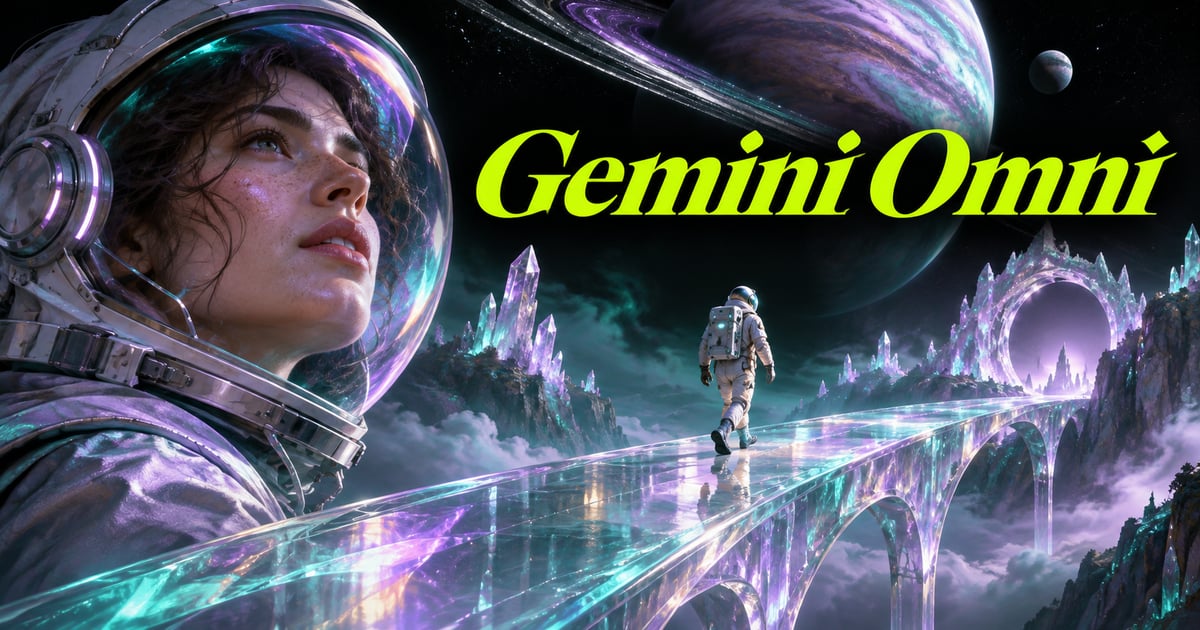
Gemini Omni is Google's video generation model powered by Omni-Flash-Ext. It supports text-to-video, single-image-to-video and combining three image references. Duration options are 4, 6, 8 or 10 seconds, with 16:9 and 9:16 aspect ratios.
 Video
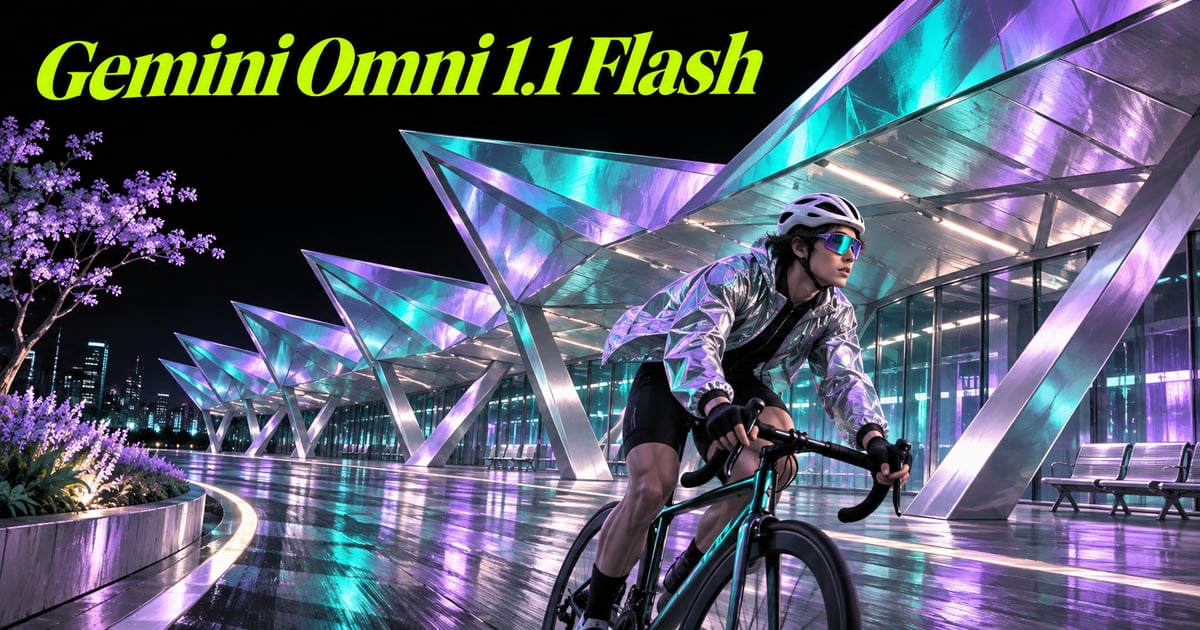
Gemini Omni 1.1 Flash is Google's multimodal video model for text-to-video, image-to-video and video creation with reference images. It offers flexible duration and multiple aspect ratios.
 Video
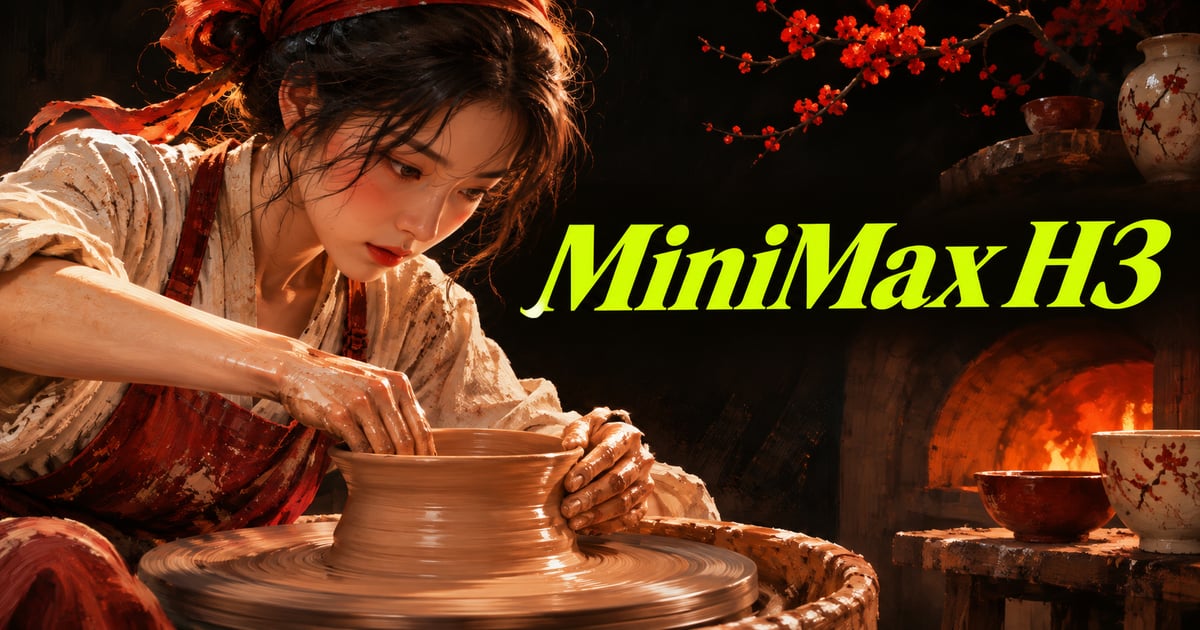
MiniMax H3 is a multimodal video model for text-to-video, image-to-video and reference-to-video. It offers 768p and 2K output, flexible duration options and reference audio.
 Video
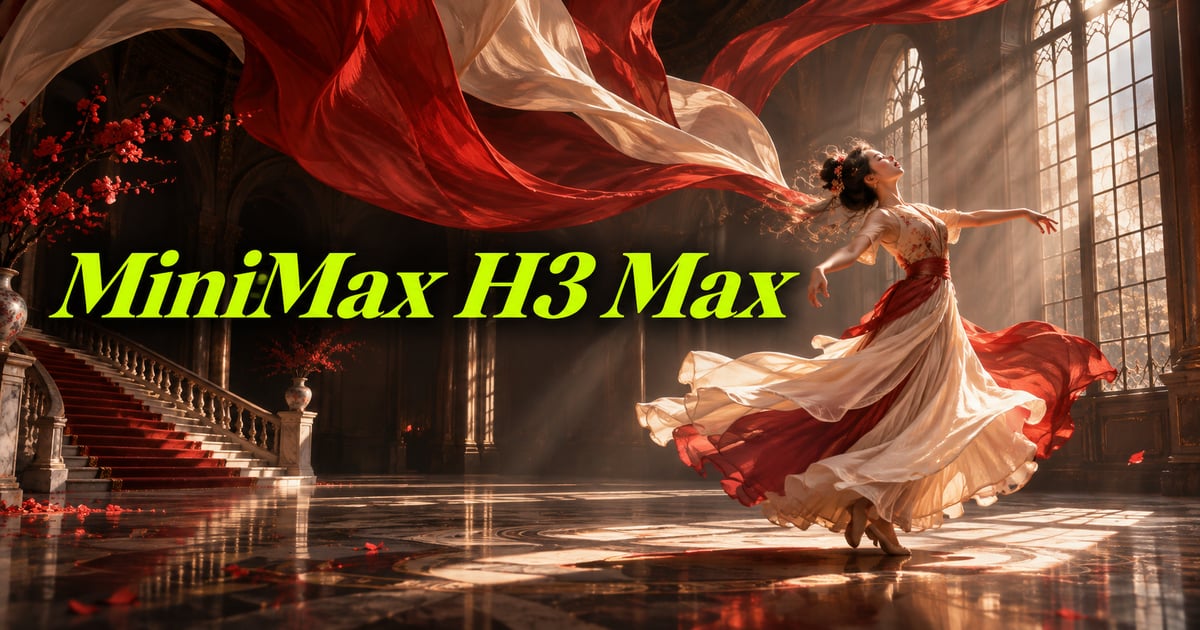
MiniMax H3 Max is a fast video model with 480p and 768p output. It supports text-to-video, first- and last-frame animation, and multimodal references using images, video and audio. Clips are 5 to 15 seconds long.
 Video
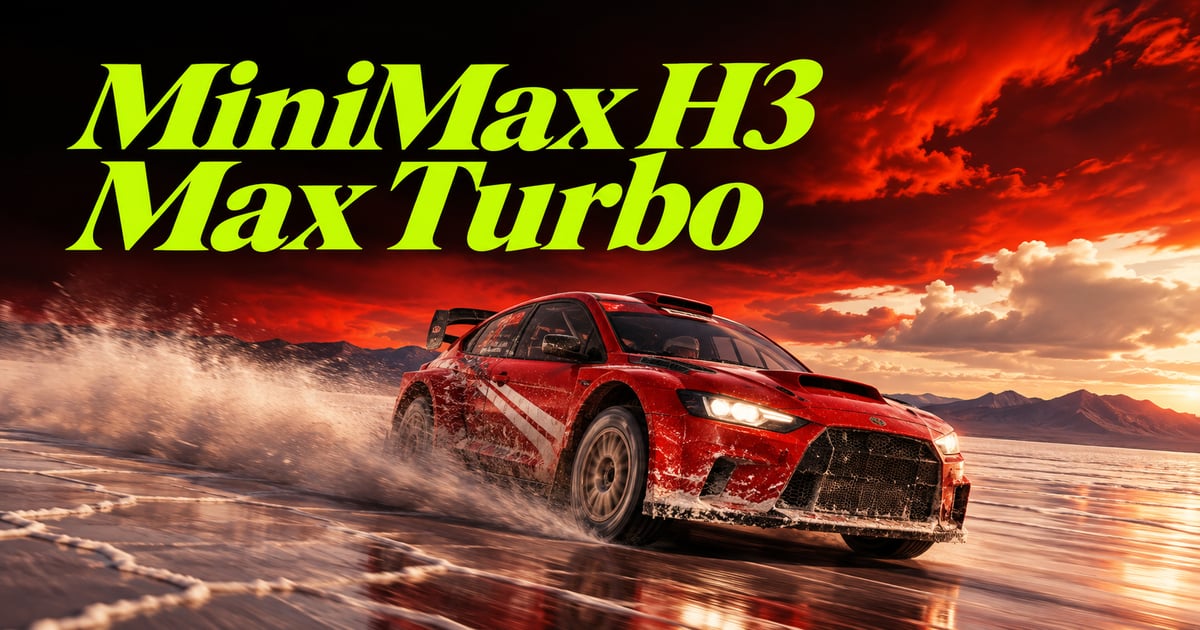
MiniMax H3 Max Turbo is the lower-cost speed tier for 480p and 768p text-to-video and first-frame image-to-video, with an optional last frame.
 Video
Turn text or one image into 1–15-second videos up to 1080p, with optional generated audio.
 Video
PixVerse V6 supports text-to-video, image animation, first/last-frame transitions and video extension. It offers 360p to 1080p output, clips from 1 to 15 seconds, and optional native audio.
 Video
Animate one first-frame image or use up to 15 reference images. Choose 540p–4K and a duration of 3–16 seconds for image animation or 1–16 seconds for references. Synchronized audio is optional. Reference audio must be MP3 and 3–12 seconds long.
 Video
Text to video · Image to video
 Video
Text to video · Image to video
How to create images, choose a model and check credits in HHGen.
Can't find what you need? Contact support