
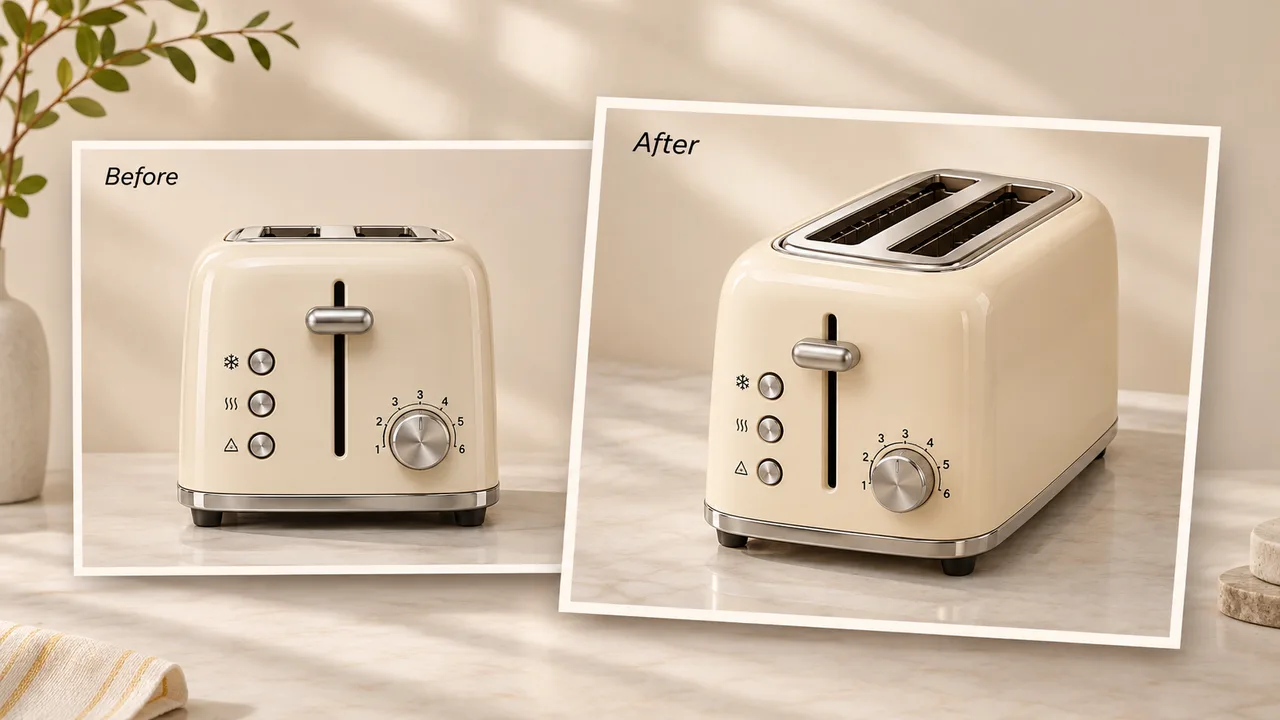
AI Product Angle Generator
Generate new camera angles of the same product from one reference photo with AI while keeping shape, materials and design details consistent.
- Low three-quarter view of a folding lamp
- High angle on a coral speaker
- Side view of a suede hiking boot
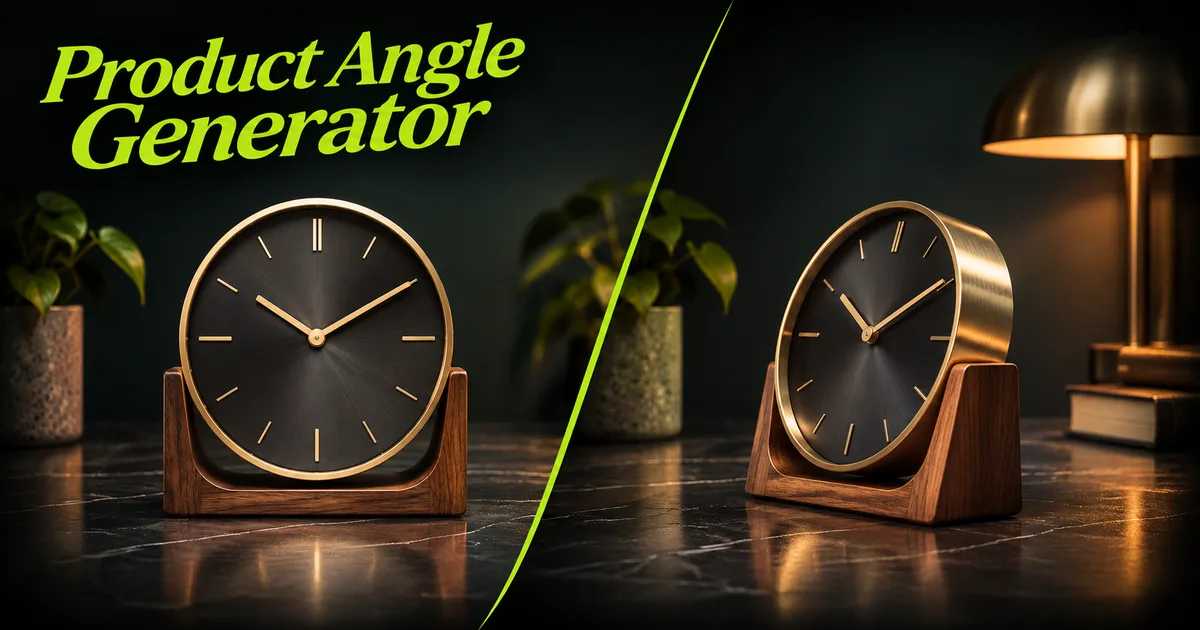
See what changes
Illustrative image · Drag the divider in each example to compare the original and the result.


What you can do
Illustrative comparisons
What you can change
Use the reference to show the same product at a new camera angle. Keep the shape, materials and visible design details consistent.
Open workspace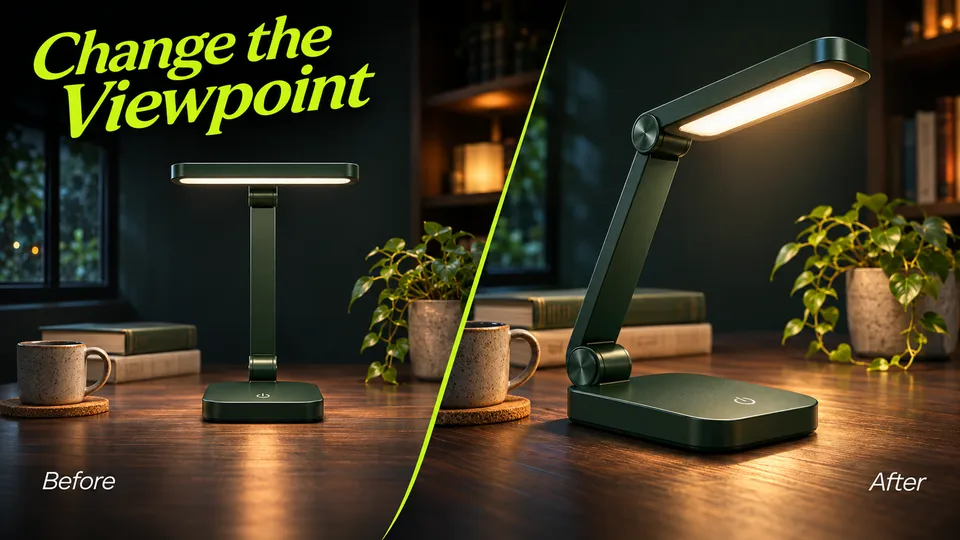
Where to use it
Low three-quarter view of a folding lamp · High angle on a coral speaker · Side view of a suede hiking boot
Open workspace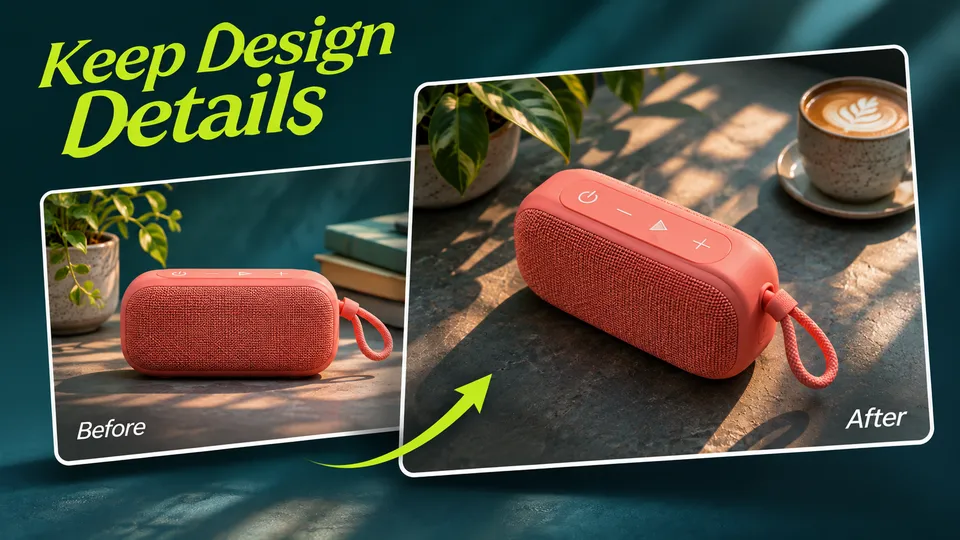
Inputs and output settings
Upload a clear image with the subject and the area you want to change visible. Use the settings in the workspace. Available aspect ratios, formats and other options depend on the current model and workflow.
Open workspace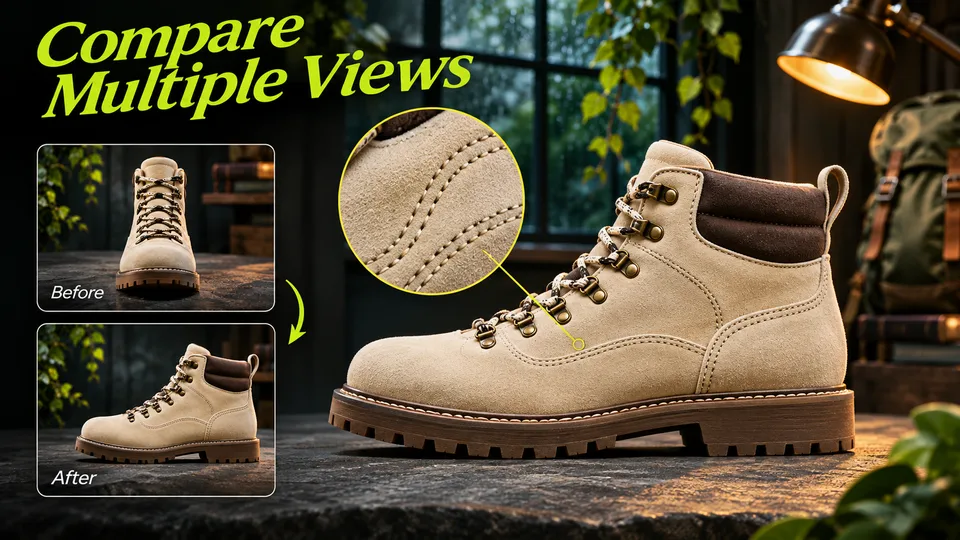
How to use this tool
Add a reference image
Upload a clear image with the subject and the area you want to change visible.
Review the prompt and settings
Use the suggested prompt as a starting point. Specify the change you want and the details to keep.
Preview and save
Check that the result fits your brief. Refine the prompt if needed, then download the version you want to keep.
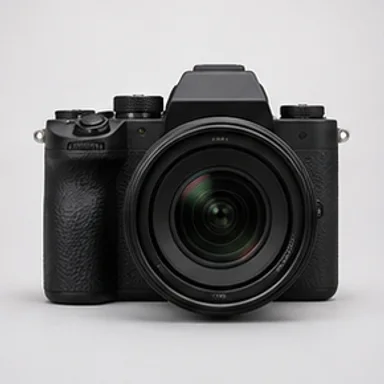
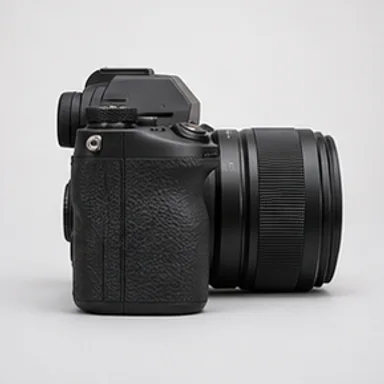
Manual workflow vs. HHGen
Manual workflow
- Prepare the source material or write a brief
- Build and refine the result in an editor
- Check the final version and export it
 HHGen · AI Product Angle Generator
- Add a reference image
- Review the prompt and settings
- Preview and save
Privacy for uploads and generated images
See whether your images appear publicly and how to manage or delete them.
No automatic gallery listing
Uploads and generated images don’t automatically appear in the public gallery. Keep image URLs and share links private, as someone with a working link may be able to view the image.
Delete your uploads at any time
Uploads are stored in your assets. Sign in and open Assets → My uploads to delete them at any time.
Manage your generated images
Sign in to delete results from your assets. You can restore them from Recently Deleted while the files remain available.
FAQ
Frequently asked questions
Related tools
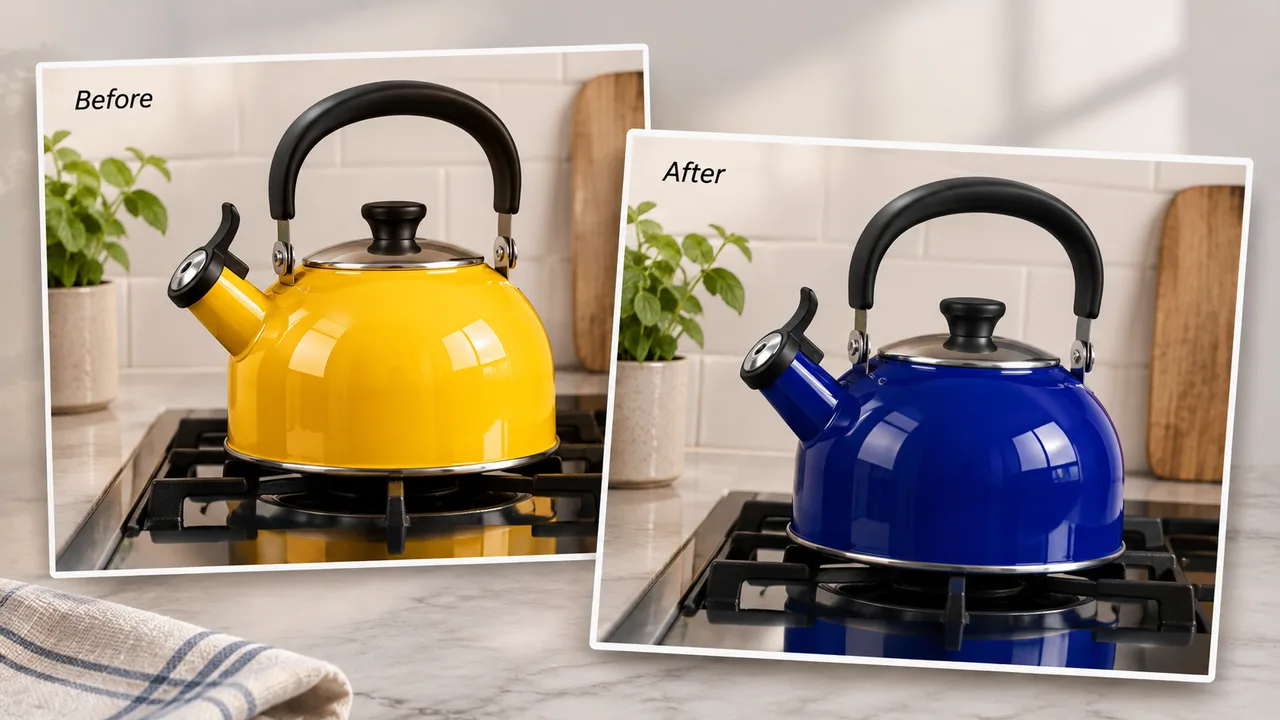
AI Product Recolor
Name the product part and its target color. Preserve the shape, surface texture, markings, reflections and background.
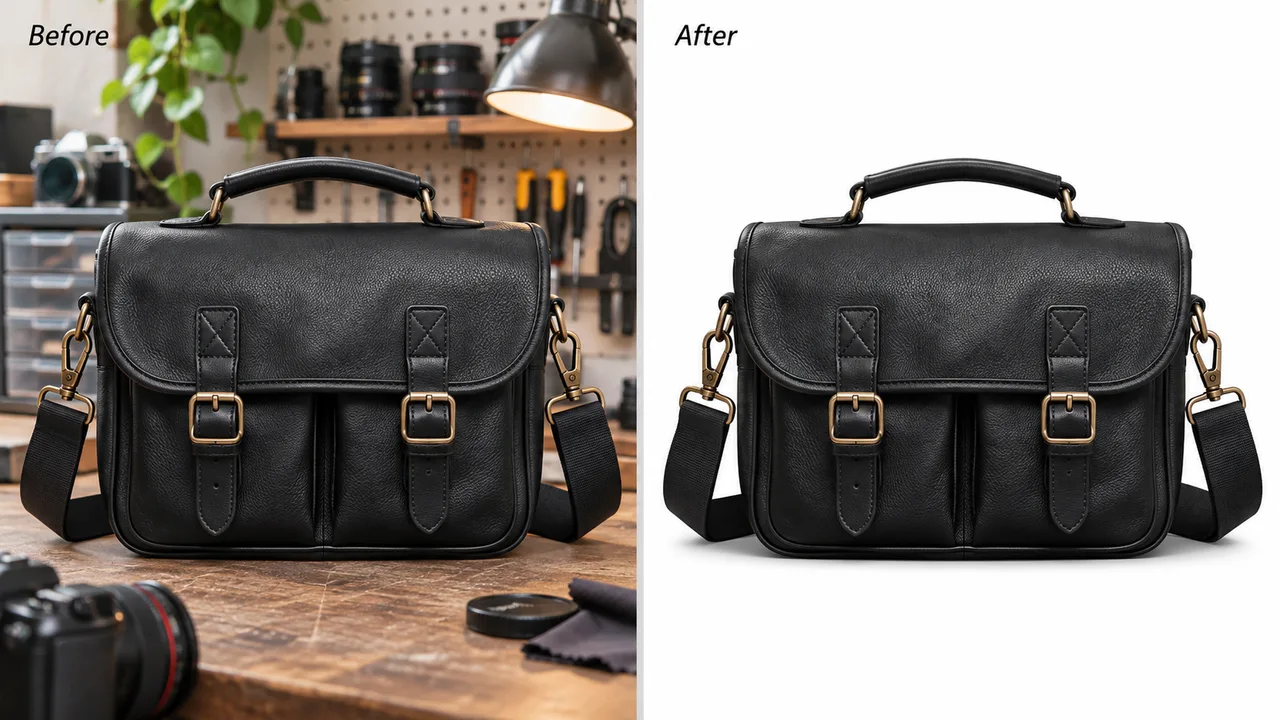
AI White Background Generator
Place the uploaded product on pure white while keeping its shape, edge detail and a soft contact shadow.
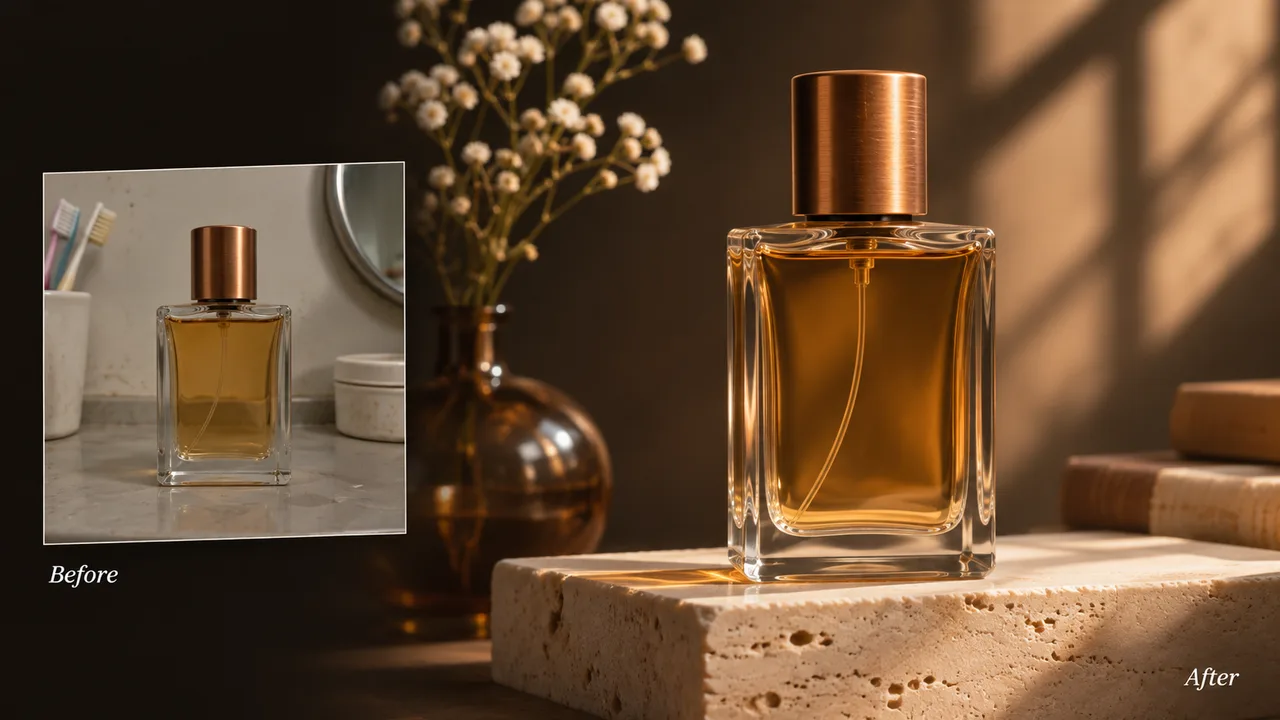
Studio Photo Backgrounds
Place a product in a studio scene. Choose a preset or add a background reference while keeping its packaging and lettering intact.
AI Product Angle Generator
Use the reference to show the same product at a new camera angle. Keep the shape, materials and visible design details consistent.